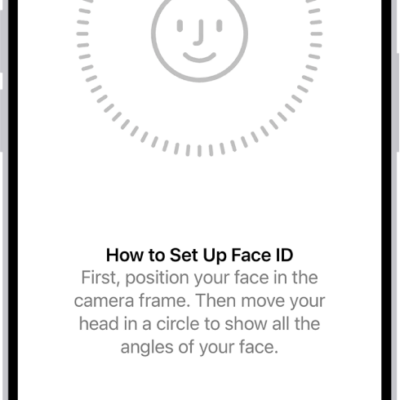
Use Face ID (on supported models) to securely and conveniently unlock iPhone, authorize purchases and payments, and sign in to many third-party apps by simply glancing at your iPhone. Face ID data is encrypted, isn’t saved to iCloud, and doesn’t leave your iPhone.
You can also add an alternate appearance, use Face ID while wearing a face mask, or temporarily disable Face ID. And you can choose when to use Face ID.
To use Face ID, you must also set a passcode on your iPhone.
Set up Face ID or add an alternate appearance
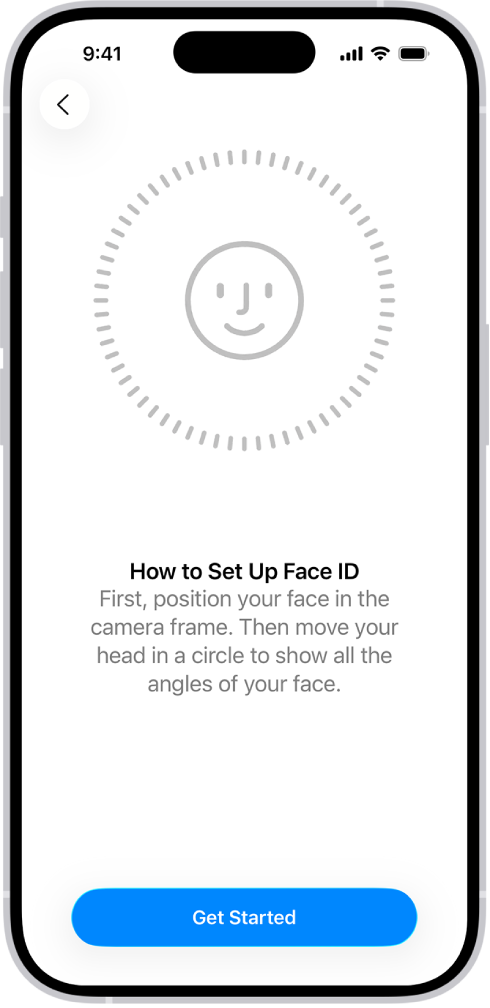
- If you didn’t set up Face ID when you first set up your iPhone, go to Settings > Face ID & Passcode > Set up Face ID, then follow the onscreen instructions.
- To set up an additional appearance for Face ID to recognize, go to Settings > Face ID & Passcode > Set Up an Alternate Appearance, then follow the onscreen instructions.
Choose when to use Face ID
To authorize payments, unlock your iPhone, open password-protected apps, and automatically fill in passwords, you can use Face ID.
Go to Settings > Face ID & Passcode, then turn on options below Use Face ID For.
Use Face ID while wearing a face mask
On iPhone 12 models or later, Face ID can unlock your phone even while you’re wearing a face mask or another covering that blocks your mouth and nose.
When you turn on Face ID with a Mask, Face ID analyzes the unique characteristics around your eyes, and it works with all of the Face ID options you turn on in Settings > Face ID & Passcode.
Note: Set up Face ID for full-face recognition only, and it’s most accurate.
Go to Settings > Face ID & Passcode, then do any of the following:
-
Allow Face ID to work while you wear a face mask: Turn on Face ID with a Mask, then follow the onscreen instructions.
Important: If you usually wear glasses, you can improve the accuracy of Face ID by wearing a pair of transparent glasses (not sunglasses) when you turn on Face ID with a Mask.
- Add a pair of transparent glasses (not sunglasses) to your appearance: Tap Add Glasses, then follow the onscreen instructions.
- Don’t allow Face ID to work while you wear a face mask: Turn off Face ID with a Mask.
On any iPhone model that supports Face ID, you can also use Apple Watch to unlock iPhone while you wear a face mask.
Temporarily disable Face ID
You can temporarily stop Face ID from unlocking your iPhone.
- Press and hold the side button and either volume button for 2 seconds.
- After the sliders appear, press the side button to immediately lock iPhone.
If you don’t touch the screen for a minute or so, iPhone locks automatically.
Face ID is enabled again the next time you unlock iPhone with your passcode.
Turn off Face ID
- Open Settings and then tap Face ID & Passcode.
- Do one of the following:
- Turn off Face ID for specific items only: Turn off one or more of the options, such as Password AutoFill.
- Turn off Face ID for face masks: Turn off Face ID with a Mask.
- Turn off Face ID: Tap Reset Face ID.
If your device is lost or stolen, Find My iPhone Lost Mode can prevent Face ID from being used to unlock it.