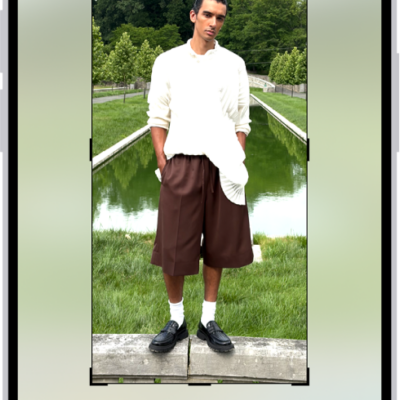
In the Photos app, you can trim a video you recorded on your iPhone to change where it starts and stops. You can also adjust the playback speed, and change the portion of a video that appears in slow motion when you record in Slo-mo mode.
And when you record a video with Spatial Audio, you can use Audio Mix to edit the sound in the Photos app, on supported models.
Here’s how to trim video length, adjust speed, and edit audio on iPhone.
Trim a video
- Open the Photos app on your iPhone.
- Open a video and then tap the Edit button.
- Drag either end of the frame viewer below the video to adjust the start and stop times. Then tap Done.
- Tap Save Video to save only the trimmed video, or Save Video as New Clip to save both versions of the video.
To undo edits after you save, open the video, tap the Edit button, then tap Revert.
Note: A video saved as a new clip can’t go back to the original.
Edit the video playback speed
For a dramatic effect, you can slow down videos captured at a high frame rate.
- Open the Photos app on your iPhone.
- Open a video, tap the Edit button, and then tap Video.
- Tap the Playback Speed button and then tap a playback speed.
Note: The format of the video you captured determines which playback options are available. The larger the format you capture, the more options you get.
Edit the slow-motion section of a video shot in Slo-mo mode
- Open the Photos app on your iPhone.
- Open a video shot in Slo-mo mode and then tap the Edit button.
- Drag the black vertical bars beneath the frame viewer to set where the video is played in slow motion.
Edit sound with Audio Mix
Recording a video with iPhone 16 or later gives you three recording options to choose from: Spatial Audio, Studio, and Mono. If you pick Spatial Audio, you can customize your video’s sound with Audio Mix. And on iPhone 18 Pro models, Audio Mix can isolate music as well as voices.
- Open the Photos app on your iPhone.
- Open a video and then tap the Edit button.
- Tap Audio Mix and then choose one of the following:
- Standard: Play the original audio you recorded.
- In-Frame: Reduce sounds and voices from sources not visible in the video frame.
- Studio: Reduce background sounds and reverb, to make it sound more like you’re recording in a professional studio.
- Cinematic: Put all the voices onto a front-facing track and leave environmental noises in surround, like the audio in movies.
- Drag the slider below the mix options to increase or decrease the effect and background noise levels.
- Tap Done.