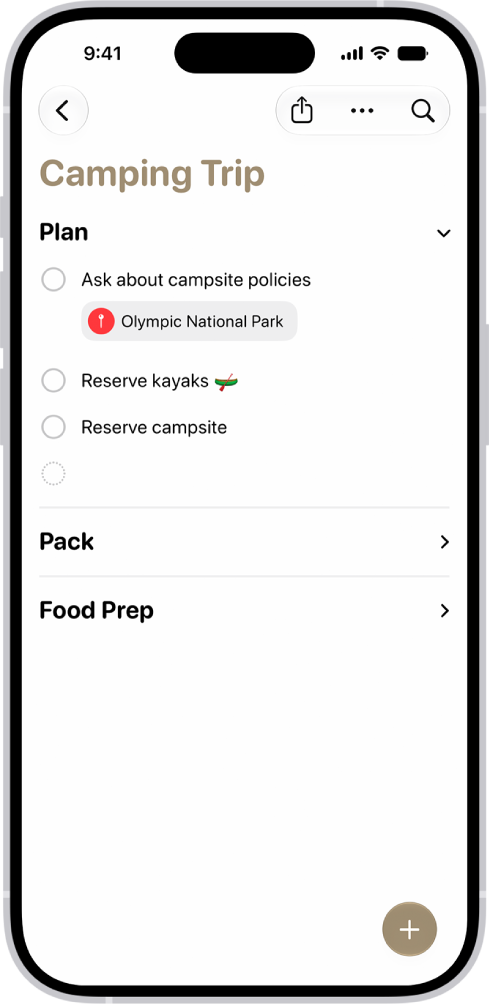
In the Reminders app, you can organize a list with sections and subtasks. You can also view the sections as columns and easily move items to different columns. With Apple Intelligence,* you can also automatically categorize related reminders into sections within a list.
You can change a list’s name, type, color, or icon, and edit several items at once.
Here’s how to edit and organize a list in Reminders on iPhone.
Note: Some Reminders features in this guide only work with updated reminders in iCloud, so they aren’t available when using other accounts.
Edit a list
- Start the Reminders app on your iPhone.
-
While viewing a list, tap the More button and then do any of the following:
- Change the list name, type, color, or icon: Tap Show List Info.
- Edit multiple items: Tap Select Reminders or Select Items, then select the items you want to edit. You can also drag two fingers over the items. Use the buttons to add a date and time, move, delete, assign, complete, tag, or flag the selected items.
-
Sort items by due date, creation date, priority, or title: (not available in all Smart Lists) Tap Sort By. Choose an option.
When you sort or reorder a list, the new order is applied to the list on your other devices where you’re using updated reminders. If you sort or reorder a shared list, other participants also see the new order (if they use updated reminders).
- Remove the list: Tap Delete List.
Manually reorder or recategorize items in a list
- Start the Reminders app on your iPhone.
- While viewing a list, touch and hold an item you want to move and then drag it to a new location.
Organize with sections
- Start the Reminders app on your iPhone.
-
While viewing a list, do any of the following:
- Create a new section: Tap the More button, tap New Section, and enter a name.
- Collapse a section: Tap the Collapse button.
- Expand a section: Tap the Expand button.
- Rename section: Tap the section name, then enter a new name.
-
Move a section: Touch and hold the section and drag it to a new position.
Note: You can’t move the Others section.
-
Remove a section: Swipe left on the section and tap Delete.
Note: Removing a section will also delete the section’s reminders.
Turn Auto-Categorize on or off
Apple Intelligence can automatically sort related reminders into sections within a list using Auto-Categorize.
- Start the Reminders app on your iPhone.
- Tap a list.
- Do one of the following:
- Turn Auto-Categorize on: Tap the More button, then tap Auto-Categorize.
- Turn Auto-Categorize off: Tap the Auto-Categorize button and tap Turn Off. Then choose whether to keep or remove the sections.
Note: Removing the sections doesn’t delete any reminders. If you don’t like how the sections are categorized, try turning off Auto-Categorize and removing the sections, then turning it back on. This resets your section titles and organization within a list. Note: Apple Intelligence on iOS 27 or later is available on an Apple Intelligence-enabled iPhone 15 Pro, iPhone 15 Pro Max, or iPhone 16 model or later. Apple Intelligence is not available in all languages or regions. Usage limits may apply.
View the sections as columns
Viewing the list in columns makes it easy to visualize and recategorize the items.
- Start the Reminders app on your iPhone.
- While viewing a list, tap the More button and then tap View as Columns.
- To recategorize an item, drag it into a different column.
Create subtasks
- Start the Reminders app on your iPhone.
- While viewing a list, swipe right on an item and then tap Indent. Or drag an item onto another item.
If you complete a main task, the subtasks are also completed. If you delete or move a main task, the subtasks are also deleted or moved. *Apple Intelligence is available with Siri and device language set to Chinese (Simplified), Chinese (Traditional), Danish, Dutch, English, French, German, Italian, Japanese, Korean, Norwegian, Portuguese, Spanish, Swedish, Turkish, or Vietnamese. Some features may not be available in all regions or languages. Some devices may not be available in all regions. Siri AI is available in beta in iOS 27, iPadOS 27, macOS 27, watchOS 27, and visionOS 27 and requires an Apple Intelligence–enabled device set to a supported language. Available in English to start. Siri AI will not be initially available in the EU on iOS, iPadOS, and watchOS. Certain Apple Intelligence features that rely on server-side models are subject to daily usage limits, including but not limited to Siri AI, Intelligent Photo Editing Tools, Image Playground, and AFM 3 Cloud models in Shortcuts. Daily limits may vary by feature, request complexity, system demand, system policies, and other factors. Expanded access to such features will be available for a fee in the future. Use of these features is subject to the Apple Intelligence Terms and Conditions.