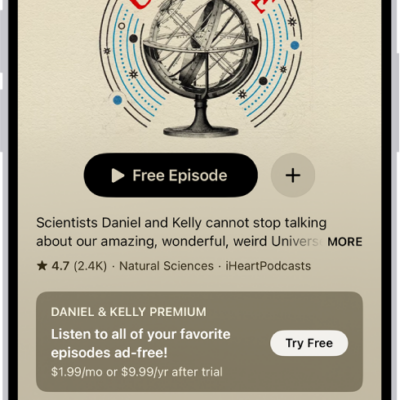
When you find a show you like in the Podcasts app, follow it to add it to your library so you can get notified about new episodes, change the playback order, and more.
Podcasts you follow are on your other Apple devices and the Apple Podcasts website, too. You can follow a show from search results, show information, or Now Playing, and unfollow it later.
Here’s how to follow your favorite podcasts on iPhone.
Follow a podcast
Following a podcast adds it to your library, and you can access the podcasts you follow on your other Apple devices or the Apple Podcasts website.
- Start the Podcasts app on your iPhone.
- Search or browse for a show.
- Do any of the following:
- From search results: Tap the Follow button.
- While viewing show information: Tap the Follow button. You can also tap the More button and then tap Follow.
- While viewing episode information, or from Now Playing: Tap the More button and then tap Follow Show.
Unfollow a podcast
- Start the Podcasts app on your iPhone.
- Tap Library, then tap Shows.
- Tap a show you follow, tap the Unfollow button, and then tap Unfollow Show.
You can also tap the More button, then tap Unfollow.
Get notifications for new episodes
For podcasts you follow, you can get notified when new episodes are available.
- Start the Podcasts app on your iPhone.
- Tap Home.
- Tap the My Account button or your profile picture.
- Tap Notifications and turn on notifications for the shows you want. If Allow Notifications on This iPhone appears at the top of the screen, notifications are turned off for Podcasts. Tap Allow Notifications on This iPhone and tap Allow.
Quick tip: Each show has its own settings page, where you can also control its notifications. Open the show and tap the More button, then tap Settings and turn Notifications on or off.
Customize playback speed and Enhance Dialogue settings for a show you follow
- Start the Podcasts app on your iPhone.
- Tap Library, tap Shows, and then select a show. (You can also search or browse for a show you follow.)
- Tap the More button, tap Settings, and then scroll down to Speed & Audio Adjustments.
- Choose Custom for This Show. Select a playback speed and turn Enhance Dialogue on or off.