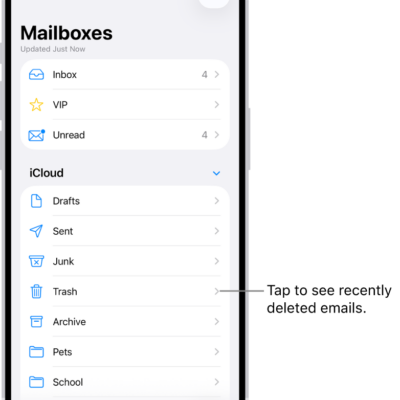
You can use iCloud Mail Cleanup to help keep your inbox uncluttered and free up storage by deleting old promotions, unsubscribing from mailing lists, and more. When you set up iCloud Mail Cleanup recommendations, they work on any device that has iCloud Mail turned on.
Turning on iCloud Mail Cleanup doesn’t touch your inbox right away. Nothing changes until you turn on a cleanup recommendation, such as Clean Up Promotions, and you can edit the rules for a recommendation at any point.
Here’s how to automatically clean up your iCloud Mail inbox on iPhone.
Note: iCloud Mail Cleanup may not be available in all languages.
Turn on iCloud Mail Cleanup
- Start the Settings app on your iPhone.
-
Tap [your name], then tap iCloud.
Below Saved to iCloud, tap Mail, tap iCloud Mail Cleanup, then turn on Use iCloud Mail Cleanup.
Note: Your inbox isn’t affected until you turn on a cleanup recommendation.
You can also turn on iCloud Mail Cleanup on iCloud.com.
Turn on a cleanup recommendation
- Start the Settings app on your iPhone.
-
Tap [your name], then tap iCloud.
Below Saved to iCloud, tap Mail, then tap iCloud Mail Cleanup.
-
Tap Get Recommendation under one of the cleanup recommendations.
For example, you can choose Clean up Transactions or Clean Up Promotions.
If necessary, tap the pop-up menu for a rule, then choose another option.
Action: What happens to the email Status: Whether the action applies to unread emails, read emails, or all emails Age: How old the emails need to be before the action applies Tip: You can edit the rules for a recommendation at any point.
- Tap an active recommendation. Then tap a pop-up menu to choose an option.
- Tap Turn On.
Delete a cleanup recommendation
- Start the Settings app on your iPhone.
-
Tap [your name], then tap iCloud.
Below Saved to iCloud, tap Mail, then tap iCloud Mail Cleanup.
- Tap an active cleanup recommendation and turn it off.
Use iCloud Mail Cleanup recommendations to unsubscribe
iCloud Mail Cleanup can suggest senders in the Promotions and Updates categories to unsubscribe from in bulk, and it can automatically move future messages to the Trash.
- Start the Settings app on your iPhone.
-
Tap [your name], then tap iCloud.
Below Saved to iCloud, tap Mail, then tap iCloud Mail Cleanup.
- Tap Get Recommendations under Unsubscribe Recommendations.
-
Select each sender you want to unsubscribe from and tap Unsubscribe.
Note: If you don’t see any recommendations, iCloud Mail Cleanup doesn’t have any recommendations at this time.
Remove a sender from the Unsubscribed list
Changed your mind about a sender you unsubscribed from? Remove them from the Unsubscribed list to receive their emails again.
- Start the Settings app on your iPhone.
-
Tap [your name], then tap iCloud.
Below Saved to iCloud, tap Mail, then tap iCloud Mail Cleanup.
- Tap Unsubscribed and tap Edit.
- Tap the Delete button next to each sender you want to remove from the Unsubscribed list.
-
To receive emails again from a sender you were previously unsubscribed from, you can sign up for updates and promotions through their website.
After you resubscribe, future messages from that sender will go to your inbox.
Turn off iCloud Mail Cleanup
Once iCloud Mail Cleanup is off, iCloud Mail stops managing old messages and stops deleting messages from senders you unsubscribed from. It deletes the list of those senders, too.
- Start the Settings app on your iPhone.
-
Tap [your name], then tap iCloud.
Below Saved to iCloud, tap Mail, tap iCloud Mail Cleanup, then turn off Use iCloud Mail Cleanup.