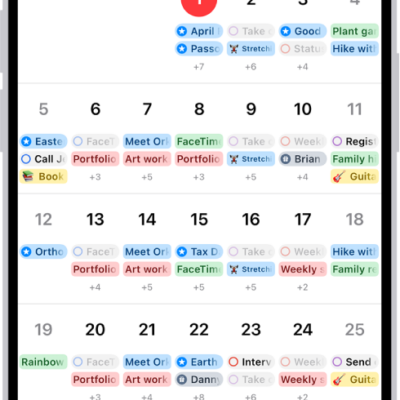
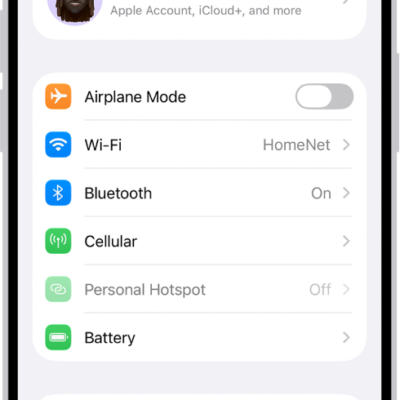
In the Calendar app, events appear according to the time zone of your current location. However, you can schedule an event in a different time zone from the one currently shown in Calendar.
And if you travel, you can set your calendar to always display a specific time zone, even when you’re in a different location.
Here’s how to schedule or display events in a different time zone in Calendar on iPhone.
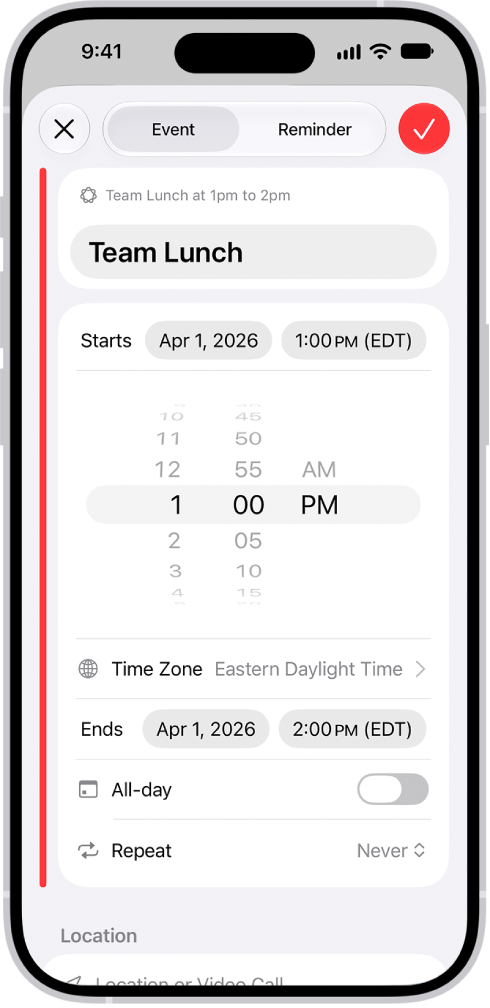
Change the time zone for a new event
Even if it’s different from the time zone you’re currently in, you can change the time zone of an event when you create and edit events in Calendar. Living in New York, for example, you could schedule an event you create or edit according to the time zone in Chicago.
- Start the Calendar app on your iPhone.
- Tap the Add button.
- Add the event details (title, location, travel time, attachments, and so on).
- Tap the start and end times for the event. Then tap Time Zone.
- Search for a location, tap it. Then tap the Done button.
Note: Need to change the time zone? You can edit it for the event later.
Always display your calendar in a specific time zone
To display Calendar in the time zone of your choice, override the default time zone setting. That can help when working remotely and keeping track of the time to schedule meetings with colleagues in a different time zone. If you live in San Francisco but your job is based in Boston, for example, you can override your current location’s time zone and see your calendar events according to Boston’s time zone.
- Start the Settings app on your iPhone.
- Tap Apps and then tap Calendar.
- Tap Time Zone Override. Turn on Time Zone Override.
- Tap Time Zone, search for a location (like Boston, for example) and tap the location.
Events you created before turning on Time Zone Override appear in the new time zone, along with the original time zone used when they were created.
Note: Time Zone Override affects only the time zone shown in the Calendar app.