You can customize how turn-by-turn directions are spoken by changing their volume, voice, language, and interaction with your other audio.
You can change the default volume, or hear a different language or voice, and you can preview each voice before you choose one. Directions that start somewhere other than My Location show a Steps button, though, and aren’t spoken.
Here’s how to change how you hear directions in Maps on iPhone.
Note: Turn-by-turn spoken directions only work when your iPhone is connected to the internet and Precise Location is turned on.
Cellular data rates may apply.
Spoken turn-by-turn directions aren’t available in all countries or regions.
Change the volume for spoken directions
- Open the Maps app on your iPhone.
-
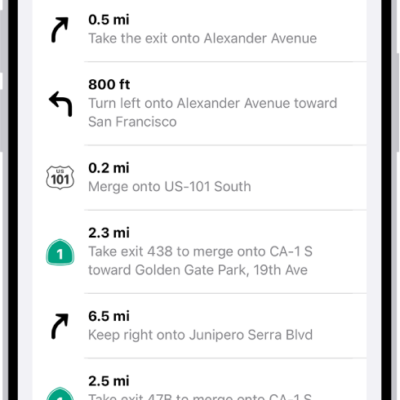
Get driving, cycling, or walking directions, then tap Go.
Note: When directions start in a location other than My Location, you see a Steps button instead of Go, and no directions are spoken.
- Tap the Audio Control button on the map (for example, the Unmuted button) and then choose an option.
To change the default volume, go to the Settings app , tap Apps, then tap Maps.
Tap Spoken Directions, then choose an option below Voice Volume.
Hear a different language or voice for spoken directions
- Open the Settings app on your iPhone.
- Tap Siri and then change any of the following:
- Language: Tap Language and tap a language to select it as your primary Siri language.
- Voice: Tap Voice and tap to hear the different options.
Change how directions and other audio interact
- Open the Settings app on your iPhone.
- Tap Apps, then tap Maps.
-
Tap Spoken Directions and then do any of the following:
-
Pause spoken word media for steps in the directions: Turn on Directions Pause Spoken Audio.
When this feature is on, media like podcasts and audiobooks automatically pause as each step is spoken.
- Play steps in the directions over the car speakers: Turn on Directions on Radio. (Supported cars only.)
-
Pause spoken word media for steps in the directions: Turn on Directions Pause Spoken Audio.
Wake the display for steps in the directions
Your iPhone may go to sleep if there’s a long stretch of time in your route when nothing happens.
To see your progress, you can set the iPhone display to turn on.
- Open the Settings app on your iPhone.
- Tap Apps, then tap Maps.
- Tap Spoken Directions and then turn on Directions Wake Device.
When you start with a location other than My Location, a Steps button appears instead of Go, and no directions are spoken.