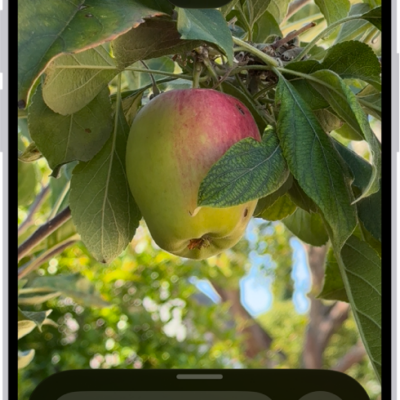
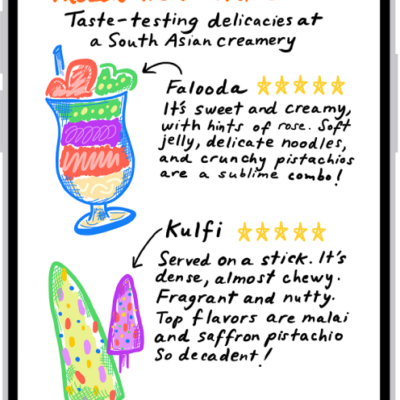
In the Magnifier app, you can use your iPhone like a magnifying glass to zoom in on text or objects around you. With Apple Intelligence,* you can also use Ask Magnifier to get information about your surroundings.
You can do more with what you capture, too. You can temporarily freeze the frame, view captured text in a format for easier reading, listen to it, or get live descriptions of your surroundings.
Here’s how to magnify or get information about things around you with Magnifier on iPhone.
Note: Apple Intelligence on iOS 27 or later is available on an Apple Intelligence-enabled iPhone 15 Pro, iPhone 15 Pro Max, or iPhone 16 model or later.
Apple Intelligence is not available in all languages or regions, Apple says.
Usage limits may apply.*
Magnify nearby text or objects
- Open the Magnifier app on your iPhone.
-
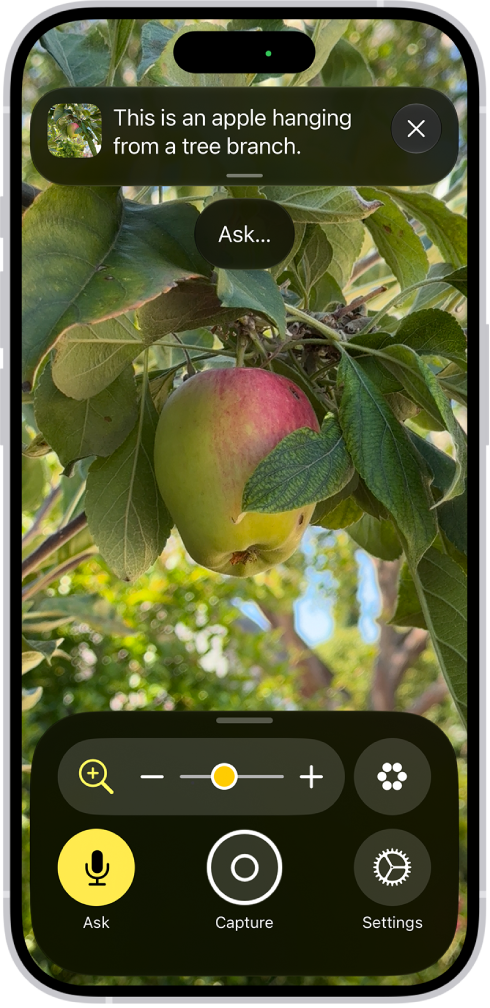
Point the iPhone camera at the text or object you want to magnify and drag the slider to zoom in or out.
You can also use any of the following controls: Tap the Activities button to switch between your default controls and custom sets of controls you’ve defined for recurring tasks or situations (called activities).
- Tap the Ask button, to get information about your surroundings.
- Tap the Freeze frame button to temporarily freeze the frame.
-
Tap the Settings button to add more controls, including Detection Mode, or edit activities you’ve created.
Tip: Set up a shortcut to quickly open Magnifier by clicking or pressing an iPhone button or tapping the back of iPhone, or from Control Center.
On supported models, you can also customize the Camera Control to open Magnifier.
Ask questions and get information about your surroundings
Apple Intelligence can describe your surroundings and answer questions about what your camera sees, like the color of a shirt or the total on a bill.
You can choose a default question that gets answered automatically.
- Open the Magnifier app on your iPhone.
- Point the iPhone camera at the text or object you want to see, tap Ask. Do one of the following: Select a default question: Select What is this? or a default question you created in your Ask Magnifier settings.
- Type or speak a question: Select Type or Speak and then ask a question about your surroundings.
Temporarily freeze the frame
Without saving it to Photos, you can temporarily capture what’s in the frame.
- Open the Magnifier app on your iPhone.
-
Tap the Capture button and then do one of the following: Take one or more photos: Press and hold the Capture button, then select Single Photo or Multi-Photo to take a photo or multiple photos.
If you select Multi-Photo, you’ll see a group of photos in the bottom right corner of the screen.
Capture text and reframe it: Press and hold the Capture button, then select Document.
Follow the written and spoken instructions to get the text in frame or drag the corners of the box that appear around the text, then tap Confirm.
After you tap Confirm, tap the Reader button to view the text with Accessibility Reader.
Customize and listen to text: If you’re magnifying text, tap the Reader button to view your captured text in a format for easier reading or to listen to your captured text.
Share captured images: Tap the Share button for more options, such as sharing the captured frame or saving it to your photos.
Stop viewing captured images: Tap the Close button to unfreeze the frame and return to the live Magnifier lens.
To reset Magnifier, press and hold the Capture button anytime and select Document, Multi-Photo, or Single-Photo.
View your captured text in a format for easier reading
When you magnify a frame with text in it, you can view the text in a format adapted for easier reading.
Even fonts, layouts, and background colors can be adjusted.
- Open the Magnifier app on your iPhone.
-
Tap the Capture button to capture the frame and then tap the Reader button.
Magnifier alerts you if no text is detected in the frame you captured.
- Tap the More button, then tap Customize Reader.
-
Select a theme, then tap Edit.
Do any of the following: Text Color: Choose a color or tap Custom Color.
Background Color: Choose a color or tap Custom Color.
Text Size: Drag the slider left or right to make the text smaller or larger.
Font: Choose a font.
High Legibility Characters: Turn on High Legibility Characters.
Note: This option is only available when using System Font.
Bold Text: Turn on Bold Text.
Line Spacing: Choose the Default button, the Loose button, or the Open button to customize the space between lines.
Word Spacing: Choose the Default button, the Loose button, or the Open button to customize the space between words.
Character Spacing: Choose the Default button, the Loose button, or the Open button to customize the space between characters.
Hyperlinks: Turn Show Links on or off.
When turned on, you can customize the color.
Playback: Turn Highlighting on or off.
When turned on, you can customize the style or highlight color.
Rename: Enter a name for the settings you choose.
Reset to Default: Reset all themes to their default settings.
Tip: Rename a theme with your custom settings so you can easily find it and reuse it later.
You can also use Accessibility Reader to customize the text in apps.
Listen to your captured text
- Open the Magnifier app on your iPhone.
-
Tap the Capture button to capture the frame and then tap the Reader button.
Magnifier alerts you if no text is detected in the frame you captured.
Do any of the following: Listen to the text: Tap the Play button.
Pause the text: Tap the Pause button.
Skip backward or forward: Tap the Rewind button or the Forward button.
Increase or decrease the speed: Tap the Speaking Rate One Times button, then select a speed.
-
Go to a specific time: Drag the slider left or right.
Note: You can hide or show audio controls: Tap the More button, then tap the Hide Audio Controls button.
Get live descriptions of your surroundings
If you’re blind or have low vision, Detection Mode in the Magnifier app on iPhone can scan your surroundings and give you live descriptions of the scenes detected in the camera view.
Live descriptions come as text or speech.
Important: Detection Mode should not be relied on in high-risk or emergency situations, in circumstances where you may be harmed or injured, or for navigation.
- Open the Magnifier app on your iPhone.
-
Tap the Detection Mode button to start Detection Mode.
If you don’t see the Detection Mode button, you can add it.
-
Touch and hold the Detection Mode button, select Scenes, and do any of the following: On supported iPhone models, detect doors, people, and furniture near you.
On all iPhone models, detect text in the camera frame and have it read out loud or point your finger at text to have it spoken.
-
To temporarily pause detection, double-tap the screen with two fingers.
Double-tap again with two fingers to resume detection.
-
To stop Detection Mode, tap the Detection Mode button.
If you use VoiceOver, you can turn on Live Recognition from any screen on iPhone and get descriptions of your surroundings without going to the Magnifier app.
*Apple Intelligence is available with Siri and device language set to Chinese (Simplified), Chinese (Traditional), Danish, Dutch, English, French, German, Italian, Japanese, Korean, Norwegian, Portuguese, Spanish, Swedish, Turkish, or Vietnamese.
Some features may not be available in all regions or languages.
Some devices may not be available in all regions.
Siri AI is available in beta in iOS 27, iPadOS 27, macOS 27, watchOS 27, and visionOS 27 and requires an Apple Intelligence–enabled device set to a supported language.
Available in English to start.
Siri AI will not be initially available in the EU on iOS, iPadOS, and watchOS.
Certain Apple Intelligence features that rely on server-side models are subject to daily usage limits, including but not limited to Siri AI, Intelligent Photo Editing Tools, Image Playground, and AFM 3 Cloud models in Shortcuts.
Daily limits may vary by feature, request complexity, system demand, system policies, and other factors.
Expanded access to such features will be available for a fee in the future.
- Use of these features is subject to the Apple Intelligence Terms and Conditions.