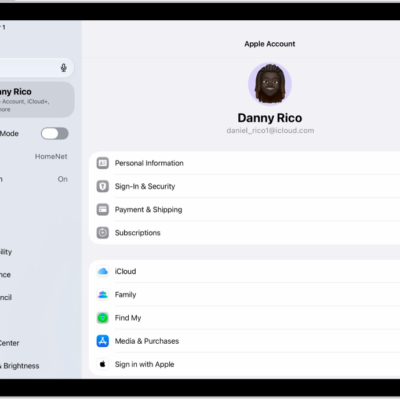
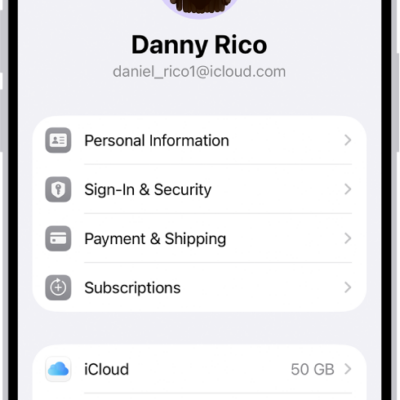
Your Apple Account is the account you use to access Apple services like the App Store, Apple Music, iCloud, iMessage, and FaceTime. It includes the email address and password you use to sign in, as well as the contact, payment, and security details you use across Apple services.
Apple employs industry-standard practices to safeguard your Apple Account. But there’s plenty you can do, too, from using two-factor authentication to adding Account Recovery Contacts and Legacy Contacts.
Here’s how to keep your Apple Account secure on iPhone.
Best practices for maximizing the security of your Apple Account
-
Don’t let others use your Apple Account, even family members.
To share purchases, subscriptions, a family calendar, and more without sharing Apple Accounts, set up Family Sharing.
- Use two-factor authentication. If you created your Apple Account on a device with iOS 13.4, iPadOS 13.4, macOS 10.15.4, or later, your account automatically uses two-factor authentication. If you previously created an Apple Account without two-factor authentication, turn on two-factor authentication now.
- Never provide your password, security questions, verification codes, recovery key, or any other account security details to anyone else. Apple will never ask you for this information.
- When accessing your Apple Account page in Safari or another web browser, look for the Lock icon in the address field to verify that your session is encrypted and secure.
- When using a public computer, always sign out when your session is complete to prevent other people from accessing your account.
- Avoid phishing scams. Don’t click links in suspicious email or text messages, and never provide personal information on any website you aren’t certain is legitimate.
- Don’t use your password with other online accounts.
- To help protect your information in case your iPhone is stolen, turn on Stolen Device Protection. Stolen Device Protection adds a layer of security when your iPhone is away from familiar locations, such as home or work.
- If one of your devices is lost or stolen, turn on Lost Mode as soon as possible for that device. (You can do this on a friend’s device and don’t need to use your own.)
Add Account Recovery Contacts
Choose one or more people you trust as Account Recovery Contacts, and they can help you regain access to your account and reset your Apple Account password if you forget your password or get locked out.
Go to Settings > [your name] > Sign-In & Security > Recovery Contacts, tap Add Recovery Contact, then follow the onscreen instructions.
For more information, go to Settings > [your name] > Sign-In & Security, then tap “Learn more” below Add Recovery Contact.
Add Legacy Contacts
With the Digital Legacy program, you can designate people as Legacy Contacts who can access your Apple Account in the event of your death.
Go to Settings > [your name] > Sign-In & Security > Legacy Contact, tap Add Legacy Contact, then follow the onscreen instructions.
Generate a recovery key for your account
You can generate a recovery key for additional control over your account security. It can help you regain access to your Apple Account or reset your account password. A recovery key is a randomly generated 28-character code, and you should keep it in a safe place. To reset your account password, you can either enter your recovery key or use another device that’s already signed in to your Apple Account.
To ensure you have access to your account, you are personally responsible for maintaining access to the recovery key and your trusted devices.