You can get detailed transit directions to your destination, including departure times, connection information, and fares.
Fares are listed for suggested routes in some countries and regions. By default, they reflect the cost with a transit card, though you can see the cash fare instead. You can also plan for a future departure or arrival time, and Siri can give you transit directions, too.
Here’s how to get transit directions in Maps on iPhone.
Note: Not all features are available in all countries or regions.
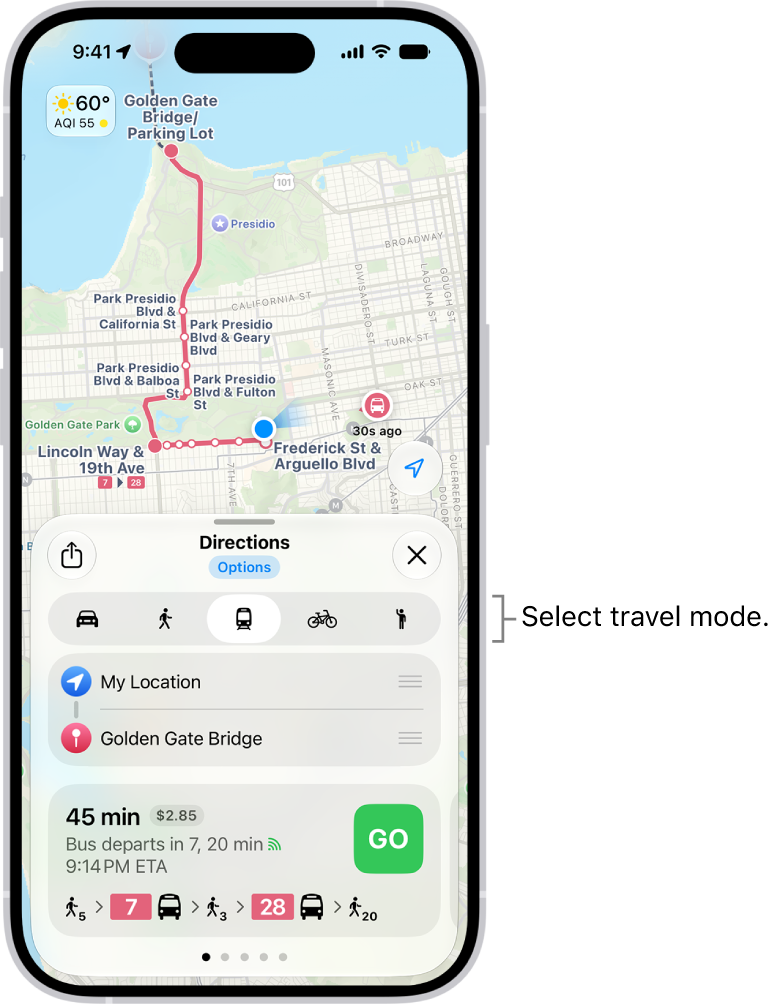
Get transit directions
- Start the Maps app on your iPhone.
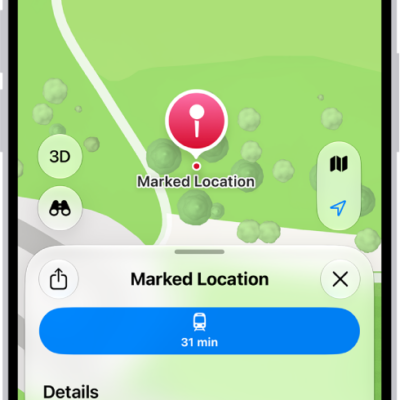
- Touch and hold anywhere on the map or enter an address in the search field and then tap the directions button.
If your preferred travel mode isn’t Transit, tap the directions button, then tap the Travel Mode button.
- Tap Go or Steps for the route you want to take.
- To see only the schedules of your preferred transit method, tap Options (below Directions) and then turn off any type you don’t want to use.
Siri: You can also ask Siri something like, “Give me transit directions to the Ferry Building.”
Plan for a future departure or arrival time
- Start the Maps app on your iPhone.
Get transit directions, as above.
- Tap Options (below Directions), tap Leave at or Arrive by, select a time and date, and then tap the Done button.
Show cash or transit card fares
Some countries and regions show fares for the suggested routes.
Fares default to the cost when using a transit card, though you can view the cash fare instead.
- Start the Maps app on your iPhone.
Get transit directions, as above.
- Tap Options (below Directions), tap Cash Fares, and then tap the Done button.
- To redisplay the fares when using transit cards, tap Cash Fares, tap Transit Card Fares, and then tap the Done button.
Get schedules for local transit
You can get one-tap access to the departure times for stops and stations near you.
- Start the Maps app on your iPhone.
- Swipe left on the icons below Places. Then tap the Add button.
- Tap Nearby Transit to add it to your Places.
- Below Places, tap Transit and tap a nearby stop to see schedules and delays.
Quick tip: To put a line at the top of the list, touch and hold it, then tap Pin.
See major transit lines
- Start the Maps app on your iPhone.
With a map showing, tap the Map Modes button, which appears as the Exploring Map Mode button, the Driving Map Mode button, the Transit Map Mode button, or the Satellite Map Mode button on the right.
- Tap Transit and tap the Close button.
Pay your fare with your iPhone
Many transit agencies let you pay your fare with your iPhone.
- Use Apple Pay: With Apple Cash, credit cards, and debit cards in the Wallet app , you can make contactless transit payments with agencies that support Apple Pay.
- Use transit cards: With participating transit systems, you can pay for your fare when you store your transit cards in Wallet.
- Use transit apps: Many systems that don’t support Wallet have apps that allow you to add a card for payment.
- Go to the transit agency’s official website for more information or get apps in the App Store.