You can save a map of an area and use it when your iPhone is offline. Even when you can’t access Wi-Fi or cellular service, you can view information like hours and ratings on place cards, get turn-by-turn directions for driving, walking, cycling, or riding transit, and see your estimated time of arrival.
Automatic Updates is on by default, so your downloaded maps are kept up to date. And you can remove downloaded maps to free up storage space.
Note: Offline maps aren’t available in all countries or regions.
Download maps
-
Open the Maps app on your iPhone.
Do one of the following: Touch and hold the map until a pin marker appears, then tap Download.
- Tap your picture or initials next to the search field, tap Offline Maps, tap Add Offline Map, and then enter a location in the search field or tap Current Location.
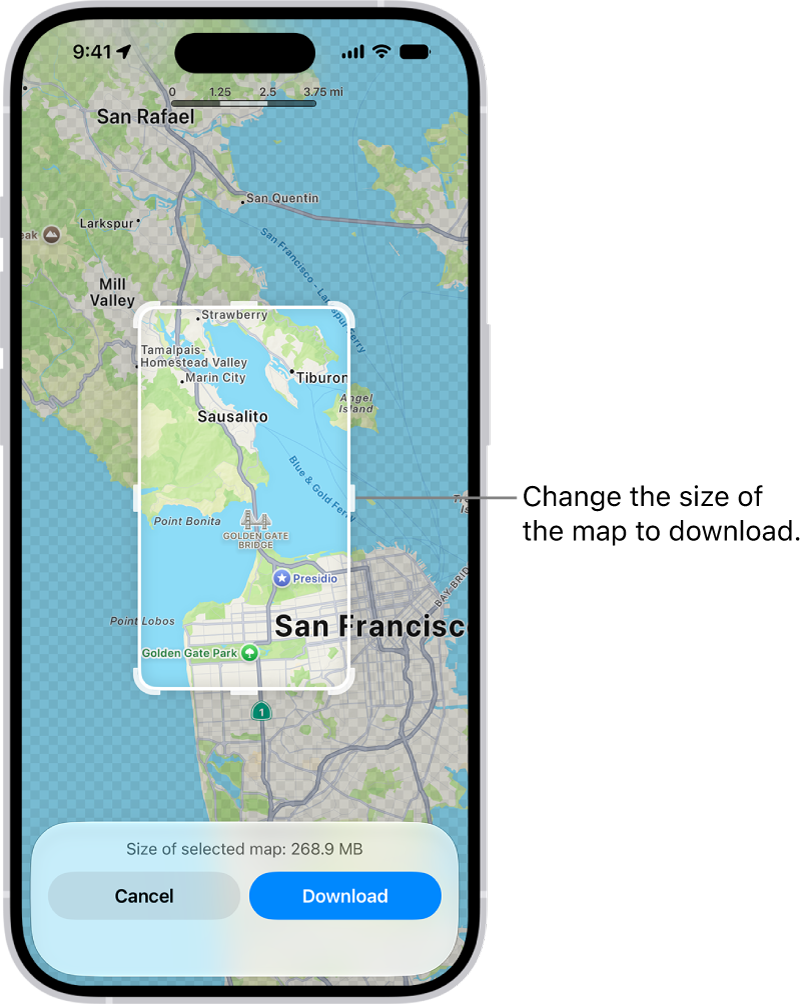
Adjust the selected area, then tap Download.
- To reduce the size of the map you download, select a smaller area.
If you don’t change your settings, downloaded maps update automatically.
Quick tip: When you sync your iPhone with Apple Watch, your downloaded maps go wherever you go, even when your iPhone isn’t nearby.
Open or edit a map you downloaded
When you download maps to use offline, they appear in your list of offline maps.
- Open the Maps app on your iPhone.
- Tap your picture or initials next to the search field. Then tap Offline Maps.
- Select a map and then do any of the following: Rename a map: Tap Rename, enter a new name, then tap Save.
- Change the area covered by a map: Tap Resize on the image of the map, adjust the selected area and tap Download.
- Delete a map: Tap Delete Map.
Control map data downloads
Depending on your data storage needs and preferences, you can change settings like when to download or update a map.
- Open the Maps app on your iPhone.
-
Tap your picture or initials next to the search field. Then tap Offline Maps.
Do any of the following: Download over cellular: Tap Wi-Fi Only, then tap to select Wi-Fi + Cellular.
- Automatically update all maps: Turn on Automatic Updates.
- Automatically delete unused maps: Turn on Optimize Storage.
- Use online maps: Turn off Only Use Offline Maps.
Remove downloaded maps
To free up storage space on your iPhone, you can remove downloaded maps.
- Open the Maps app on your iPhone.
-
Tap your picture or initials next to the search field. Then tap Offline Maps.
Do one of the following: Manually remove a map: Swipe left on the map, then tap Delete.
- Automatically delete unused maps: Turn on Optimize Storage.