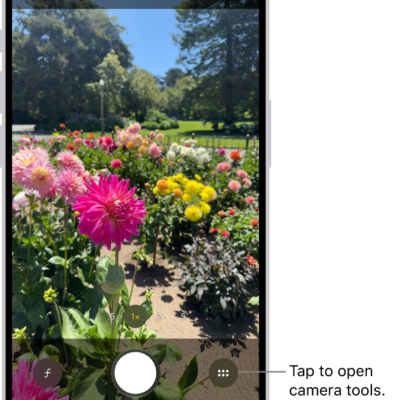
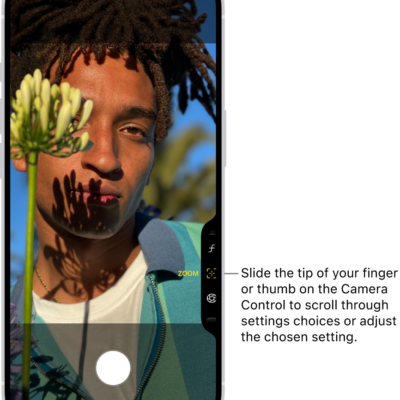
HDR (High Dynamic Range) helps you take great photos in high-contrast situations. The iPad camera takes several photos in rapid succession at different exposures and blends them together, so the resulting photo has better detail in the bright and mid-tone areas.
By default, iPad uses HDR automatically when it’s most effective, but you can control it yourself instead. The HDR version of a photo is saved in Photos, and on some models, you can keep the normal version, too.
Turn off automatic HDR
iPad uses HDR automatically by default, whenever it’s most effective. If you’d rather control HDR manually instead, do the following:
- On models that support manual HDR in Settings, go to Settings > Camera, then turn off Smart HDR. On the camera screen, tap HDR to manually turn it on or off.
- On earlier iPad models, tap the HDR off button on the camera screen to manually turn it on or off.
By default, the HDR version of a photo is saved in Photos. On some iPad models, you can also save the non-HDR version; go to Settings > Camera, then turn on Keep Normal Photo.