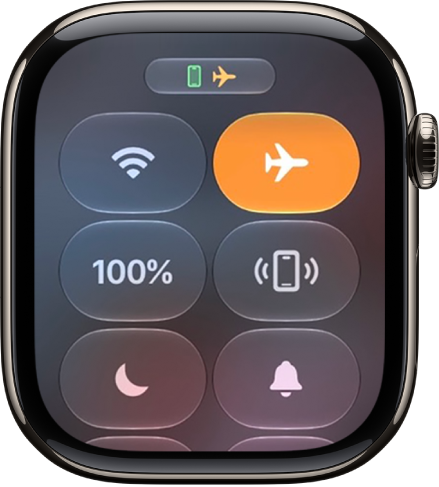
Some airlines let you fly with Apple Watch (and iPhone) turned on if you put them in Airplane Mode. In Control Center on Apple Watch, Airplane Mode disables Wi-Fi and cellular while keeping Bluetooth active.
You can also mirror this setting with iPhone, so turning on Airplane Mode on one device turns it on for the other. And you can change the defaults, choosing whether Wi-Fi and Bluetooth turn off. Both devices must be within normal Bluetooth range to mirror.
Turn Airplane Mode on or off
- Press the side button to open Control Center on Apple Watch.
-
Tap the Airplane Mode button.
Turn on Airplane Mode for both Apple Watch and iPhone
When you set Apple Watch to mirror your iPhone, switching to Airplane Mode on one device switches the other device to match. For this to work, iPhone and Apple Watch need to be within normal Bluetooth range of each other, that’s about 33 feet or 10 meters.
- Open the Apple Watch app on your iPhone.
- Tap My Watch and tap General. Then tap Airplane Mode.
- Turn on Mirror iPhone.
Change the default settings for Airplane Mode
By default, turning on Airplane Mode turns off Wi-Fi and cellular (on Apple Watch models with cellular) and keeps Bluetooth turned on. To change the default settings for Wi-Fi and Bluetooth, do the following:
- Open the Settings app on your Apple Watch.
- Tap Airplane Mode and turn Wi-Fi and Bluetooth on or off.
See also
- Use Control Center on Apple Watch
- Connect Apple Watch to a Wi-Fi network
- Connect Apple Watch to Bluetooth headphones or speakers
- Turn Apple Watch on or off