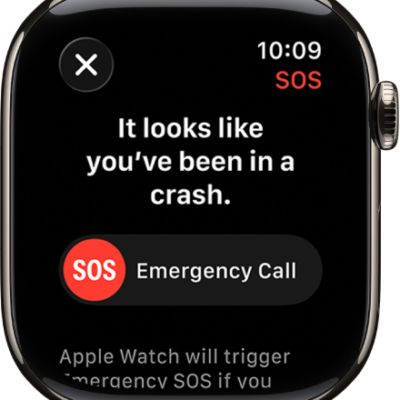
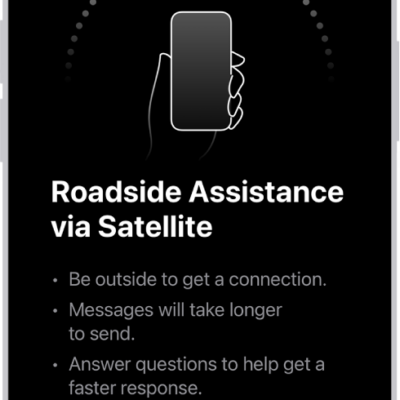
On supported Apple Watch Ultra models, you can set up satellite features to text emergency services, message friends and family, and share your location—all while you’re off the grid without cellular and Wi-Fi coverage.
It’s best to do it before you go outside of cellular or Wi-Fi coverage. You set up Emergency SOS via satellite and try the demo, then set up Messages and location sharing via satellite. Satellite features are free for 2 years after you activate your watch.
Note: Satellite features aren’t available on Apple Watch Ultra 2 and earlier models, aren’t available in all countries and regions, and aren’t offered on models sold in certain countries and regions. Satellite features are free for 2 years after the activation of your Apple Watch Ultra. Messages and location sharing via satellite require an active carrier plan.
Before you begin
To set up your Apple Watch Ultra to use Emergency SOS, Messages, and location sharing via satellite, do the following before you go outside of cellular or Wi-Fi coverage:
-
Set up and pair Apple Watch Ultra (if you haven’t done so already).
Note: Satellite features may take some time to become active after you first set up Apple Watch Ultra.
-
Add the following shortcuts:
- In Control Center: Add the satellite control.
- On the watch face: Add the satellite complication.
- Set up Emergency SOS via satellite and try the demo.
- Set up Messages via satellite.
- Set up location sharing via satellite.
Set up Emergency SOS via satellite and try the demo
Note: The Emergency SOS demo doesn’t start a call to emergency services.
- Create your Medical ID.
- Add emergency contacts.
- Make sure you have the Messages app on Apple Watch Ultra. (Required for sharing information with emergency contacts.)
- Practice using Emergency SOS via satellite with the demo before you head off-grid:
- In Control Center: Tap the satellite icon and tap Try Demo.
- On the watch face: Tap the satellite icon and tap Try Demo.
- In the Settings app: Tap SOS, scroll down, and tap Try Demo.
Set up Messages via satellite
- Make sure iMessage is turned on—open the Settings app on your iPhone and tap Apps. Tap Messages.
- Verify that the SIM on your Apple Watch Ultra is active. SMS availability depends on your carrier. Carrier fees may apply; check with your carrier for details. See Set up and use cellular service on Apple Watch.
- Make sure you’ve exchanged messages within 30 days with the people you want to contact via satellite. If not, send them a message on your Apple Watch Ultra before you go outside of cellular and Wi-Fi coverage.
Set up location sharing via satellite
- Go to the Find My app on your Apple Watch Ultra.
- Tap the button at the top left and scroll down. Tap Me.
- Below My Location, check the following:
- Your location is being shared from your paired iPhone and Apple Watch Ultra.
- Share My Location is turned on.
- Tap the button at the top left, tap People, and then add the people you want to share your location with.
See also