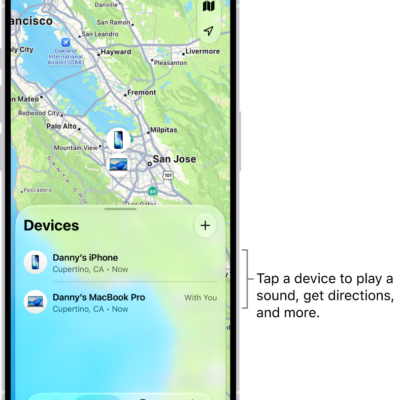
Use Find My to locate Apple devices you’ve lost or misplaced, or get notified if you leave a device behind.
If your device is online, you can see its location, and for supported devices, Find My can locate it even if it’s powered off or in Low Power Mode. You can also get directions to it in the Maps app.
Here’s how to locate devices in Find My on Apple Watch.
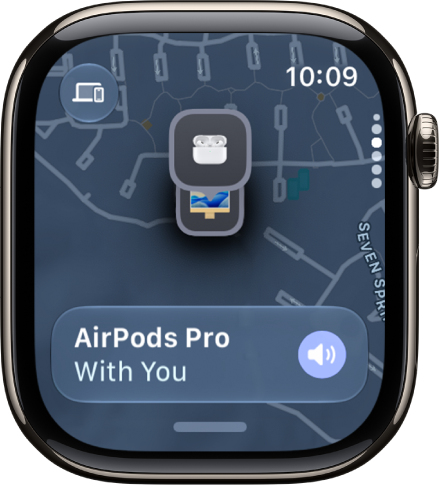
Find the location of a device
When your device is online, the Find My app shows its location. Find My can even locate a supported device that’s powered off, in Low Power Mode, or in Airplane Mode.
- Start the Find My app on your Apple Watch.
- Tap the button at the top left and then tap Devices.
-
Turn the Digital Crown to scroll through your devices and see their locations on a map.
(If a device can’t be located, its last known location is shown.)
-
Tap the name of the device you’re looking for. Do any of the following:
- Ping the device: Tap Play Sound.
- Get directions to the device’s location: Tap Directions to navigate in the Maps app.
Receive a notification when you’ve left a device behind
You can receive a notification when you’ve left your device behind, which helps keep you from misplacing it. Trusted Locations, which you can also set, are places where you can leave your device without receiving a notification.
- Start the Find My app on your Apple Watch.
- Tap the button at the top left and then tap Devices.
- Turn the Digital Crown until you see the device. Then tap its name.
- Scroll down to Notify Me and turn on When Left Behind.
- Set a trusted location—such as home.
See also
- Set up Find My on Apple Watch
- Ping your iPhone with Apple Watch
- Locate items in Find My on Apple Watch