Use the Cycle Tracking app to log details about your menstrual cycle. You can add flow information and record symptoms such as headaches or cramps, and the app can alert you when it estimates that your next period or fertile window is about to start.
In addition to using data you’ve logged, Cycle Tracking can also use heart rate data to improve predictions. And if you wear Apple Watch to sleep each night, the app can use wrist temperature to improve period predictions and provide retrospective ovulation estimates. You set it up in the Health app on your iPhone or iPad.
Note: The Health app is designed to protect your information and enable you to choose what to share.
Set up Cycle Tracking on iPhone or iPad
- Go to the Health app on your iPhone or iPad.
- Do one of the following:
- On iPhone: Tap Browse, then tap Cycle Tracking.
- On iPad: Tap the sidebar, then tap Cycle Tracking.
- Tap Get Started, then follow the onscreen instructions to set notifications and other options.
To add or remove options after setting up Cycle Tracking, go to the Health app on your iPhone, tap Browse, tap Cycle Tracking, then tap Options next to Cycle Log.
Log your cycle on Apple Watch
- Start the Cycle Tracking app on your Apple Watch.
- Do any of the following:
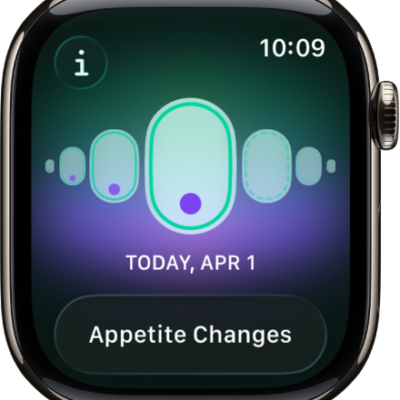
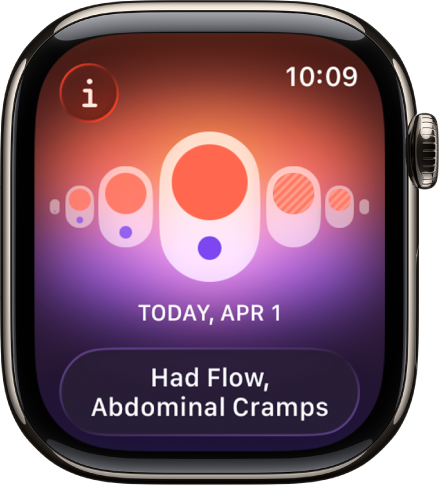
- Log a period on a specific day: With the day showing in the timeline, tap Log. Tap Period and tap a flow level. Tap the Done button.
- Log symptoms, spotting, or other information: With the day showing in the timeline, tap Log. Tap a category and choose an option. Then tap the Done button.
Observations you provide show up in the Cycle log on iPhone. With Period Notifications and Fertility Notifications turned on in the Health app on iPhone, Apple Watch notifies you about upcoming periods, fertile window predictions, and retrospective ovulation estimates.
Manage cycle factors on iPhone or iPad
Factors that could impact your cycle, like pregnancy, lactation, and contraceptive use, can also be logged in the Health app on iPhone.
- Go to the Health app on your iPhone or iPad.
- Do one of the following:
- On iPhone: Tap Browse, then tap Cycle Tracking.
- On iPad: Tap the sidebar, then tap Cycle Tracking.
- Scroll down and tap Factors. Do any of the following:
- Add a factor: Tap Add Factor, select a factor, tap Started if you need to change the start date, and then tap Add.
- Change the end date for a current factor: Tap the factor, tap Ended and select a date. Then tap Done.
- Delete a current factor: Tap the factor and tap Delete Factor.
The factors you select may turn off your period predictions, fertile window predictions, and retrospective ovulation estimates on iPhone and Apple Watch.
Important: The Cycle Tracking app should not be used as a form of birth control. Data from the Cycle Tracking app should not be used to diagnose a health condition.
See also