When worn to sleep each night, your Apple Watch can help track temperature changes and use this data to help improve period predictions and provide retrospective ovulation estimates (not available in all countries or regions).
You’ll start to see wrist temperature data after about five nights, but retrospective ovulation estimates take about two menstrual cycles.
Important: The Cycle Tracking app should not be used as a form of birth control. Data from the Cycle Tracking app should not be used to diagnose a health condition.
Set up wrist temperature tracking
- Set up Cycle Tracking and Sleep.
-
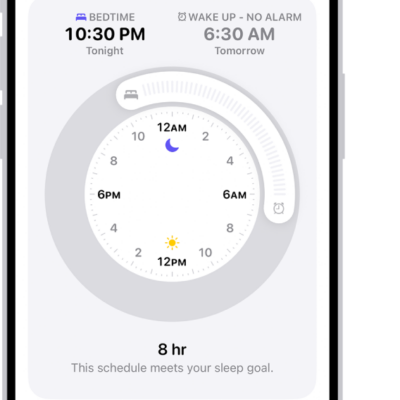
To establish a temperature baseline, ensure the Sleep Focus is on and then wear your Apple Watch while sleeping.
Wrist temperature data becomes available after about five nights.
- To view wrist temperature data, open the Health app on your iPhone, tap Browse and tap Body Measurements. Tap Wrist Temperature.
Wear your Apple Watch to sleep each night for about two menstrual cycles, and retrospective ovulation estimates should be available.
Note: Your body temperature naturally fluctuates, and can vary from night to night due to a number of variables. Wrist temperature can also be impacted by external factors like your sleep environment.
Turn off wrist temperature for Cycle Tracking
- Go to the Health app on your iPhone or iPad.
- Do one of the following:
- On iPhone: Tap Browse, then tap Cycle Tracking.
- On iPad: Tap the sidebar, then tap Cycle Tracking.
- Scroll down, tap Options, and turn off Use Wrist Temperature.
Turning off wrist temperature tracking means you no longer receive retrospective ovulation estimates, and period predictions stop using wrist temperature data.
See also