On an Apple Watch with cellular, you can set up cellular service with the same carrier used by your iPhone. The cellular connection allows you to make calls, reply to messages, stream music and podcasts, receive notifications, and more—even when Apple Watch isn’t connected to your iPhone or Wi-Fi.
If your Apple Watch has an active cellular plan, it automatically uses the best available network connection: your iPhone when it’s nearby, a Wi-Fi network that you’ve connected to previously on your iPhone, or a cellular network. You can also turn cellular off to save battery power.
Note: Cellular service for Apple Watch isn’t available in all areas or with all carriers.
Add Apple Watch to your cellular plan
You can activate cellular service during the initial setup of your Apple Watch. To activate service later, do the following:
- Start the Apple Watch app on your iPhone.
- Tap My Watch and then tap Cellular.
- Follow the onscreen instructions to learn more about your carrier service plan and activate cellular service.
Transfer an existing cellular plan to a new Apple Watch
You can transfer your existing service from one Apple Watch with cellular to another.
- While wearing your old Apple Watch, open the Apple Watch app on your iPhone.
- Tap My Watch, tap Cellular, and tap the Info button next to your cellular plan.
-
Tap Remove [name of carrier] Plan. Then confirm your choice.
You may need to contact your carrier to remove this Apple Watch from your cellular plan.
- Remove the old watch and then put on your new Apple Watch with cellular.
- In the Apple Watch app, choose your new watch and tap Cellular.
- Follow the onscreen instructions.
Turn cellular off or on
To save battery power, for example, you can turn cellular off.
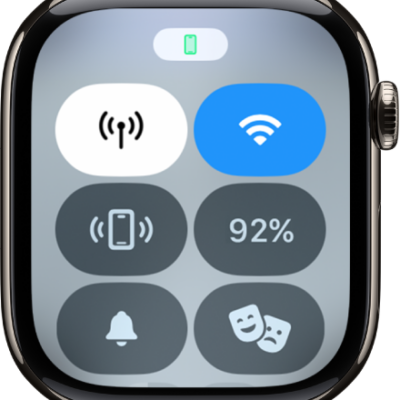
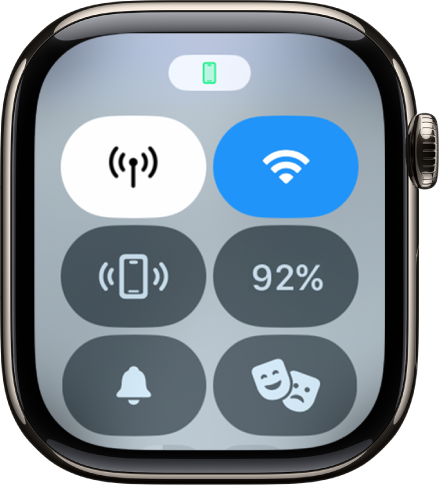
- Press the side button to open Control Center.
-
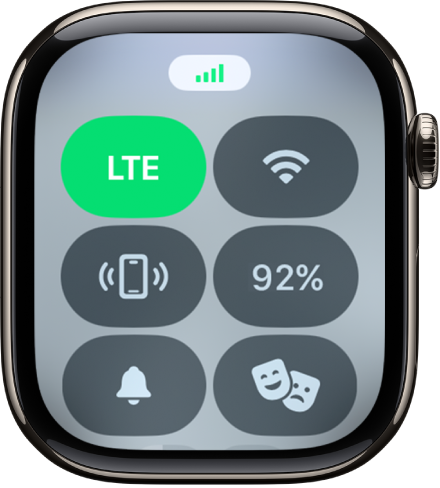
Tap the Cellular button to turn cellular off or on.
-
When your iPhone is nearby and connected to Apple Watch, the Cellular button is white.
-
When your iPhone isn’t nearby, Apple Watch uses its available cellular connection. The Cellular button is green and indicates the carrier’s network such as LTE or 5G (depending on your carrier and Apple Watch model).
-
When your iPhone is nearby and connected to Apple Watch, the Cellular button is white.
Note: Using cellular for extended periods takes more battery power. Some apps also may not update without a connection to your iPhone.
Check cellular signal strength
While connected to a cellular network, do any of the following:
- Open Control Center; the green bars at the top show the cellular connection status.
- Add the Cellular complication to the watch face.
- Use the Wayfinder watch face (available on Apple Watch Ultra models), which shows green dots to indicate the strength of the cellular signal.
Check cellular data usage
- Start the Settings app on your Apple Watch.
- Tap Cellular and then scroll down to see the amount of data you’ve used during the current period.
See also