Show a boarding pass at the gate, a loyalty card at a store or cafe, or a QR code at a pickup counter. You can also tap to access your supported dorm, workplace, car, or home.
Express Mode, Automatic Selection, and Suggest in Smart Stack can pick a card for you automatically, though not all options are available for all cards. With Express Mode, a transit card can be selected at the metro station without waking your watch.
Here’s how to use cards and passes in Wallet on Apple Watch.
Present a barcode or QR code to a scanner
- Open the Wallet app on your Apple Watch.
- Scroll to the pass you want. Tap the pass.
- Scroll down so the code is visible and then present the code to the scanner.
Present a card or pass to a contactless reader
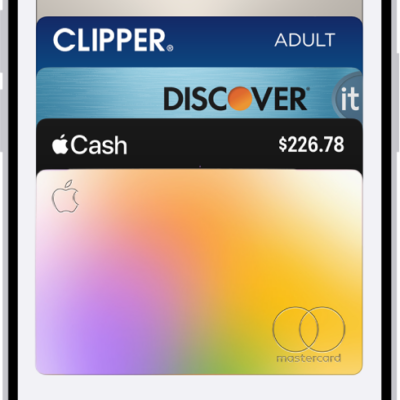
- Double-click the side button and then scroll to the card you want to use.
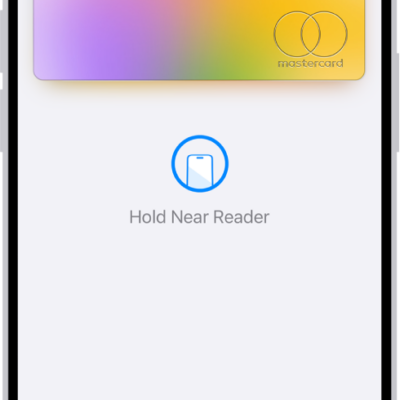
- Hold Apple Watch within a few centimeters of the reader, with the display facing the reader, until Apple Watch vibrates.
Automatically select and use a card
For convenience, you can use Express Mode, Automatic Selection, or Suggest in Smart Stack. (Not all options are available for all cards.)
- Open the Wallet app on your Apple Watch.
- Tap a card and tap Details.
- Turn on any of the following:
- Express Mode: The card is automatically selected when needed—for example, a transit card at the metro station—without waking or unlocking your Apple Watch. You may even be able to use your card, pass, or key when Apple Watch needs to be charged.
- Automatic Selection: The card is automatically selected when requested by the reader.
- Suggest in Smart Stack: The card automatically appears in the Smart Stack based on your time or location—for example, a boarding pass near your departure time.
See also
Tag: Wallet