With the Sleep app on Apple Watch, you can create sleep schedules to help you meet your sleep goals. You can also create multiple sleep schedules—for example, one for weekdays and another for weekends.
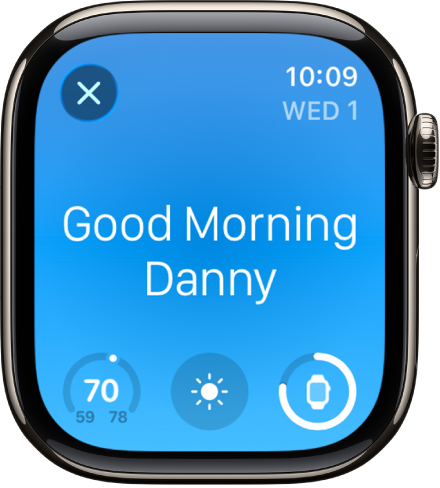
If your Apple Watch is charged less than 30 percent before you go to bed, you’re prompted to charge it. In the morning, just glance at the greeting to see how much charge remains. After setting up a schedule, you can also change or turn off your next wake-up alarm.
Set up your first recurring sleep schedule on Apple Watch
The first time you open the Sleep app, you can set a sleep goal along with your first recurring sleep schedule.
- Start the Sleep app on your Apple Watch.
- Tap Continue.
- To set your first recurring sleep schedule, tap the sleep schedule and then do any of the following:
- Set the days for your schedule: Tap below Active On and then tap a day to add or remove it from your sleep schedule. Tap the Back button to save your changes.
- Set your wake time and bedtime: Tap Wake Up or Bedtime, turn the Digital Crown to set a new time, and tap the Check button.
- Set the alarm options: Turn Alarm off or on and tap Sounds & Haptics to choose an alarm sound, choose whether you always want the alarm to play on your iPhone, and choose snooze options.
- Add another sleep schedule: Tap the Back button and tap Add a Schedule For Other Days.
- Remove or cancel a sleep schedule: If you don’t want to set up a sleep schedule, tap Delete Schedule (at the bottom of the screen).
- Tap Next, then choose to turn on overnight vitals.
- Tap Done to finish setting up Sleep.
At any time, you can add, change, or delete your sleep schedule.
You can also go to the Health app on iPhone, tap Browse, tap Sleep, tap Sleep again, then tap Get Started (below Set Up Sleep).
Change or turn off your next wake-up alarm
With a sleep schedule set up, you can edit or turn off your next wake-up alarm, and your normal alarm resumes after your next wake-up time.
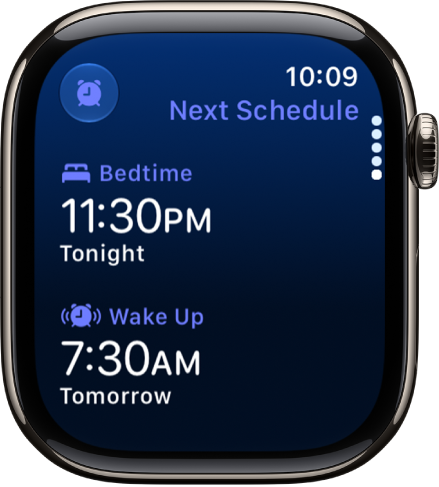
- Start the Sleep app on your Apple Watch.
- Tap the Wake Up Alarm button.
-
To set a new wake-up time, tap the wake-up time, turn the Digital Crown to set a new time, and then tap the Check button.
If you don’t want your Apple Watch to wake you in the morning, turn off Alarm.
-
To change the vibration or ringtone, tap Sounds & Haptics and then choose a ringtone.
Tip: If you want your alarm to play out loud while you have Silent Mode turned on, tap Break Through Silent Mode.
You can also open the Health app on your iPhone, tap Browse, tap Sleep, tap Sleep again, then tap Edit below Your Schedule to change your schedule.
Note: It’s also possible to turn off the next wake-up alarm in the Alarms app: Tap the alarm that appears below the Sleep button, and then tap Skip for Tonight.
Add or change a sleep schedule
You can change the sleep goal, alarm options, the wake up and bedtime, and more after you set up a sleep schedule. Additional sleep schedules are an option too, such as one for weekdays and another for weekends.
To skip your sleep schedules, like while you’re on vacation, you can delete them altogether or turn them off.
- Start the Sleep app on your Apple Watch.
- Tap the Wake Up Alarm button.
-
Turn the Digital Crown to scroll down to Full Schedule and then do any of the following:
- Change a sleep schedule: Tap a sleep schedule, then make any changes.
- Add a sleep schedule: Tap Add a Schedule For Other Days.
- Turn off your sleep schedule: Turn off Sleep Schedule.
- Delete a sleep schedule: Tap a sleep schedule, scroll down, and tap Delete Schedule.
- Change your sleep goal: Tap Sleep Goal. Then set the amount of time you want to sleep.
-
Change the wind-down time: Tap Wind Down and then set the amount of time you want the Sleep Focus to be active before bedtime.
The Sleep Focus turns off the watch display and limits distractions before your scheduled bedtime.
See also