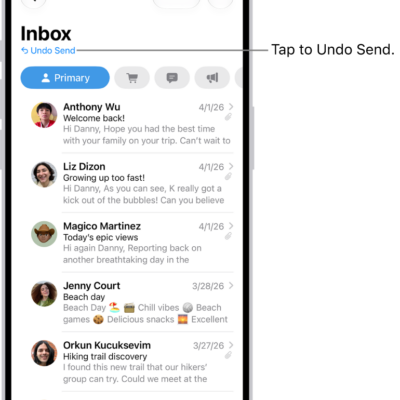
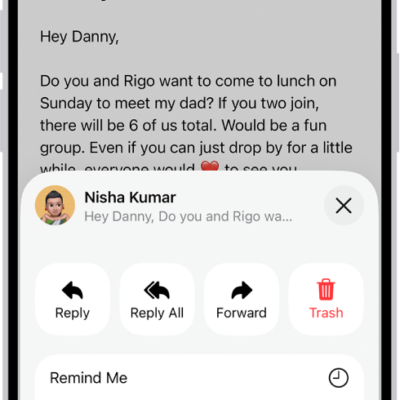
Use the Mail app to read and reply to messages, write new ones, and archive, flag, or delete the ones you don’t need. You can also adjust Mail settings to match how you work.
You can send a smart reply from a list of suggested phrases, or compose your own by dictating or typing. Swiping left on a message lets you flag or delete it, and swiping right archives it.
WARNING: For important information about avoiding distractions that could lead to dangerous situations, see Important safety information for Apple Watch.
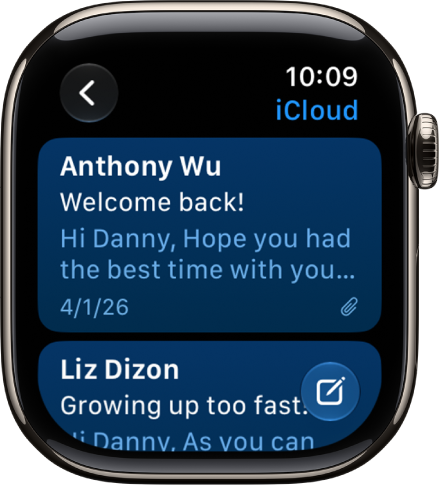
Read an email message
- Open the Mail app on your Apple Watch.
- Turn the Digital Crown to scroll through the message list.
- Tap a message to read it.
- To jump to the top of a long message, tap the top of the screen.
Send a quick reply
- Open the Mail app on your Apple Watch.
- Scroll to the bottom of a message you’ve received and tap Reply. Then do either of the following:
- Send a smart reply: Scroll to see a list of suggested phrases and tap a phrase.
- Compose a reply: Tap the Add Message field. Then dictate or type a reply.
Archive, flag, or delete a message
- Open the Mail app on your Apple Watch.
- In the list of messages, do any of the following:
- Archive: Swipe right on a message. Then tap the Archive button.
- Flag: Swipe left on a message and then tap the Flag button.
- Delete: Swipe left on a message and tap the Trash button.
Write a new email
- Open the Mail app on your Apple Watch.
- Tap the New Message button and then do the following:
- Add a recipient: Tap Add Contact. Tap the Add Member button to choose a recipient from your contacts, or tap the Dictation button to dictate a name.
- Choose an account to send the email from: Tap From and then tap an account.
- Add a subject: Tap Add Subject, then enter a subject.
- Tap Create Message, then dictate or type your message.
Change Mail settings
Choose which mailboxes appear, customize alerts, organize by thread, turn remote images on or off, change your signature, and more.
- Open the Apple Watch app on your iPhone.
- Tap My Watch, tap Apps, and tap Mail.
See also
Tag: Mail