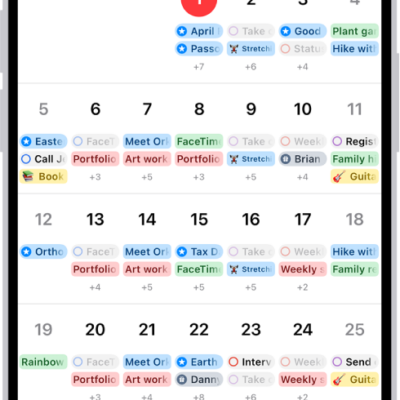
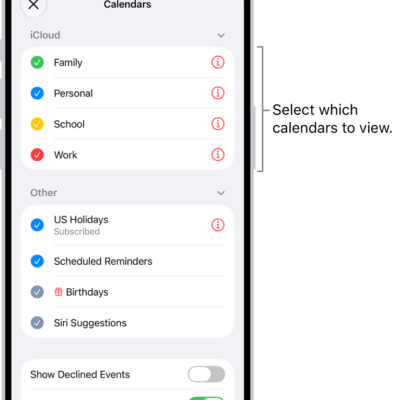
Use Calendar to check your schedule, add or update events, and see scheduled reminders. You can also respond to invitations, get directions to an event, and choose which calendars appear on your watch.
There’s a list view, a day view, and a month view. Each event shows details like time, location, invitee status, and notes, and you can even open Calendar right from the watch face.
Here’s how to check and update your calendar on Apple Watch.
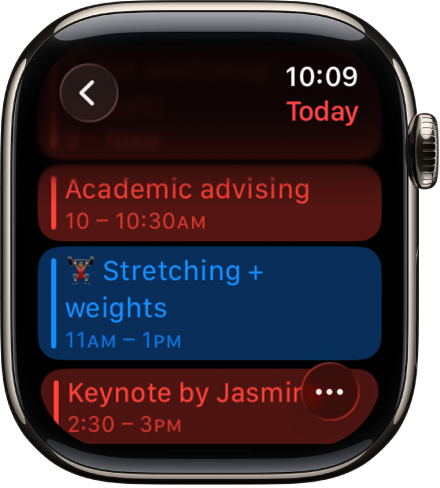
View your calendar
See what’s coming up next in a list, day, or month view.
-
Open the Calendar app on your Apple Watch.
Tip: From the watch face, you can also tap the date or a calendar event.
- Turn the Digital Crown to scroll through upcoming events.
- To change the view, tap the More Options button and then choose an option.
-
Tap an event to see details about it, including time, location, invitee status, and notes.
Tip: If the event includes a location, tap the address to get directions. See Get directions in Maps on Apple Watch.
Add an event
Events you add to the Calendar app on your Apple Watch sync to your iPhone by default, and the other way around. Each event can include details like location and “leave now” alerts.
- Open the Calendar app on your Apple Watch.
- Tap the More Options button. Tap the Add button
- Enter event details, then choose the calendar you want to add the event to.
Edit or delete an event
- Open the Calendar app on your Apple Watch.
- Tap an event, then tap Edit or Delete.
View scheduled reminders
In Day or List view, Calendar puts scheduled reminders from the Reminders app alongside your events.
- Open the Calendar app on your Apple Watch.
- While using Day or List view, tap the reminder and tap Open in Reminders.
Change calendar settings and manage alerts
You can change the kind of calendar notifications you receive and pick which calendars appear on Apple Watch.
- Open the Apple Watch app on your iPhone.
- Tap My Watch and tap Apps. Then tap Calendar.
See also