You can enter text by dictating, scribbling with your finger, or typing on the onscreen keyboard. You can also use emoji and switch to typing on your paired iPhone.
You can switch input methods anytime you’re entering text, like when composing a message. With Scribble, you draw letters on the screen with your finger, and dictation has your speech transcribed to text. The onscreen keyboard isn’t available on Apple Watch SE 3, though.
Here’s how to enter text on Apple Watch.
Change the input method while entering text on Apple Watch
Whenever you enter text, such as when you’re composing a message, you can change the input method.
- Tap a text field—such as a new message or a search field.
- The button at the bottom right indicates the current input method. To change the input method, tap the button. Then choose one of the following:
- Onscreen keyboard: Tap the Keyboard button. (Not available in all languages; not available on Apple Watch SE 3.)
- Scribble: Tap the Scribble button to draw letters on the screen with your finger. (Not available in all languages.)
- Dictation: Tap the Dictate button to have your speech transcribed to text. (Not available in all languages.)
Dictate text
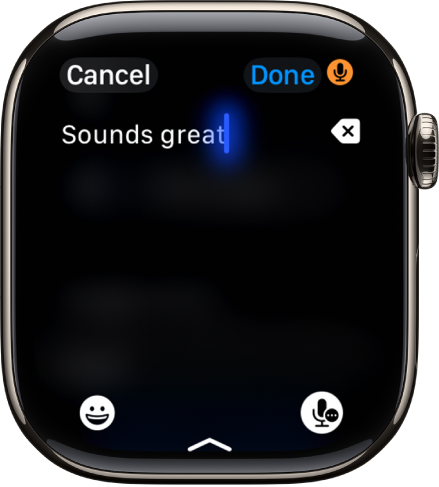
When the input method is set to dictation (not available in all languages), you can do the following:
- Speak punctuation: For example, say something like “Did it arrive question mark.”
- Speak emoji: For example, say something like “Thumbs up emoji.”
- Move the cursor: Turn the Digital Crown.
- Replace a word: Tap the word, then say a different word.
- Select all: Double-tap the screen.
- Erase: Tap the Erase button.
Scribble with your finger
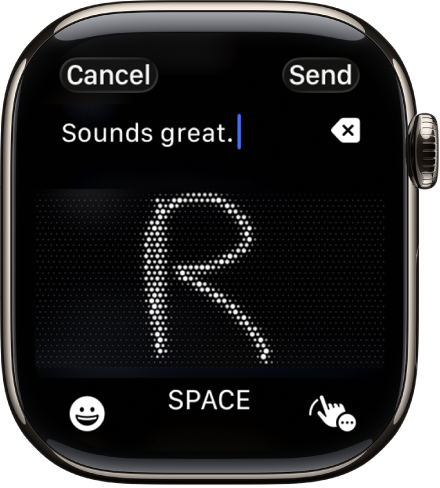
When the input method is set to Scribble (not available in all languages), you can do the following:
- Write: Use your finger to write letters, numbers, and punctuation on the screen.
- Add a space: Tap Space.
- Move the cursor: Turn the Digital Crown.
- Use predictive text: Turn the Digital Crown to see suggested words, then stop turning the Digital Crown to enter the highlighted suggestion.
- Replace a word with a suggestion: Tap the word, then turn the Digital Crown.
- Select all: Double-tap the text.
- Erase: Tap the Erase button.
Type with the onscreen keyboard
Note: The onscreen keyboard is not available in all languages or on Apple Watch SE 3.
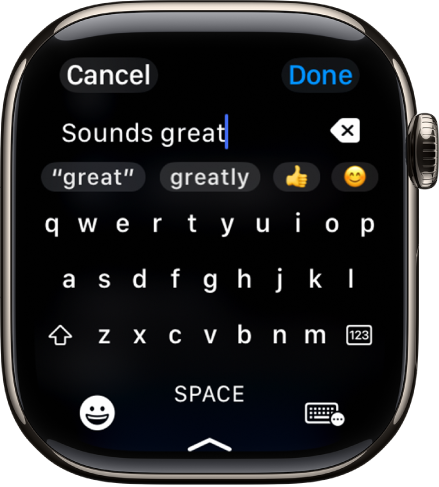
When you set the input method to the onscreen keyboard, you can do the following:
- Type: Tap characters to enter them.
- Use QuickPath: Slide from one letter to the next without lifting your finger. To end a word, lift your finger.
- Use predictive text: Suggested words appear as you type. Tap a finished or unfinished word to highlight it, then turn the Digital Crown to see suggested words. Stop turning the Digital Crown to enter the highlighted suggestion.
- Move the cursor: Turn the Digital Crown.
- Switch to a different keyboard: If you’ve set up your Apple Watch to use more than one language, you can swipe up from the bottom of the screen, then choose a different language keyboard.
Add emoji
-
When entering text using dictation, Scribble, or the onscreen keyboard, tap the Emoji Picker button.
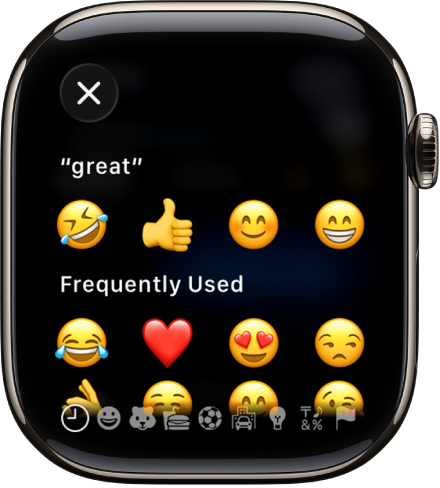
- To browse, touch and hold the categories at the bottom and drag left and right.
- When you find the right emoji, tap it.
Type on your iPhone
With your paired iPhone nearby, you can enter text from it instead.
- On Apple Watch, start dictating or entering text.
- On iPhone, tap the notification for Apple Watch Keyboard Input and then continue dictating or typing.
See also