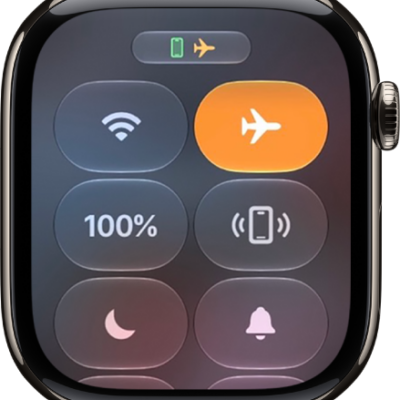
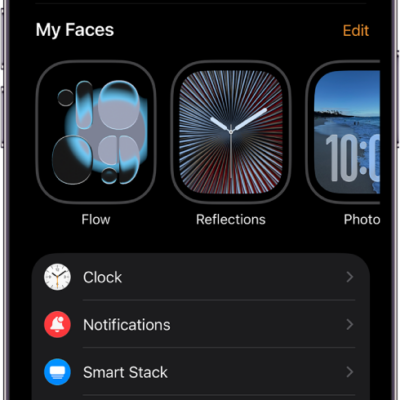
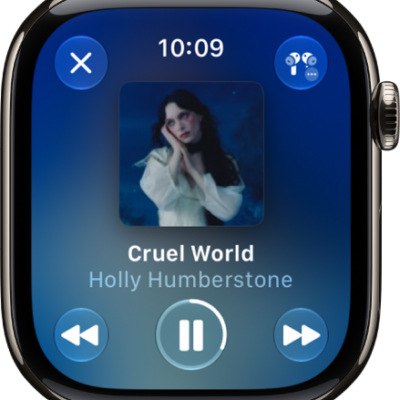
Settings on Apple Watch stay in sync, so a change you make in one place updates in the others. For quick access to common settings like volume, Wi-Fi, Bluetooth, and Focus modes, there’s Control Center. You can adjust Apple Watch settings in these places:
- On your iPhone using the Apple Watch app
- Directly on your watch using the Settings app
- In Control Center for commonly used settings—like Wi-Fi, Bluetooth, and Focus modes
Note: You can find some settings only in the Apple Watch app on iPhone.
All these places keep settings in sync, so a change in one updates the others.
Find and change settings in the Apple Watch app
- Open the Apple Watch app on your iPhone.
-
Tap My Watch to see the settings for your Apple Watch.
If you have more than one Apple Watch paired with your iPhone, you see the settings for your active Apple Watch.
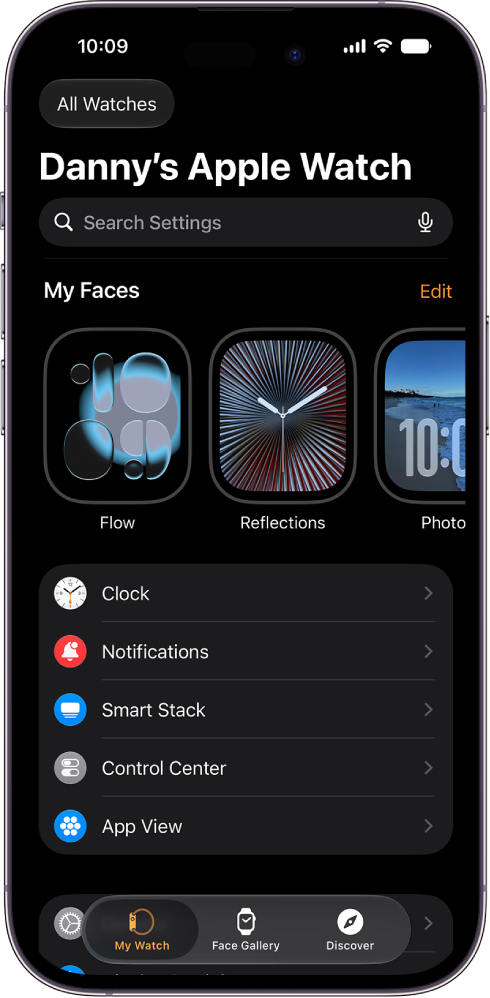
- To find a setting, tap the search field. Then enter what you’re looking for.
Adjust preferences in the Settings app on Apple Watch
- Open the Settings app on your Apple Watch.
- To browse the settings, swipe up or down or turn the Digital Crown.
- Tap a setting and make adjustments.
Make quick adjustments in Control Center on Apple Watch
Common settings, such as Wi-Fi, volume, Bluetooth, and Focus modes, are conveniently accessible.
- Press the side button to open Control Center.
- Adjust any of the controls.
See also
- Use Control Center on Apple Watch
- Set up and use cellular service on Apple Watch
- Charge the battery on Apple Watch
Tag: Settings