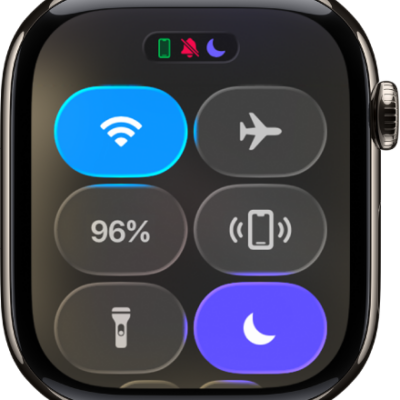
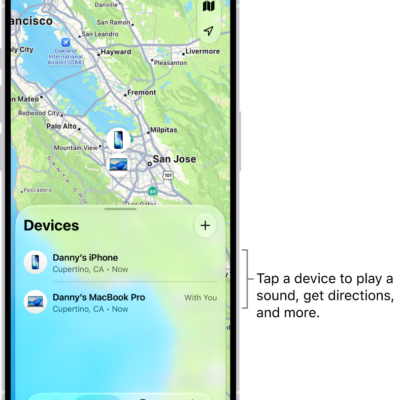
You can use your iPhone to help you find Apple Watch if it’s nearby. (Requires iPhone with iOS 17 or later.)
You add Ping My Watch to Control Center on your iPhone, then ping your watch from there. If you have more than one Apple Watch, it plays on whichever watch is selected in All Watches. You can also learn how to play a sound on your iPhone, iPad, Mac, or Apple Watch and protect a lost Apple Watch.
Add Ping My Watch to Control Center
-
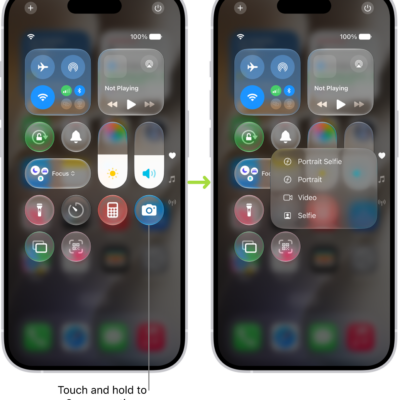
On your iPhone, open Control Center with one of the following methods:
- On an iPhone with Face ID: Swipe down from the top-right corner of the screen.
- On an iPhone with a Home button: Swipe up from the bottom edge of the screen.
-
Tap the Add button at the top left of the screen.
You see Control Center in edit mode.
- Tap Add a Control at the bottom of the screen to open the controls gallery, scroll down to the Watch controls, and tap Ping My Watch.
Ping your watch from Control Center on iPhone
-
On your iPhone, open Control Center with one of the following methods:
- On an iPhone with Face ID: Swipe down from the top-right corner of the screen.
- On an iPhone with a Home button: Swipe up from the bottom edge of the screen.
-
Tap the Ping Apple Watch button.
If you have more than one Apple Watch, the sound will play on the watch that’s selected in All Watches in the Apple Watch app on your iPhone.
See also
Tags: Control Center, Find My