iPad turns off the display to save power, locks for security, and goes to sleep when you’re not using it. You can quickly wake and unlock iPad when you want to use it again.
You can unlock iPad with Face ID, Touch ID, or a passcode, depending on your model. And iPad locks by itself after a certain amount of time without use, though you can lock it manually, too.
Wake iPad
You can wake iPad in a few different ways:
-
Press the top button.

-
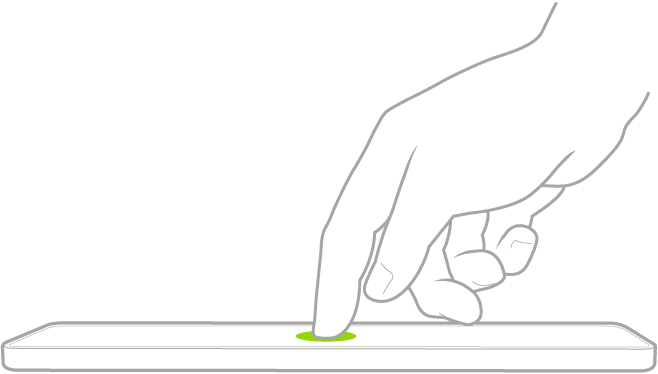
Tap the screen (supported models).
- Open a Smart Folio, Smart Cover, or Magic Keyboard cover.
Unlock iPad with Face ID
If you have an iPad with Face ID, but you didn’t turn on Face ID during setup, see Set up Face ID. Then follow these steps:
-
Tap the screen, then glance at your iPad.
The lock icon animates from closed to open to indicate that iPad is unlocked.
- Swipe up from the bottom of the screen.
To lock iPad again, press the top button. iPad locks automatically if you don’t touch the screen for a minute or so. However, if Attention Aware Features is turned on, iPad won’t dim or lock as long as it detects attention. To turn it on or off, go to the Settings app, then tap Face ID & Passcode.
Unlock iPad with Touch ID
Have an iPad with Touch ID that you didn’t set up during setup? See our guide, Set up Touch ID. On an iPad with a rectangular button on the top edge, use the top button; with a circular button at the bottom of the screen, the Home button is the one to use, and after that, do one of the following:
-
On an iPad with a Home button: Press the Home button using the finger you registered with Touch ID.

-
On iPad (10th generation and later), iPad mini (6th generation), iPad mini (A17 Pro), and iPad Air (4th generation and later): Rest your finger on the top button (Touch ID) using the finger you registered with Touch ID.
To lock iPad again, press the top button. iPad locks automatically if you don’t touch the screen for a minute or so.
Unlock iPad with a passcode
If you didn’t create a passcode when you set up iPad, see Set a passcode. Then follow these steps:
- Press the Home button (on an iPad with a Home button) or swipe up from the bottom of the Lock Screen (on other iPad models).
- Enter your passcode.
Lock iPad
You can lock iPad and turn off the screen in the following ways:
- Manually: Press the top button.
- Automatically: iPad locks on its own if you don’t interact with it for a certain amount of time. To change how long iPad waits before locking, see Change when iPad automatically locks.
See also