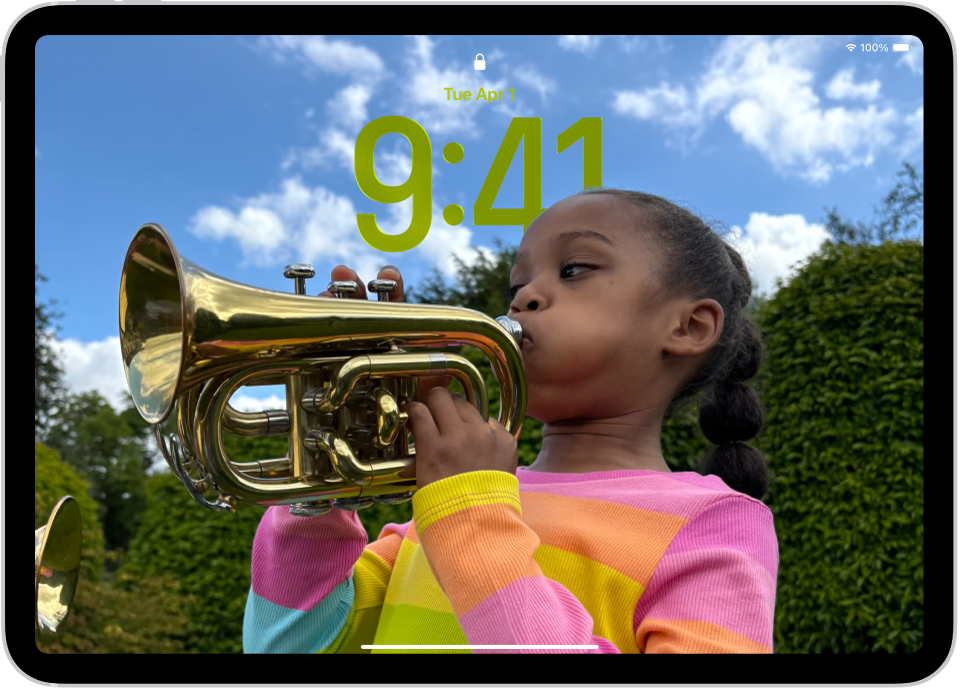
You can personalize your Lock Screen by choosing a wallpaper, showcasing a favorite photo, changing the font of the time, adding widgets, and more.
You can also create more than one Lock Screen and switch between them, and even link a Lock Screen to a Focus—so you could set one for when you’re working. You can even try a spatial scene for a 3D effect on supported models, and the time can dynamically adapt to your photo wallpaper and notifications.
Edit your Lock Screen or create a new one
- Press the top button on your iPad.
-
Touch and hold the Lock Screen and then tap the Add New Lock Screen wallpaper button to create a new Lock Screen. (If the Add New Lock Screen wallpaper button doesn’t appear, touch and hold your Lock Screen again, then enter your passcode.)
To make changes to an existing Lock Screen, swipe to the screen you want to change, then tap Customize.
-
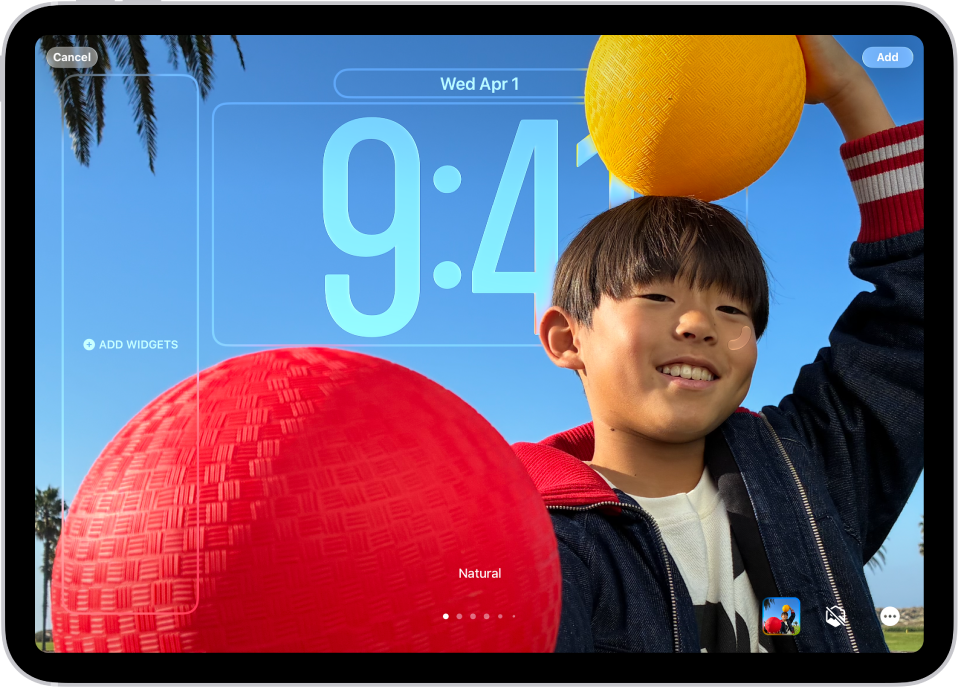
If you’re creating a new Lock Screen, choose your wallpaper. On supported models, you can try a spatial scene for a 3D effect and try options where the time dynamically adapts to your photo wallpaper and notifications.
Note: If you don’t see a wallpaper option you want to use (for example, Weather or Astronomy), scroll down to see more options, then tap Get below the one you like.
-
Here are some ways to customize your Lock Screen (options depend on the wallpaper you choose):
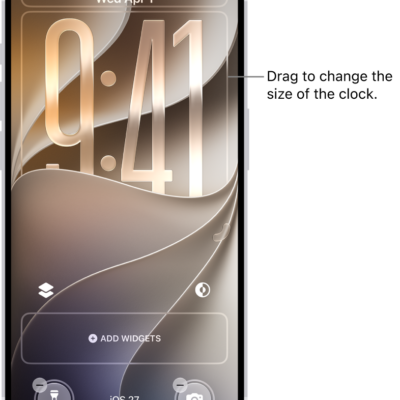
- Change the look of the clock: Drag the bottom right corner to increase the height and tap the time to change the font, switch to a more transparent look, and more.
- Add a 3D effect: On supported models, if you’ve added a photo that supports spatial effects, tap the Spatial Capture button.
- Add or change the widgets: Tap your existing widgets or tap Add Widgets.
- Reposition your photo: Pinch open to zoom in and drag the image with two fingers to move it. Pinch closed to zoom out.
- Create a multilayered effect: Tap the Depth Effect button. Or if you have a photo that supports layering, tap the More button and choose Depth Effect.
- Change the style: Swipe left or right to try different color filters.
- Create a motion effect with a Live Photo: If you select a Live Photo that can be translated into slow motion, tap the Live Photo button to play the Live Photo when the device wakes up.
- Set the shuffle frequency: If you chose Photo Shuffle, tap the photo thumbnail to change the photo selection or change the shuffle frequency by tapping the More button.
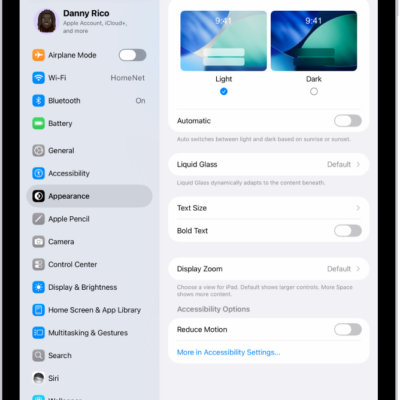
- Switch between a light and dark appearance: If the background you chose has a light mode and dark mode option, tap the Appearance button.
-
Tap Add, then do one of the following:
- Choose to use the wallpaper on both the Lock Screen and Home Screen: Tap Set as Wallpaper Pair.
- Make changes to the Home Screen: Tap Customize Home Screen. Tap a color to change the wallpaper color, tap the Select a photo button to use a custom photo, or select Blur to blur the wallpaper so the apps stand out.
Link a Focus to your Lock Screen
A Focus minimizes distractions so you can concentrate on a task. Once you set up a Focus, link it to your Lock Screen, and your Focus settings apply whenever you use that Lock Screen, and that Lock Screen shows up whenever that Focus is on.
- Press the top button on iPad.
- Touch and hold the Lock Screen until the Customize button appears at the bottom of the screen.
- Tap Focus near the bottom of the wallpaper to see the Focus options—for example, Do Not Disturb, Personal, and Work.
- Select a Focus and then tap the Close button.
Switch between Lock Screens
You can create multiple custom Lock Screens and switch between them throughout the day.
- Press the top button on iPad.
- Touch and hold the Lock Screen until the Customize button appears at the bottom of the screen.
- Swipe to the Lock Screen you want to use, then tap it.
Note: If you switch from a Lock Screen that’s linked to a specific Focus to another Lock Screen, your Focus switches, too.
Delete a Lock Screen
You can delete Lock Screens you no longer need.
- Press the top button on iPad.
- Touch and hold the Lock Screen until the Customize button appears at the bottom of the screen.
- Swipe to go to the Lock Screen you want to delete, swipe up on the screen, tap the Trash button, and tap Delete This Wallpaper.
See also