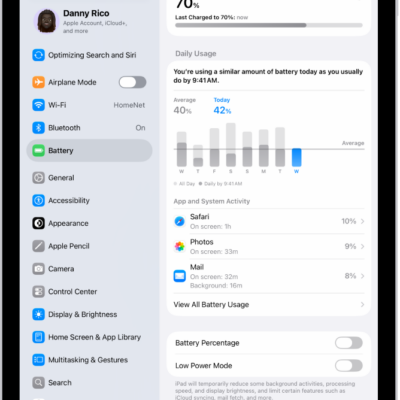
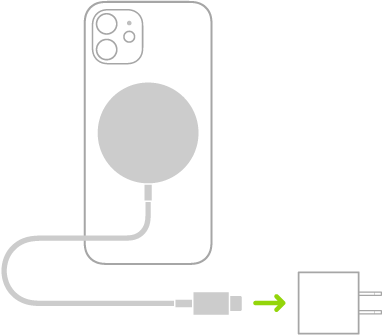
iPad has an internal, lithium-ion rechargeable battery. Compared with traditional battery technology, lithium-ion batteries are lighter, charge faster, last longer, and have a higher power density for more battery life.
The battery icon in the status bar shows the battery level or charging status. If iPad is very low on power, you’ll see an image of a nearly depleted battery, and it may need to charge for up to 10 minutes before you’re able to use it. You can improve charging speed and learn how charging behaves, too.
About charging the battery

To see the battery level or charging status, look at the battery icon at the top right of the status bar. It can take longer to charge while you’re syncing or using iPad.
When iPad is very low on power, it may show an image of a nearly depleted battery. That means iPad needs up to 10 minutes of charging before you can use it. And if it’s extremely low on power when you start charging, the display may stay blank for as long as 2 minutes before the low-battery image appears.
Charge the battery
There’s more than one way to charge your iPad battery:
-
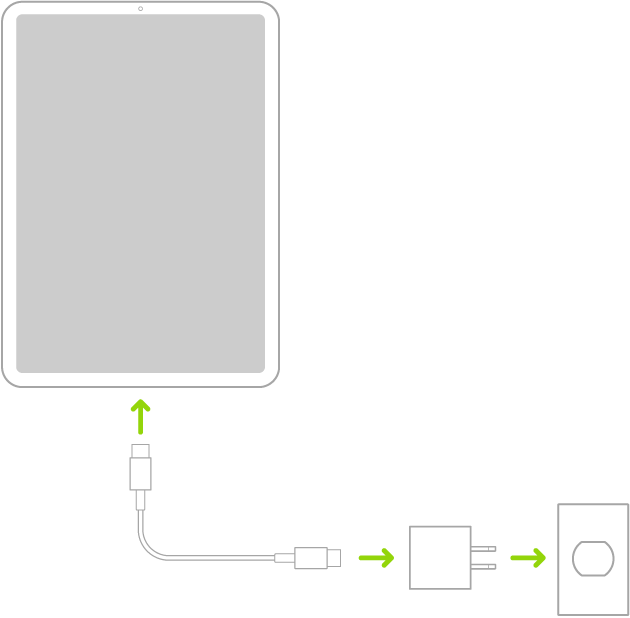
Connect iPad to a power outlet using the included cable and power adapter. See Power adapter and charge cable.
-
Connect iPad and your computer with a cable.
Make sure your computer is turned on—if iPad is connected to a computer that’s turned off, the battery may drain instead of charge. Look for the charging icon on the battery icon to make sure iPad is charging.
If your Mac or Windows device doesn’t provide enough power to charge iPad, a Not Charging message appears in the status bar.
Note: Don’t try to charge your iPad by connecting it to your keyboard, unless your keyboard has a high-power USB port.
- When iPad is connected to a Magic Keyboard with USB-C, the keyboard can pass through power from an attached USB-C cable and power adapter.
An iCloud backup can start when you connect iPad to a power outlet. Read our guide, Back up iPad.
WARNING: If you suspect there may be liquid in the charging port of iPad, don’t plug the charging cable into it. For information about exposure to liquid, and other important safety information about the battery and charging iPad, see Important safety information for iPad.
Improve charging speed
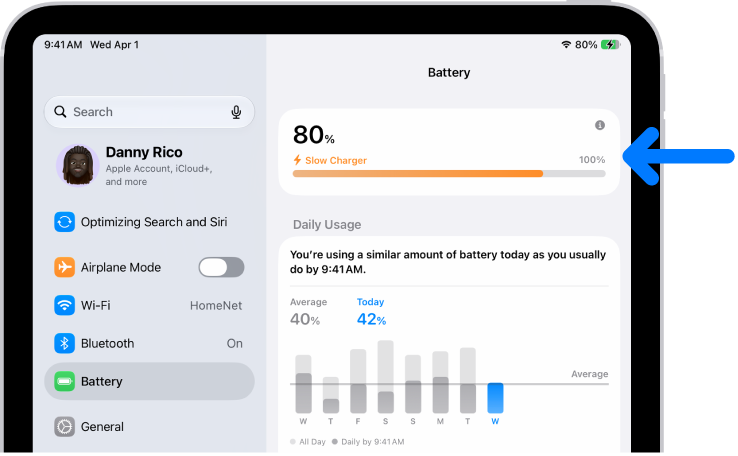
If your iPad is charging slowly, you’ll see a Slow Charger message in the Settings app, then tap Battery. This message appears when your iPad supports fast charging but the connected charger isn’t capable of delivering optimal power.
With a wired charger that provides 7.5 watts or less, charging might take longer than expected.
Understand charging behavior
To help preserve long-term battery health, iPad manages how it charges. This is what happens when you charge:
- Fast charging up to 80%: iPad charges quickly until the battery reaches about 80%.
- Trickle charging after 80%: Charging slows to reduce battery stress and limit heat. This final stage helps maintain battery lifespan.
- Temperature: Charging may pause temporarily while in extreme temperature conditions, and will resume once the battery’s temperature returns to its normal operating range.
These protections happen automatically and don’t require any changes to your settings.
About charge cycles and battery lifespan
The capacity of any type of battery will diminish after a certain amount of recharging. With lithium-ion batteries, the capacity diminishes slightly with each complete charge cycle. Apple lithium-ion batteries work in charge cycles and retain about 80% of its original capacity for a high number of charge cycles, depending on the product.
A charge cycle happens when you use a total of 100% of your battery’s capacity,* even if it’s not all at once. For example, you might use 75% of your battery’s capacity one day, then recharge it fully overnight. If you use 25% the next day, you will have discharged a total of 100%, and the two days will add up to one charge cycle.
Battery life and charge cycles vary with use and settings. The iPad battery should be serviced or recycled by Apple or an Apple Authorized Service Provider.
*A complete charge cycle is normalized between 80% and 100% of original capacity to account for expected diminishing battery capacity over time.
See also