Express yourself by adding stickers that match your personality and mood to your text messages.
You can send Live Stickers you or a friend made, Memoji stickers, and stickers from other creators you download from the App Store. You can also place stickers right on a conversation, then move, resize, or delete them. Memoji stickers come in their own sticker pack.
Here’s how to send stickers in Messages on iPad.
Send a sticker in a message
- Go to the Messages app on your iPad.
- In a conversation, tap the Add button.
- Tap Stickers and then tap the icon for any of the following sticker packs:
- Live Stickers you or a friend made: Tap the Live Stickers button. See Create Live Stickers and Save other people’s Live Stickers, below.
- Emoji: Tap the Emoji button.
- Memoji: Tap the Memoji Stickers button, tap a Memoji in the top row to view the stickers in the sticker pack, and choose a pose or expression. See Create and send Memoji.
- Stickers from other creators: Download a sticker app from the App Store. See Add iMessage apps.
- Add a message (optional), then tap the Send button.
From the emoji keyboard, you can also send stickers; read our guide, Make a sticker.
Place stickers on a conversation
You can add stickers on message bubbles in conversations, angle them, or make them different sizes, and place one sticker on top of another.
- Open the Messages app on your iPad.
- In a conversation, tap the Add button.
- Tap Stickers. Then tap an icon—such as the Live Stickers button, the Emoji button, or the Memoji Stickers button—in the top row to browse a sticker pack.
-
Drag a sticker onto a bubble. Do any of the following:
- Adjust the angle: Rotate a second finger around the finger dragging the sticker.
- Adjust the size: Move a second finger closer to or away from the finger dragging the sticker.
Your recipients see the sticker as soon as you place it on a message.
To find out who sent a sticker in a conversation, touch and hold the sticker, then tap Sticker Details.
Quick tip: To quickly add stickers to messages, touch and hold a message and tap Attach Sticker, and choose a sticker to sit on a corner of that message bubble.
Move, resize, or delete stickers
You can still make changes to a sticker after you place it on top of message bubbles in conversations.
Do any of the following:
- Move or resize a sticker: Touch and hold the sticker, then make any changes.
- Delete a sticker: Touch and hold the message bubble, tap Sticker Details, swipe left on the sticker you want to delete (on your iPad only), then tap the Delete button.
- See any text covered by a sticker: Double-tap the message bubble.
For changing stickers sent in a message bubble, see our article, Unsend and edit messages.
Note: Both you and your recipients must use iOS 17.2, iPadOS 17.2, macOS 14.1, or watchOS 10.2 or later, or visionOS 1 or later, to see these updates to stickers.
Create Live Stickers
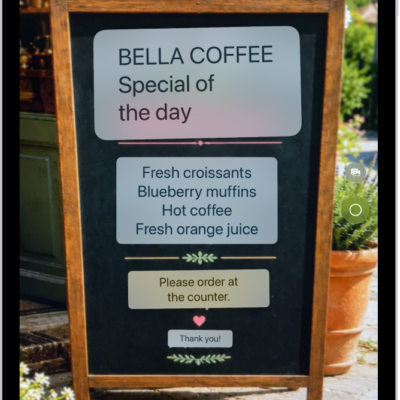
To create your own Live Stickers for messages, lift subjects from photos and add effects that help bring the stickers to life.
This feature is available on supported models.
- Open the Messages app on your iPad.
- In a conversation, tap the Add button. Then tap Stickers.
- Tap the Live Stickers button and then tap the Add button.
-
Tap a photo and then tap the Add button.
Tip: To create a Live Sticker that moves, use a Live Photo. See Make stickers from your photos.
- To add an effect, touch and hold the sticker, tap Add Effect and choose an option (such as Comic or Shiny). Tap the Done button.
Save other people’s Live Stickers
If someone sends you a Live Sticker you like, save it to reuse later.
- Open the Messages app on your iPad.
- Open a conversation with a sticker you want to save.
- Touch and hold the sticker. Do one of the following:
- For a sticker sent in a message: Tap Save to Stickers.
- For a sticker placed on a message bubble: Tap Sticker Details and then tap Save.
Memoji are another option: create and send Memoji that use your voice and mirror your facial expressions.
See also