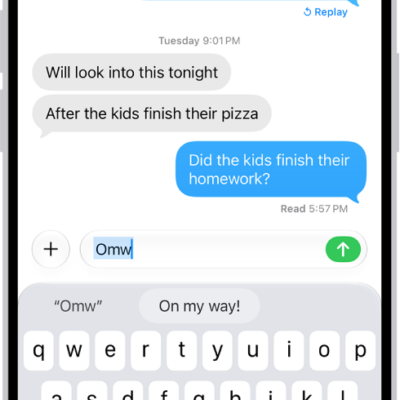
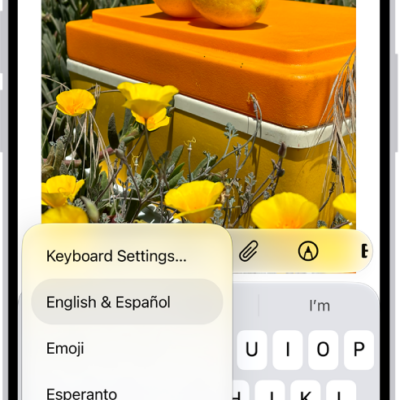
With Dictation on iPad, you can dictate text anywhere you can type it. You can use typing or handwriting with Dictation, and the keyboard or tools palette can stay open, so you can easily switch between speaking and typing or handwriting. You might select text with touch or Apple Pencil and replace it with your voice.
Dictation is processed on your device in many languages, and no internet connection is required. When you dictate in a search field, though, your dictated text may be sent to the search engine.
Note: Dictation may not be available in all languages or in all countries or regions, and features may vary. With Apple Intelligence in iPadOS 27, dictation uses an on-device model to improve spelling, punctuation, and capitalization. Available in English on iPad models with M4 or later, at least 12GB of unified memory. Apple Intelligence on iPadOS 27 or later is available on an Apple Intelligence-enabled iPad mini (A17 Pro) and iPad models with M1 or later. Apple Intelligence is not available in all languages or regions. Usage limits may apply.*
When using Dictation, cellular data charges may apply. See View or change cellular data settings.
Make dictation possible
- Start the Settings app on your iPad.
- Tap General, then tap Keyboard.
- Turn on Enable Dictation. If a prompt appears, tap Enable Dictation.
To learn more about how Apple protects your information and lets you choose what you share, tap About Dictation & Privacy below the dictation settings.
Using an external keyboard? Read our guide, Dictate text while using an Apple external keyboard.
Dictate text
Dictate text and use voice commands to edit and format content.
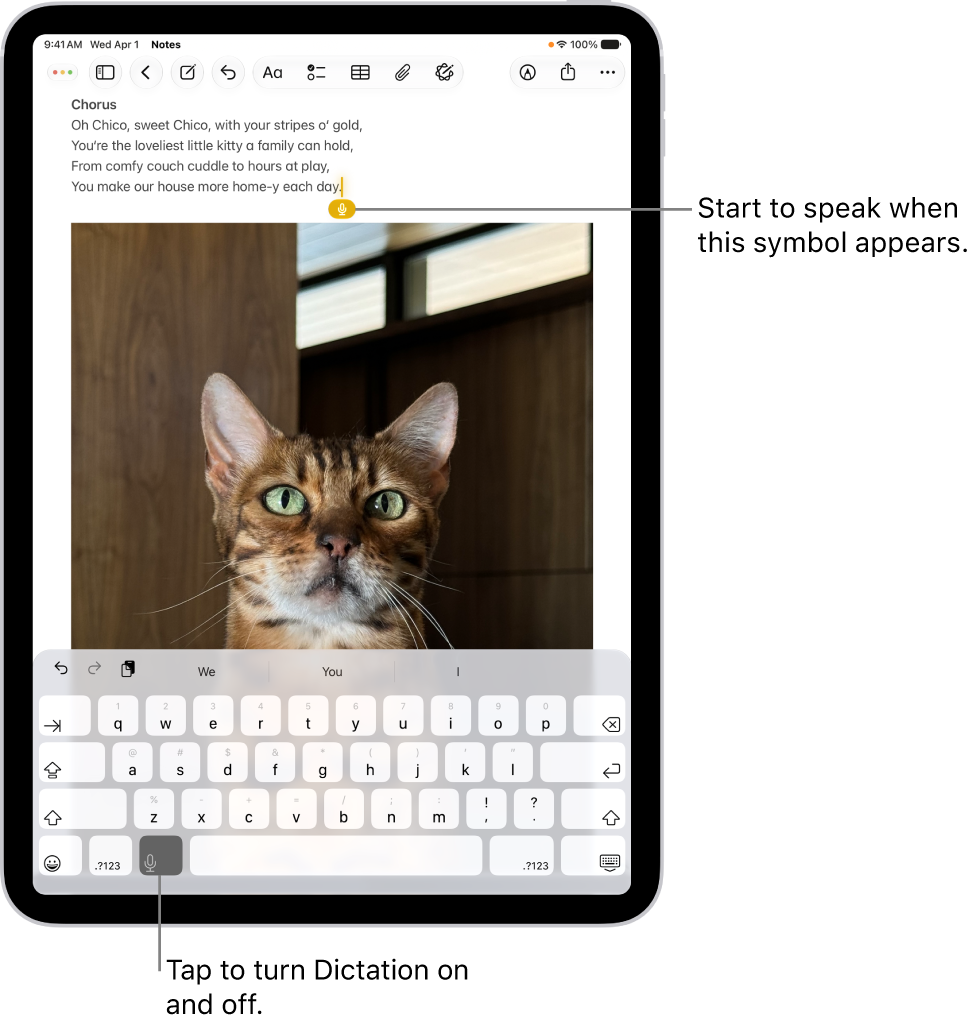
- In a text field, tap to place the insertion point where you want to begin dictating text.
-
Tap the Dictate button on the onscreen keyboard (or in any text field where it appears).
If you don’t see the Dictate button, go to the Settings app, tap General, tap Keyboard, then turn on Enable Dictation. If a prompt appears, tap Enable Dictation.
- When the Dictate button appears near the insertion point in the text field, begin to dictate your text.
-
Do any of the following:
- Add emoji: Say the name of an emoji, like “heart emoji” or “smiley face emoji.”
-
Add punctuation: Say the name of the punctuation mark, such as “exclamation point.”
Note: In supported languages, Dictation automatically inserts commas, periods, and question marks as you dictate. To turn off automatic punctuation, go to Settings > General > Keyboard, then turn off Auto-Punctuation.
- Add a line break: Say “new line” or “new paragraph.”
- Spell a word: Say something like “Let’s invite Steven S-T-E-P-H-E-N.”
- Correct spelling: Say something like “Change tea to T-E-E.”
- Edit text: Say “select” or “delete” followed by the phrase you want to change.
- Undo or repeat a command: Say “undo” or “redo” if you change your mind or want to repeat a command.
-
To stop dictating, do one of the following:
- Tap the Dictate button.
- Say “Stop dictation.”
- Remain silent for 30 seconds. Dictation stops automatically.
For every command you can use while dictating, see our article, Commands for dictating text.
Dictation works in another language, too, when you use a keyboard for that language; check out our guide, Add or change keyboards.
Turn off Dictation
- Start the Settings app on your iPad.
- Tap General, then tap Keyboard.
- Turn off Enable Dictation.
*Apple Intelligence is available with Siri and device language set to Chinese (Simplified), Chinese (Traditional), Danish, Dutch, English, French, German, Italian, Japanese, Korean, Norwegian, Portuguese, Spanish, Swedish, Turkish, or Vietnamese. Some features may not be available in all regions or languages. Some devices may not be available in all regions. Siri AI is available in beta in iOS 27, iPadOS 27, macOS 27, watchOS 27, and visionOS 27 and requires an Apple Intelligence–enabled device set to a supported language. Available in English to start. Siri AI will not be initially available in the EU on iOS, iPadOS, and watchOS. Certain Apple Intelligence features that rely on server-side models are subject to daily usage limits, including but not limited to Siri AI, Intelligent Photo Editing Tools, Image Playground, and AFM 3 Cloud models in Shortcuts. Daily limits may vary by feature, request complexity, system demand, system policies, and other factors. Expanded access to such features will be available for a fee in the future. Use of these features is subject to the Apple Intelligence Terms and Conditions.
See also
- Commands for dictating text on iPad
- Use the onscreen keyboard with VoiceOver on iPad
- Dictate text while using an Apple external keyboard with iPad