Notifications help you keep track of what’s new—they let you know if you missed a call, if the date of an event moved, and more. You can customize your notifications so you see only what’s important to you.
Unless you have notifications silenced with a Focus, iPad displays them as they arrive, and they roll in from the bottom of the screen to minimize distraction. On the Lock Screen, you can view them in an expanded list view, stacked view, or count view. You can also respond to notifications, and view, dismiss, clear, or mute them.
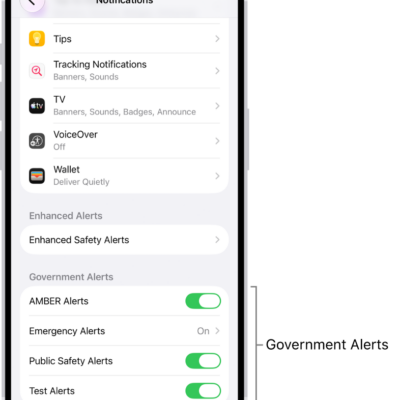
Note: While you use an app, it might ask how you want to receive its notifications: immediately, not at all, or in a scheduled summary. To change this setting later, open the Settings app and tap Notifications.
Find your notifications in Notification Center
Do any of the following to see your notifications in Notification Center:
- On the Lock Screen: Swipe up from the middle of the screen.
- On other screens: Swipe down from the top-left corner. Then you can scroll up to see older notifications, if there are any.
To close Notification Center, swipe up from the bottom with one finger, or press the Home button (on supported models).
Respond to notifications
Multiple notifications in Notification Center or on the Lock Screen are grouped by app, making them easier to view and manage, and some apps may also group notifications by organizing features within the app, like topic or thread. Each group appears as a small stack, with the most recent notification on top.
With notifications grouped, you can do any of the following:
- To expand a group of notifications to see them individually: Tap the group. To close the group, tap Show Less.
- To view a notification and perform quick actions if the app offers them: Touch and hold the notification.
- To open a notification’s app: Tap the notification, then tap Open.
- To respond to a notification when iPad is locked: Touch and hold the notification.
View, dismiss, clear, and mute notifications
You can do any of the following when notifications appear on your iPad:
- Handle a notification you receive while using another app: Pull it down to view it, then swipe up to dismiss it.
- Clear notifications: Swipe left on a notification or group of notifications, then tap Clear or Clear All.
-
Mute notifications for an app: Swipe left on the notification or group of notifications, tap Options, then tap an option to mute the app’s notifications for an hour or a day. This sends them directly to Notification Center and prevents them from appearing on the Lock Screen, playing a sound, lighting up the screen, or presenting a banner.
To see and hear these notifications again, swipe left on a notification in Notification Center, tap Options, then tap Unmute.
- Turn off notifications for an app or notification group: Swipe left on a notification or group of notifications, tap Options, then tap Turn Off.
- Change how an app displays notifications: Swipe left on a notification, tap Options, then tap View Settings. See Change notification settings to learn about the settings you can change.
- Clear all your notifications in Notification Center: Go to Notification Center, tap the Clear Notifications button, then tap Clear.
When an app hasn’t been used for a while, you may get a suggestion to turn off notifications for that app.
Show recent notifications on the Lock Screen
You can allow access to Notification Center on the Lock Screen.
- Open the Settings app on your iPad.
- Depending on your model, tap one of the following:
- Face ID & Passcode
- Touch ID & Passcode
- Passcode
- Enter your passcode.
- Turn on Notification Center (below Allow Access When Locked).
See also