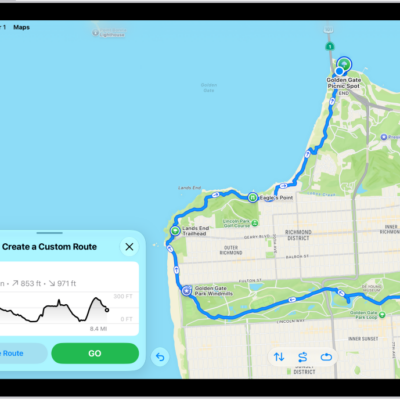
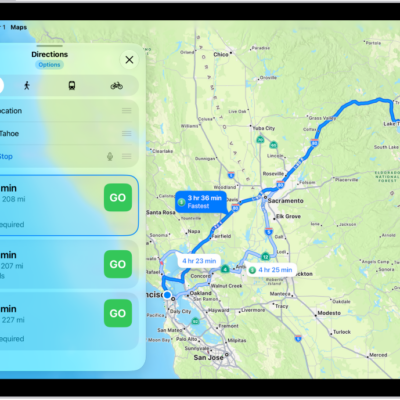
You can find your location on a map and switch to different map views for different details, from Explore and Driving to Transit and Satellite. On supported models and select cities, Maps provides enhanced detail for elevation, roads, trees, buildings, and landmarks.
To find your location and give you directions, iPad must be connected to the internet, with Location Services turned on. If Location Services or Precise Location is off, Maps shows you how to turn it on.
Note: Not all features are available in all regions or countries.
WARNING: For important information about navigation and avoiding distractions that could lead to dangerous situations, see Important safety information.
Allow Maps to use your location
iPad needs an internet connection, with Location Services on, to find your location and provide accurate directions.
If Maps alerts you that Location Services or Precise Location isn’t on, you can turn it on by following the onscreen instructions, or turn these on in Settings.
- Open the Settings app on your iPad.
- Tap Privacy & Security and tap Location Services. Turn on Location Services.
- To find your location and provide accurate directions, scroll down and tap Maps. Turn on Precise Location. Your iPad must also be connected to the internet.
- To get useful location-related information in Maps, tap the Back button, tap System Services, tap Significant Locations & Routes, and turn on Significant Locations & Routes. See Find nearby attractions, restaurants, and services.
When using features on Wi-Fi + Cellular models, cellular data rates may apply. See View or change cellular data settings.
Show your current location
- Go to the Maps app on your iPad.
-
Tap the Tracking Off button.
Your position is marked in the middle of the map. The top of the map is north.
-
Do any of the following:
- Show your heading instead of north at the top: Tap the Tracking On button.
- Resume showing north at the top: Tap the Tracking On With Heading button or the Compass button.
For directions from your current location to another, read our article, Get directions.
Switch to a different map view
Check the button at the lower right of a map to see if the current map is in satellite view or for exploring, driving, or riding transit. You can change the map type anytime.
- Open the Maps app on your iPad.
- Tap the Map Modes button at the top right.
- Choose another map type, then tap the Close button.
Maps gives you driving, cycling, walking, or transit directions, plus traffic and weather info.
Note: Apple is committed to keeping personal information about your location safe and private. Read more about Apple’s commitment: go to the Settings app, tap Apps, tap Maps, then tap About Apple Maps & Privacy. You can also clear your location history or delete recent directions.
See also
- View a route overview or a list of turns in Maps on iPad
- Use Maps on iPad
- Share your estimated time of arrival in Maps on iPad
- Choose a default travel mode and Maps units on iPad