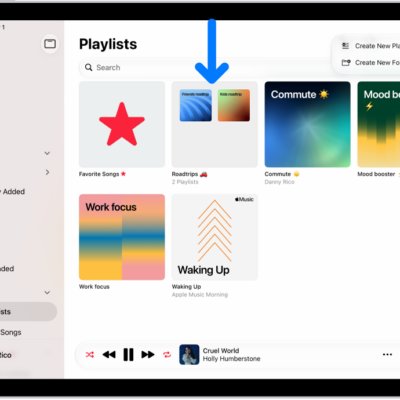
You can create playlists to suit specific moods or to organize songs with a certain theme.
In the U.S., you can use Playlist Playground to tell Apple Music what kind of music you want, by describing the mood or vibe. You can then customize a playlist by adding, reordering, or removing tracks, and delete it later. You can also add music to an existing playlist.
Here’s how to create, edit, and delete music playlists on iPad.
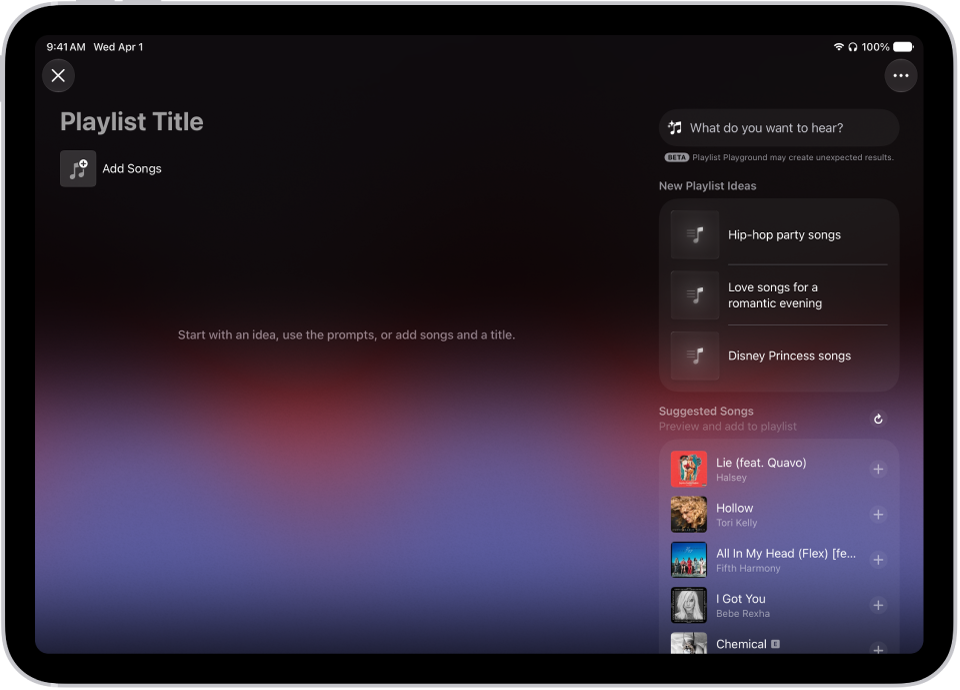
Create a playlist with Playlist Playground (U.S. only)
- Start the Music app on your iPad.
- Tap New Playlist below Playlists in the sidebar.
-
Do one of the following:
-
Use Playlist Playground: Tell Apple Music what kind of music you want to listen to by describing the mood, vibe, or providing details. For example, you can type something like, “morning coffee music” and get 25 suggested tracks with a custom title.
Customize the playlist by adding, reordering or removing tracks.
- Create manually: Add the tracks you want by tapping Add Songs and selecting the tracks you want to add.
-
Use Playlist Playground: Tell Apple Music what kind of music you want to listen to by describing the mood, vibe, or providing details. For example, you can type something like, “morning coffee music” and get 25 suggested tracks with a custom title.
- Tap the More button for more customization options and tap the Done button.
Note: Playlist Playground is available in beta only to subscribers 13 and older in the U.S. and in English.
Create a playlist
- Start the Music app on your iPad.
- Tap New Playlist below Playlists in the sidebar.
- Enter a playlist title.
- To give your playlist cover art, tap the Camera button and then take a photo, choose an image from your photo library, or choose a file on your device.
-
Tap the Done button, then tap Add Music.
You can search for music, select music from your library, or choose from the suggested songs listed at the bottom of the screen.
- Tap the Add button to add music to the playlist.
Quick tip: If you’d like songs to land in your library whenever you add them to a playlist, go to Settings > Apps > Music and turn on Add Playlist Songs.
Add music to an existing playlist
After you create a playlist, you can add music to it in several ways.
- Start the Music app on your iPad.
- Do one of the following:
- Touch and hold an album, playlist, song, or music video, tap Add to a Playlist, then choose a playlist.
- From the Now Playing screen, tap the More button, tap Add to a Playlist, then choose a playlist.
Edit a playlist
You can rename playlists, change the artwork, add and remove songs, and more.
Note: In a collaborative playlist, the owner can change anything. Everyone else can only add, remove, or reorder songs.
- Start the Music app on your iPad.
-
Tap the playlist, tap the More button and tap Edit. Do any of the following:
- Rename the playlist: Tap the current name, then enter a new name.
- Edit cover art: Select from a variety of Apple templates or tap the Camera button to add your own.
- Show (or hide) the playlist in your Apple Music profile: Turn on (or off) the Show on My Profile and in Search option.
-
Add songs from your library: Tap the Add button, go to any place in your library and tap the Add button next to the song.
You can also touch and hold an item (song, album, playlist, or music video), tap Add to a Playlist, then choose a playlist.
-
Add a Suggested Song: Tap the Add button, swipe below the Library options, and then tap the Add button next to the song.
Suggested Songs also appears at the bottom of your playlist song list. To refresh the list of suggestions, tap the Refresh Suggested Songs button.
-
Delete a song: Tap the song, then tap the Delete button.
Note: Deleting a song from a playlist doesn’t delete it from your library.
- Change the song order: Drag the Reorder button next to a song.
Changes you make to your music library are updated across all your devices when Sync Library is turned on (go to Settings > Apps > Music, then turn on Sync Library). If you’re not an Apple Music subscriber, the changes appear in your music library the next time you sync with your computer.
Sort a playlist
- Start the Music app on your iPad.
- Tap a playlist and tap the More button at the top right of the screen.
- Tap Sort By, then choose an option.
Delete a playlist
If you delete a playlist, its songs stay in your library and on your iPad. Delete a collaborative playlist you own, though, and the collaboration ends. The playlist leaves your library but remains in the participants’ library.
- Start the Music app on your iPad.
-
Touch and hold the playlist and tap Delete from Library.
You can also tap the playlist, tap the More button, then tap Delete from Library.
See also
- Organize playlists in folders in Music on iPad
- Play music on iPad
- Adjust the sound quality in Music on iPad