In addition to the apps that come with iPad and that you use with iCloud, iPad works with Microsoft Exchange and many of the most popular internet-based mail, contacts, and calendar services. You can set up accounts for these services.
You can choose your email service from a list, or add another account if yours isn’t listed. You can set up a contacts account and a calendar account with a provider like iCloud or Microsoft Exchange, too.
Here’s how to set up mail, contacts, and calendar accounts on iPad.
Set up a mail account
- Start the Settings app on your iPad.
- Tap Apps and then tap Mail.
- Tap Mail Accounts, then tap Add Account.
-
Enter your email address, tap Next, and enter your email account information.
You can also tap “choose from a list” under the email address field to select the email service you want to use—for example, iCloud, Microsoft Exchange, or Gmail (Google).
If your email service isn’t listed, tap Add Other Account, tap Mail Account, then enter your email account information.
For the steps, read our guide, Add and remove email accounts.
Set up a contacts account
- Start the Settings app on your iPad.
- Tap Apps, then tap Contacts.
- Tap Contact Accounts and then tap Add Account.
- Do one of the following:
- Tap a provider—for example, iCloud or Microsoft Exchange—then enter your account information.
- Tap Other, tap Add LDAP Account or Add CardDAV Account (if your organization supports it), then enter the server and account information.
To manage Contacts accounts, see our article, Add or remove accounts in Contacts.
Set up a calendar account
- Start the Settings app on your iPad.
- Tap Apps and then tap Calendar.
- Tap Calendar Accounts, then Add Account.
- Do one of the following:
- Choose a provider: Tap a provider—for example, iCloud or Microsoft Exchange—then enter your account information.
- Add a CalDAV, CardDav, or LDAP account: Tap Add Other Account, choose an option, and then enter your server and account information.
- Subscribe to iCal (.ics) calendars: Tap Other, tap Add Subscribed Calendar, and then enter the URL of the .ics file to subscribe to; or import an .ics file from Mail.
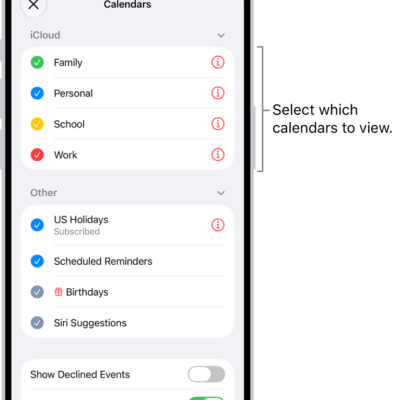
If you also use calendars, see our guide, Set up multiple calendars.
Turn on iCloud Keychain on your iPad, and your accounts stay up to date on every device that has iCloud Keychain turned on.
See also