You can report spam messages to Apple, recover messages from the Spam folder that were incorrectly marked as spam, and block specific contacts to stop receiving their messages.
When you use iMessage, a Report Spam link appears at the bottom of messages from unknown senders. You can also block a specific person or phone number, and check who you’ve blocked.
Here’s how to report spam and block senders in Messages on iPad.
Report spam messages
With iMessage, you can report spam messages to Apple.
- Go to the Messages app on your iPad.
-
Do one of the following:
- If you haven’t opened the message: Swipe left on the message, tap the Delete button, and tap Delete and Report Spam.
-
If you’ve already opened the message: A Report Spam link appears at the bottom of any message from any unknown sender. Tap Report Spam and tap Delete and Report Spam.
Note: You can’t report a message after you’ve replied to it.
- If you don’t see the option to report SMS, MMS, or RCS spam messages forwarded from your iPhone: Contact your carrier.
A message you received with iMessage goes to Apple along with the sender’s information, and it’s permanently deleted from your iPad.
You can recover messages you accidentally report and delete.
Reporting spam doesn’t stop the sender from sending messages, so block the contact to avoid receiving their messages.
You can filter incoming messages from new numbers to avoid getting them. See our article, Screen and filter messages from unknown senders.
Recover messages in the Spam folder
Spam that’s detected moves to the spam folder rather than appearing in your conversation list, and you can check to see if any messages are inadvertently marked as spam.
- Open the Messages app on your iPad.
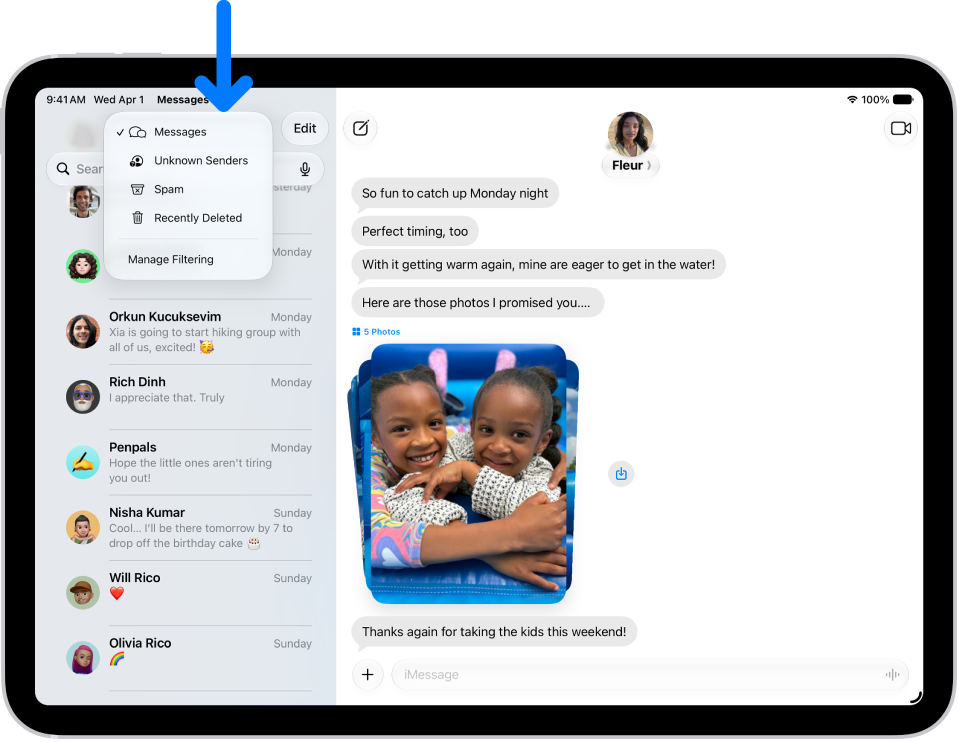
- Tap the Filter button at the top of the conversation list and tap Spam.
-
Tap a message that isn’t spam and tap Not Spam. Tap Move to Messages.
The conversation moves to your main conversation list, where you can send a reply. Tap the Filter button, then tap Messages.
Recovered messages move back to your conversation list.
Block messages from a specific person or phone number
Blocking a specific contact or phone number means messages from that person or number aren’t delivered, and the person sending them doesn’t know that their messages are blocked.
Note: A contact you block in Messages is also blocked in Mail, Phone, FaceTime, Calendar, and other apps. Read our guide, Prevent contacts from communicating with you.
- Open the Messages app on your iPad.
- Go to the conversation with the person you want to block and tap the person’s icon at the top.
-
Tap Info and scroll down. Tap Block Contact.
You can remove someone’s access to shared items.
Quick tip: You can’t block a group conversation, but instead of blocking all the people in the group, you can leave it or stop its notifications.
Check who you blocked
Not getting someone’s messages? Check whether they’re in your Blocked Contacts.
When you block a contact in Messages, that contact is also blocked in Mail, Phone, FaceTime, Calendar, and other apps.
- Open the Settings app on your iPad.
- Tap Privacy & Security, tap Blocked Contacts, and do any of the following:
- Unblock a number you’ve blocked: Tap [number] Unknown and swipe left on a number in the list. Then tap Unblock. Or tap Edit, then tap the Remove button.
- Add additional contacts or numbers directly to the list: Tap Add Blocked Contact.
A sender can’t find out if they’re blocked.
Quick tip: To prevent unwanted messages another way, allow your contacts only when you block messages with Screen Time.
You can set your notification options to change how the notifications appear and more.
To pause notifications from Messages, turn on Do Not Disturb or another Focus.
See also
- Keep track of messages on iPad
- Stop, mute, and change message notifications on iPad
- Delete messages and attachments in Messages on iPad
- Control what you share on iPad