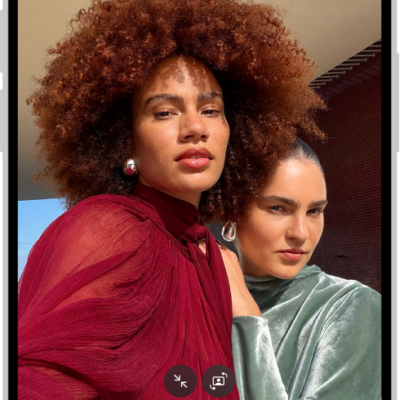
Take Portrait mode selfies with the front-facing camera on supported iPad models. This feature keeps your face sharp while beautifully blurring the background and foreground. On some iPad models, you can also apply Portrait Lighting effects and adjust the amount of background blur.
Portrait Lighting effects include Natural Light, Studio Light, Contour Light, Stage Light, and Stage Light Mono. On models that support Depth Control, you can adjust the level of background blur, and you can adjust it further in the Photos app after you take the photo.
Take a portrait
- Open Camera on your iPad.
- Select Portrait mode.
- Hold your iPad in front of you. Frame yourself in the portrait box.
- Tap the Shutter button to take the shot.
Change the Portrait Lighting effect
Studio-quality lighting effects can be applied to the selfies you take in Portrait mode on models that support Portrait Lighting.
- Open Camera on your iPad.
- Select Portrait mode.
- Hold your iPad in front of you. Frame yourself in the portrait box.
- Drag the Portrait Lighting control to choose a lighting effect:
- Natural Light: The face is in sharp focus against a blurred background.
- Studio Light: The face is brightly lit, and the photo has an overall clean look.
- Contour Light: The face has dramatic shadows with highlights and lowlights.
- Stage Light: The face is spotlit against a deep black background.
- Stage Light Mono: The effect is similar to Stage Light, but the photo is in classic black and white.
- High-Key Light Mono: The effect creates a grayscale subject on a white background—iPad Pro 11-inch (2nd generation and later) and iPad Pro 12.9-inch (4th generation and later) only.
- Tap the Shutter button to take the shot.
Adjust Depth Control in Portrait mode
On models that support Depth Control, use the Depth Control slider to adjust the level of background blur in the selfies you take in Portrait mode.
- Open Camera on your iPad.
- Select Portrait mode.
- Hold your iPad in front of you. Frame yourself in the portrait box.
- Tap the Depth Adjustment button on the right side of the screen to show the Depth Control slider.
- Drag the slider left or right to adjust the effect.
- Tap the Shutter button to take the shot.
Once you’ve taken a photo in Portrait mode, the Depth Control slider in the Photos app lets you adjust the level of background blur further. See our guide, Blur the background in portraits.
See also
- Take photos with your iPad camera
- Record a video with your iPad camera
- View, share, and print photos on iPad