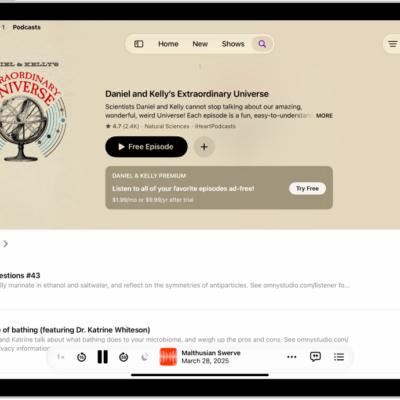
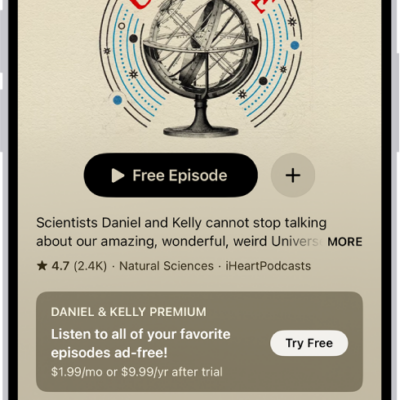
In the Podcasts app, you can download, save, and share podcast episodes.
A saved episode is downloaded automatically, so you can listen to it offline, and by default, only audio is downloaded for video episodes, though you can download video as well. You can also remove a saved or downloaded episode, or remove all episodes from a show. You can share an episode, too.
Here’s how to download, save, remove, and share podcast episodes on iPad.
Download an episode
- Start the Podcasts app on your iPad.
- Search or browse to find a show.
-
Tap the show, swipe left on an episode, and then tap the Download button.
You can also tap the More button under an episode, then tap Download.
Save an episode
- Start the Podcasts app on your iPad.
- Search or browse to find a show.
-
Tap the show, swipe left on an episode, and tap the Save button.
You can also tap the More button under an episode, then tap Save.
When you save an episode, it’s automatically downloaded so you can listen to it offline. To turn off this option, go to Settings > Apps > Podcasts, then turn off Download When Saving.
By default, only audio is downloaded for video episodes. To download video as well, go to Settings > Apps > Podcasts, then turn Download Video on.
Remove a saved episode
- Start the Podcasts app on your iPad.
- In the sidebar, tap Saved.
-
Swipe left on an episode. Then tap the Unsave button.
You can also remove a saved episode while looking at an episode list or the episode’s information. Tap the More button, then tap Unsave.
Remove a downloaded episode
- Start the Podcasts app on your iPad.
- In the sidebar, tap Downloaded, then tap a show.
-
Swipe left on an episode. Tap the Remove Download button.
You can also remove a downloaded episode while looking at the episode list or the episode’s information. Tap the More button, then tap Remove Download.
Remove all downloaded episodes from a show
- Start the Podcasts app on your iPad.
- In the sidebar, tap Downloaded and touch and hold a show.
- Tap Remove Downloads.
Remove all downloaded episodes
- Start the Podcasts app on your iPad.
- In the sidebar, tap Downloaded.
- Tap the More button at the top right, then tap Remove All Downloads.
Share a podcast show or episode
- Start the Podcasts app on your iPad.
-
Do any of the following:
- While viewing show information: Tap the More button near the top right. Tap Share.
- While viewing episode information: Tap the Share button.
-
To specify the starting time for a shared episode: From the Now Playing screen, tap the More button, then tap Share. Tap From Start and choose From [time]. Then tap the Done button.
The shared episode starts from the point where you’re watching or listening when you tap Share.
- Choose how to share the show or episode.
See also