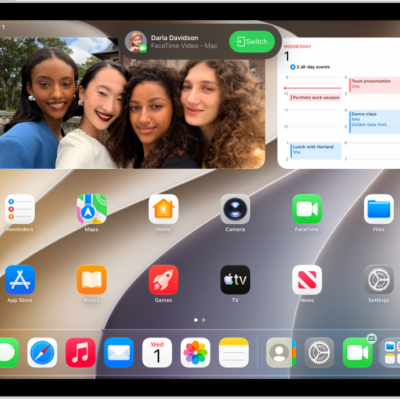
To make and receive FaceTime calls on your iPad, you need to be signed in to FaceTime with your Apple Account. Once FaceTime is on, Calls from iPhone lets you use your iPhone cellular connection to make and receive phone calls, too, if you have the Phone app on your iPad.
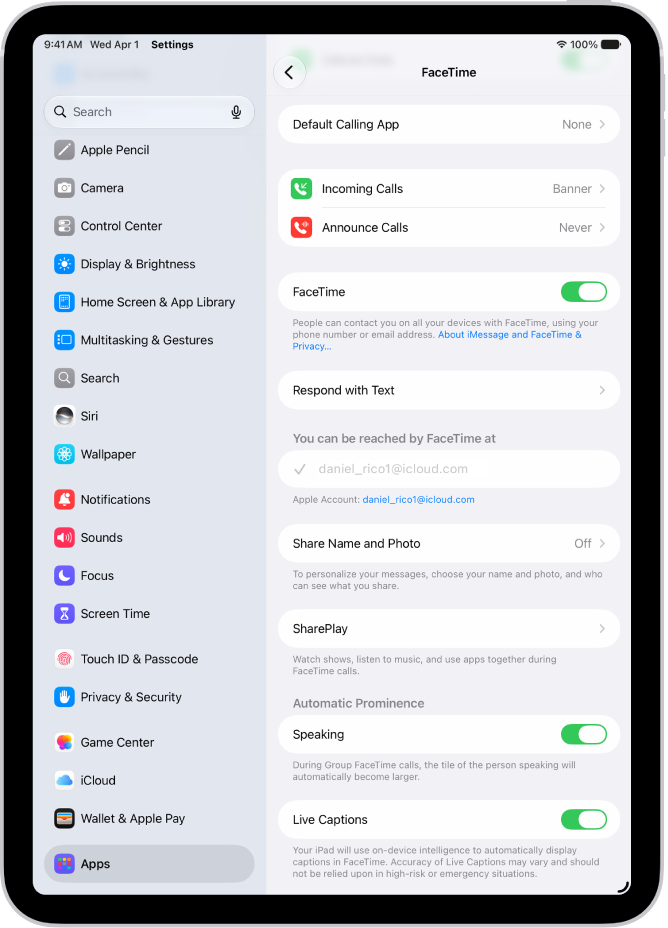
- Start the Settings app on your iPad.
- Tap Apps, then tap FaceTime.
- If FaceTime is turned off, turn it on.
- If you see a sign-in screen, sign in to your Apple Account and enter your password.
-
Optionally, turn on Calls from iPhone to use your iPhone cellular connection to make and receive phone calls.
Note: To use this feature, you need the Phone app. If you don’t have it on your iPad, you can download the Phone app from the App Store.
To stop making and receiving calls with FaceTime, go to the Settings app, tap Apps, then tap FaceTime. Turn off FaceTime (or tap your Apple Account, then tap Sign Out).
See also
Tag: FaceTime