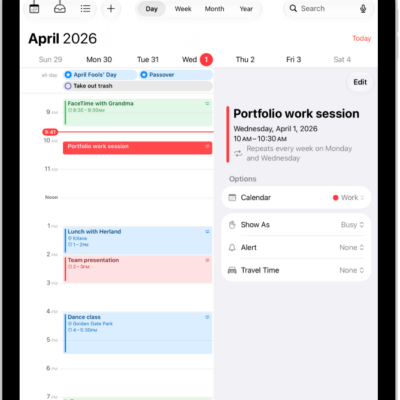
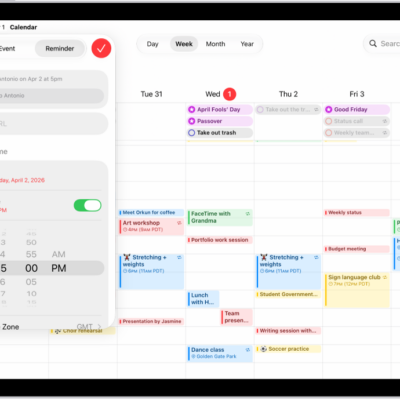
In the Calendar app, you can set up multiple calendars to keep track of different kinds of events. You can keep everything in one calendar, but additional calendars are easy to set up and a great way to stay organized.
You’ll create an iCloud calendar with a name and color. You can also subscribe to an external read-only calendar or a holiday calendar, see multiple calendars at once, and unsubscribe from a calendar later.
Set up a calendar
- Open the Calendar app on your iPad.
- Tap the Calendars button at the top left and then tap Add Calendar at the bottom of the screen.
-
Do one of the following:
- Create an iCloud calendar: Tap Add Calendar and enter a name for the calendar. Choose a color for it.
- Subscribe to an external read-only calendar: Tap Add Subscription Calendar, enter the URL of the .ics file you want to subscribe to (and any other required server information), and then tap Find.
- Add a Holiday calendar: Tap Add Holiday Calendar, then tap the holiday calendar you want to subscribe to.
You can also subscribe to an iCalendar (.ics) calendar by tapping a link to it.
Unsubscribe from a calendar
You can unsubscribe from a calendar you’re subscribed to and also report the calendar as junk.
- Open the Calendar app on your iPad.
- Tap the Calendars button at the top left and tap the Info button next to the calendar you want to remove.
-
Tap Unsubscribe and tap Unsubscribe or Unsubscribe and Report Junk.
Note: When you tap Unsubscribe and Report Junk, the calendar is reported to Apple as a suspected junk subscription.
See multiple calendars at once
- Open the Calendar app on your iPad.
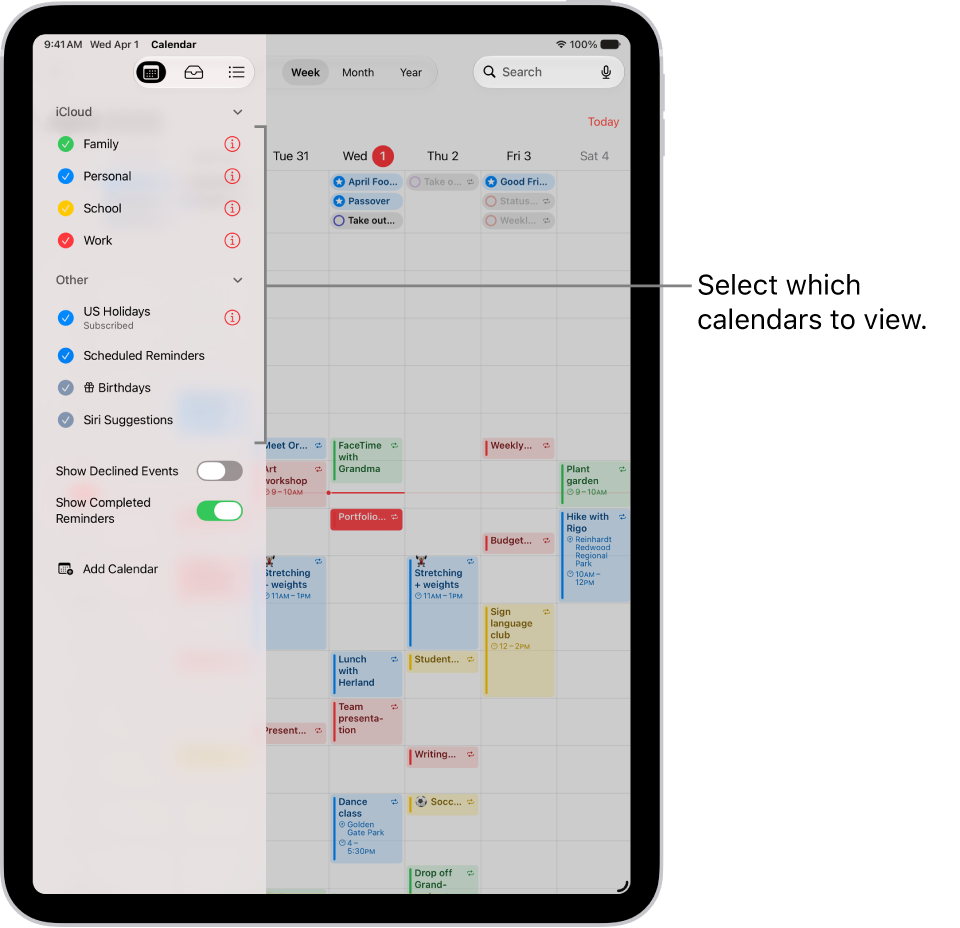
- To view multiple calendars, tap the Calendars button. Do any of the following:
- Select the calendars you want to view.
- Tap US Holidays to include national holidays with your events.
- Tap Birthdays to include birthdays from Contacts with your events.
Turn on calendar event alerts
For calendars you create or subscribe to, event notifications are something you can turn on.
- Open the Calendar app on your iPad.
- Tap the Calendars button at the top left.
- Tap the Info button next to a calendar.
- Turn Event Alerts on or off.
- Tap the Done button.
Change a calendar’s color
- Open the Calendar app on your iPad.
- Tap the Calendars button at the top left.
- Tap the Info button next to the calendar, then choose a color.
- Tap the Done button.
The server sets the color for some calendar accounts, such as Google.
Move an event to another calendar
- Open the Calendar app on your iPad.
- Tap the event and tap Calendar. Select a calendar to move the event to.
See also