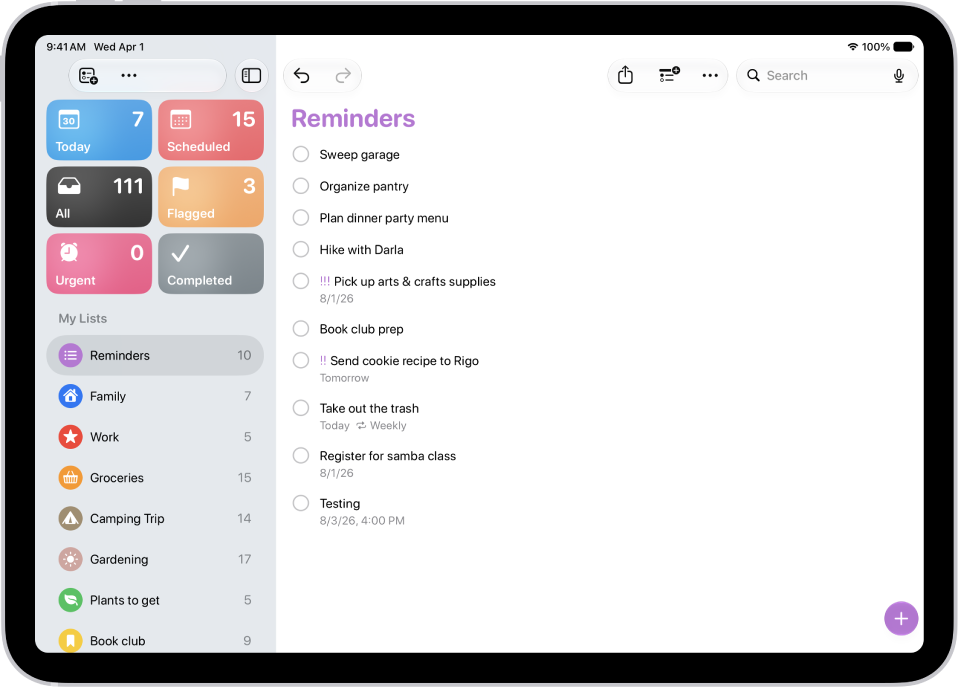
In the Reminders app, you can create new lists, organize the lists into groups, and pin lists for quick access.
You can have a maximum of nine pinned lists, and you can change their order. You can also edit and rearrange lists and groups. Pinned lists sit above your other lists for easy access, and groups like work, school, or shopping keep related lists together.
Here’s how to organize multiple lists in Reminders on iPad.
Note: Every Reminders feature described in this guide is available with updated reminders in iCloud, though some aren’t available when using other accounts.
Make a new list
- Start the Reminders app on your iPad.
- Tap the Add List button.
- Enter a name and choose a color and symbol for the list.
- Tap List Type and choose Standard, Groceries, or Smart List.
- Tap the Done button.
Pin an important list above the other lists for easy access
- Start the Reminders app on your iPad.
-
Touch and hold a list and tap Pin. You can also swipe right on the list and tap the pin button.
You can have a maximum of nine pinned lists.
To change the position of a pinned list, tap the More button, tap Edit Lists, drag the Reorder button to a new position, then tap the Done button.
Create a group of lists
Organize your lists in groups such as work, school, or shopping.
To create a group, simply drag a list onto another list. You can also do the following:
- Start the Reminders app on your iPad.
- Tap the More button and then tap Edit Lists.
- Tap Add Group, enter a name and select the lists to include in the group (optional). Then tap the Done button.
Edit and rearrange lists and groups
- Start the Reminders app on your iPad.
- Tap the More button and tap Edit Lists. Do any of the following:
- Rearrange lists and groups: Drag the Reorder button next to a list or group to a new location. You can even move a list to a different group.
- Change the name and appearance of a list or group: Tap the Edit Details button.
Delete a list or group
- Start the Reminders app on your iPad.
-
Swipe left on the list or group. Then tap the Delete button.
When you delete a group, you have the option to keep the lists.
When you delete lists or groups, they move to Recently Deleted. Within 30 days of deletion, you can recover them, but after 30 days, they’re permanently deleted.
See also