You can send messages with drawings, doodles, or Digital Touch gestures and effects, and you can use Image Playground to create and send images.
To draw on a black background, you use Digital Touch, which also sends gestures and animations. With Apple Intelligence, you can even create images with Image Playground directly in the Messages app, without switching to another app.
Here’s how to draw and create images in Messages on iPad.
Send a drawing or doodle
- Go to the Messages app on your iPad.
- In a conversation, tap the Add button.
- Swipe up, then tap Drawing.
-
Draw using the tools, tap the Done button and tap the Send button to send your image.
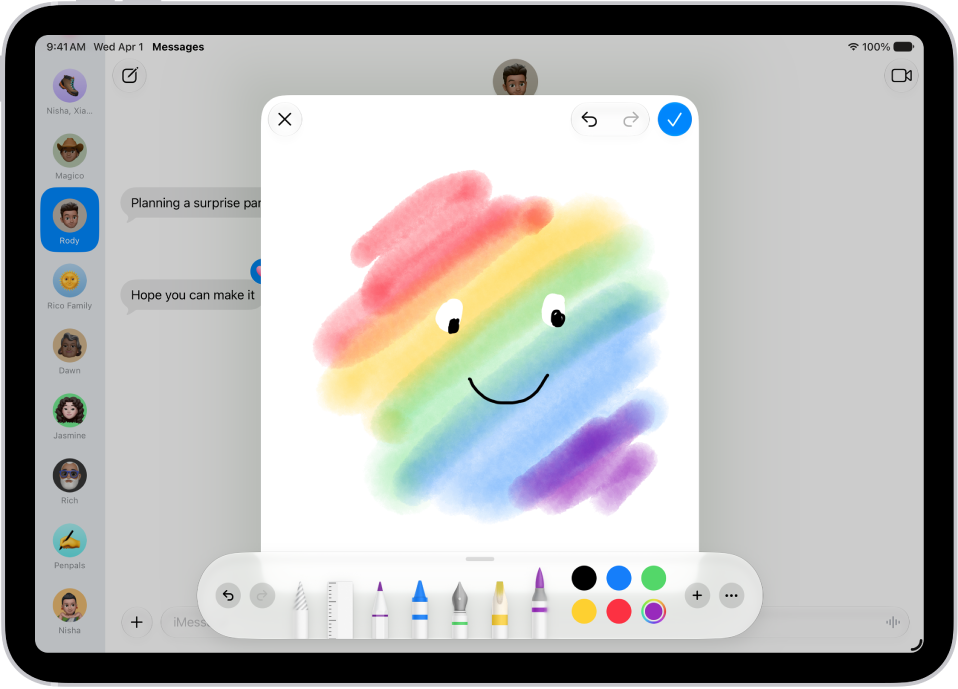
To draw on a black background, use Digital Touch, described below.
Create and send original images
With Apple Intelligence, Image Playground can create images directly in the Messages app.
Note: Apple Intelligence on iPadOS 27 or later is available on an Apple Intelligence-enabled iPad mini (A17 Pro) and iPad models with M1 or later. Apple Intelligence is not available in all languages or regions. Usage limits may apply.*
- Open the Messages app on your iPad.
- Start a new message or open a conversation.
- Tap the Apps button and then tap Image Playground.
- Do one of the following:
- Create a new image: Tap Create at the top, follow instructions to create an image. Tap the Done button.
- Select an image you previously created: Tap Gallery at the top and select your image. Tap the Done button.
- When you’re ready to send your image, tap the Send button.
You can use Screen Time settings to block access to image creation features, like Image Playground. To learn how, read our guide, Turn off and restrict access to Apple Intelligence features.
Send a Digital Touch gesture, animation, or effect
With Digital Touch, you can send animated sketches, taps, kisses, heartbeats, and more, on their own or as an effect on a photo or video.
You need iMessage to use Digital Touch.
- Open the Messages app on your iPad.
- In a conversation, tap the Add button.
-
Swipe up, tap Digital Touch, and then do one of the following:
-
Send an animated gesture: Tap or touch and hold with one or two fingers. Your gesture is sent automatically when you finish it.
Touch and hold the color dot to choose a color for the one-finger taps.
Note: If you have Apple Watch or another sensor that records heartbeat data, Messages may use the recorded data when you touch and hold with two fingers to send a heartbeat.
-
Send an animated drawing: Draw with one finger.
You can change the color, then start drawing again.
-
Add an effect to a new image: Tap the Camera button. Then tap the Take Picture button to take a photo or the Record Video button to record a video.
To take a new photo or video, or to erase anything you draw on your preview, tap the Back to Preview button.
-
Send an animated gesture: Tap or touch and hold with one or two fingers. Your gesture is sent automatically when you finish it.
- Tap the Send button to send your drawing or image, or tap the Close button to delete it.
*Apple Intelligence is available with Siri and device language set to Chinese (Simplified), Chinese (Traditional), Danish, Dutch, English, French, German, Italian, Japanese, Korean, Norwegian, Portuguese, Spanish, Swedish, Turkish, or Vietnamese. Some features may not be available in all regions or languages. Some devices may not be available in all regions. Siri AI is available in beta in iOS 27, iPadOS 27, macOS 27, watchOS 27, and visionOS 27 and requires an Apple Intelligence–enabled device set to a supported language. Available in English to start. Siri AI will not be initially available in the EU on iOS, iPadOS, and watchOS. Certain Apple Intelligence features that rely on server-side models are subject to daily usage limits, including but not limited to Siri AI, Intelligent Photo Editing Tools, Image Playground, and AFM 3 Cloud models in Shortcuts. Daily limits may vary by feature, request complexity, system demand, system policies, and other factors. Expanded access to such features will be available for a fee in the future. Use of these features is subject to the Apple Intelligence Terms and Conditions.
See also
- Send and reply to messages on iPad
- Send stickers in Messages on iPad
- Take and edit photos or videos in Messages on iPad
- Use iMessage apps in Messages on iPad