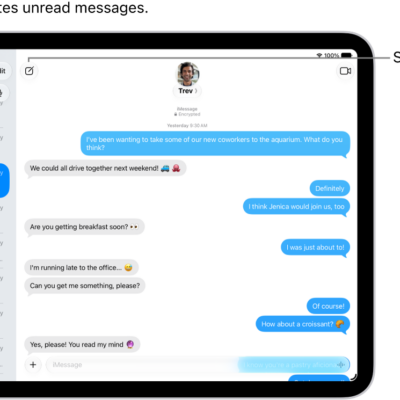
In the Messages app, you can send a text message to invite people to collaborate on a project, and everyone in the conversation is added to the document, spreadsheet, or other shared file.
You can also start from another app, like Notes or Freeform, and then discuss your content in Messages. Files can come from Reminders, Safari, Keynote, Numbers, Pages, and more, but you first need to save the content somewhere others can access it, such as iCloud Drive.
Note: Collaborating on a project with Messages requires you and your recipients to use iMessage on iOS 16, iPadOS 16, macOS 13, watchOS 9, or visionOS 1 or later. First, save the content somewhere others can access it, such as iCloud Drive. And with iPad apps, you may need to turn on iCloud before using their collaboration features.
Invite people to collaborate
Invite people to collaborate on a project from another app, then talk about your content in Messages. You can share files from apps like Notes, Freeform, Reminders, Safari, Keynote, Numbers, Pages, and more. First, though, turn on their collaboration features in iCloud settings, and store the content somewhere others can get to it, such as iCloud Drive.
The process for inviting someone to collaborate depends on the app. Here’s one way you might start a collaboration in a supported app:
- Select the file you want to share and tap the Share button, or tap Collaborate.
-
Make sure Share a Link (rather than Send a Copy) is selected. Tap the group or individual you want to collaborate with. If you don’t see the group or person listed, tap the Messages app icon.
The suggested icons may correspond with groups or individuals with active FaceTime calls or recent Messages conversations.
- A Messages conversation opens with the invitation ready to send. Add a note (optional) and then tap the Send button.
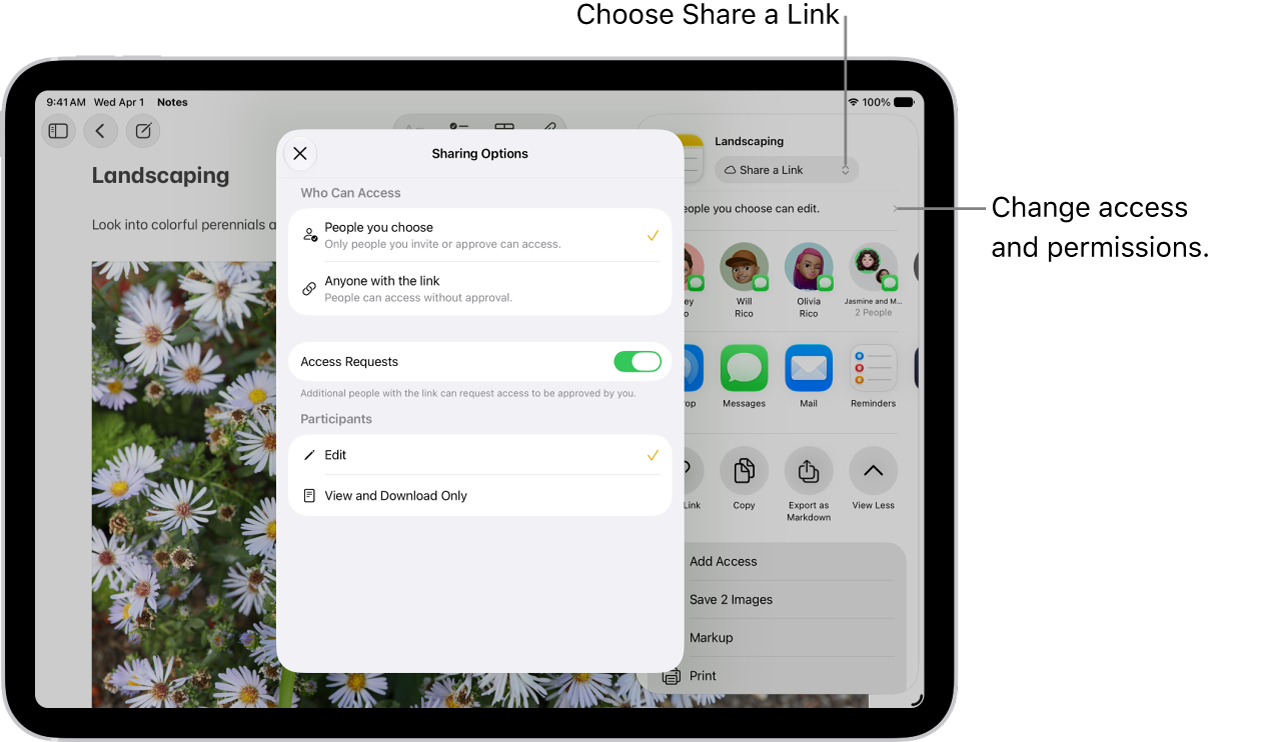
After you invite participants in Messages, you can work on the project in the other app and return to the Messages conversation by tapping the collaboration button in that app.
When someone edits the file, you see updates at the top of the Messages thread. To return to the shared project and see changes, tap an update.
Note: Participants may have to accept your invitation or join the shared item first. Until then, they can’t interact with it or see any updates.
Quick tip: With Files and Messages open in Split Screen, a collaboration starts when you drop a file into the new message window and pick Collaborate in the pop-up menu before sending.
Collaborate on a project in Messages
After you share your project, you see activity updates at the top of the Messages conversation whenever someone makes an edit.
- Start the Messages app on your iPad.
- Go to the conversation that contains the invitation to the project you’ve started collaborating on and then do any of the following to return to the project:
- Tap the file in your conversation to open it.
- If you see an update at the top of the conversation, tap Show.
- Tap the icon of the participant or group at the top of the screen, scroll to Collaboration, then tap the shared project.
When you make any changes or edits to the project, your participants get updates in the conversation.
Note: New people you add to a group conversation don’t automatically get access to the projects you’re collaborating on, so grant it yourself. If someone joined the group conversation recently, tap the notification at the top of the screen to add them, and you can also invite them to collaborate.
Manage the collaboration and group
If you share a project with two or more people in a Messages conversation, you can add or remove participants.
- Start the Messages app on your iPad.
- Go to the conversation you want to manage. Tap the group icon at the top of the conversation to open details about the group’s conversation.
-
Do any of the following:
-
Add new participants: Tap Add Access, then add contacts. (You may need to scroll down to see Add.)
If you started collaborating with just one other person, you must start a new conversation to add people to the collaboration.
Note: You must add new participants to any files that were shared in the conversation before they joined. As you add participants, a notification appears at the top of the conversation. Tap Show in the notification to review the previously shared files you can add new participants to.
-
Remove a participant from the conversation: Touch and hold their icon. Then tap Remove from Group.
Important: The apps where the collaboration happens usually control access to the project. Check participant access in the app itself to remove viewing or editing privileges completely.
-
Add new participants: Tap Add Access, then add contacts. (You may need to scroll down to see Add.)
The people in the Messages collaboration may not be the same group that’s collaborating on the file. You might invite people to collaborate on the file outside of Messages, for example, or have two different groups in Messages, each with a collaboration conversation of its own.
Adding someone to a document you shared with others earlier gives you a choice: add them to an existing conversation, or keep the conversations separate. Anyone added to a conversation can’t read messages sent before they joined it.
Stop collaborating on a project in Messages
Access to the project is usually controlled by the apps where the collaboration happens. Collaborating on a document in the Pages app, for example, means the Pages settings take precedence over the Messages settings. Still, you can unsend or delete the invitation from the conversation, just like any other message.
Important: When you delete an invitation from a thread, that conversation is no longer associated with the collaboration, but it doesn’t remove participants from the file. Check participant access in the app to remove viewing or editing privileges completely.
See also