If it’s too late at night or too important to forget, you can schedule a text message to be sent at a later time.
Messages can be scheduled as far as 14 days ahead, and your recipient won’t know the message was scheduled. It shows a dashed line until it’s time to send, and it’s delivered even if all your devices are offline. You can also change the send time, edit the message, or delete it.
Note: You must be using iMessage to schedule a message like this. Your recipient can be on any device and won’t know the message was scheduled. To reschedule, edit, or delete a scheduled message, you need to be online.
Schedule a message
You can schedule a message up to 14 days into the future.
- Go to the Messages app on your iPad.
- Go to the conversation where you want to schedule a message or start a conversation.
- Tap the Add button, then tap Send Later.
-
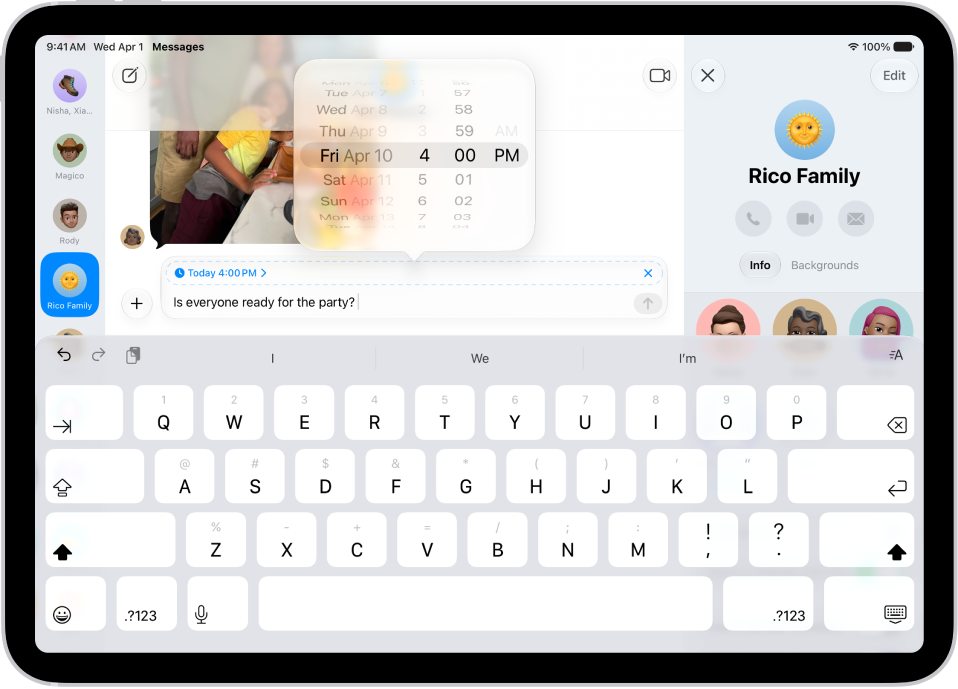
Tap the time to open the scheduler and then choose when you want to send your message.
The border of the text field turns into a dashed line, and the time your message will be sent appears at the top of the message.
- Enter a message, then tap the Send button.
Until it’s time to send it, the message appears with a dashed line, and it’s delivered even if all your devices are offline.
Note: Scheduled messages are encrypted and stored on Apple servers only until they’re sent. When a message is sent, it’s removed from Apple servers, the balloon becomes a solid color, and its dashed line disappears.
Change the time to send a message
Until its delivery time, you can still reschedule a message.
- Open the Messages app on your iPad.
-
Go to the conversation with the message you want to reschedule.
If you don’t see your message, scroll down to the bottom of the conversation. Scheduled messages may appear below sent messages.
-
Tap Edit beside the date (above your scheduled message), then do any of the following:
- Reschedule it: Tap Edit Time and choose a new time. Then tap away from the schedule to commit the new time.
- Send it immediately: Tap Send Message.
Edit a scheduled message
You can also edit a scheduled message up until its delivery time.
- Open the Messages app on your iPad.
-
Go to the conversation with the scheduled message you want to edit.
If you don’t see your message, scroll down to the bottom of the conversation. Scheduled messages may appear below sent messages.
- Touch and hold the message bubble, then tap Edit.
- Make any changes. Tap the Send Edit button to resend with edits or the Cancel Edit button to revert.
Delete a scheduled message
Delete a message before its scheduled time, and it’s canceled and not delivered to the recipient.
- Open the Messages app on your iPad.
-
Go to the conversation with the scheduled message you want to delete.
If you don’t see your message, scroll down to the bottom of the conversation. Scheduled messages may appear below sent messages.
- Touch and hold the message you want to cancel and tap Delete.
See also
- Unsend and edit messages on iPad
- Turn read receipts on or off in Messages on iPad
- Delete messages and attachments in Messages on iPad