You can add a background to an iMessage conversation. Other people in the conversation see the background on their devices too and can change the background for the group.
You can use a dynamic background, a photo, or an original background you create, and revert to a plain background anytime. With a photo, you can crop the image, remove the color, or apply a color filter.
Here’s how to add backgrounds in Messages on iPad.
Note: To add, view, or change conversation backgrounds, you need iMessage running on iOS 26, iPadOS 26, macOS Tahoe, watchOS 26, or visionOS 26 or later.
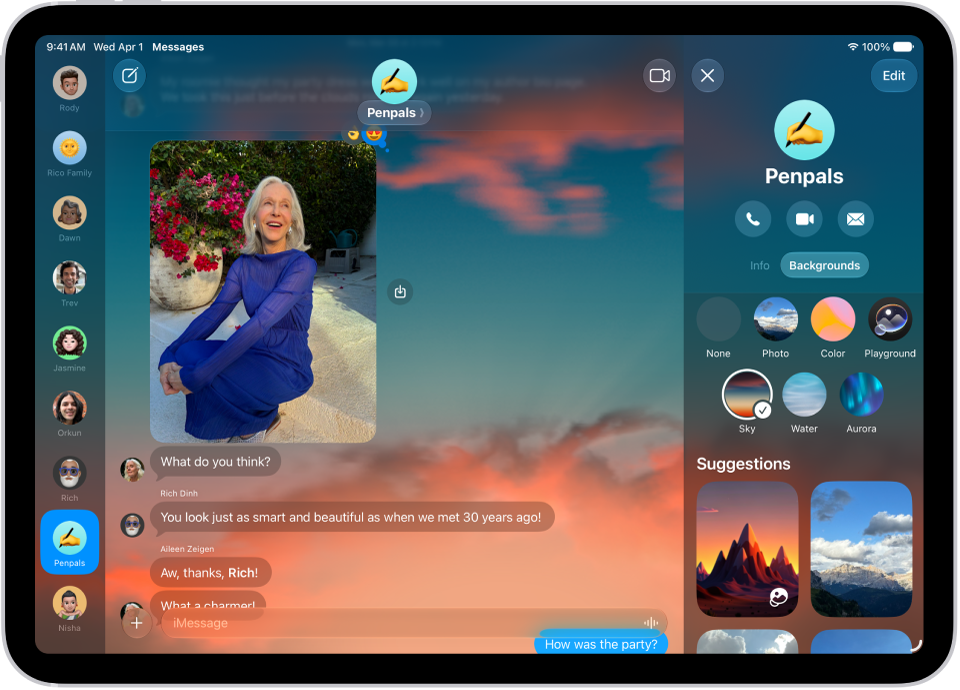
Use a dynamic background
- Go to the Messages app on your iPad.
- Go to the conversation where you want to add a background.
- Tap the contact or group icon at the top of the conversation, then tap Backgrounds.
- Tap Color, Sky, Water, or Aurora.
-
Swipe left to choose an option.
Tip: For Color, tap the swatches in the bottom corners to adjust the colors.
- Tap the Done button to add the background to your conversation.
Use a photo as a background
- Open the Messages app on your iPad.
- Go to the conversation where you want to add a photo to the background.
- Tap the contact or group icon at the top of the conversation, then tap Backgrounds.
-
Tap Photo. Then tap to select a photo from your library.
Tip: If someone shared a photo you want to use as a background, touch and hold the photo in the message, then tap Set as Background.
-
Do any of the following:
- Crop the image: Pinch in or out.
- Remove the color: Swipe left to Black & White.
- Apply a color filter: Swipe left to Duotone or Color Wash. Then tap the color swatch to change the palette.
- Tap the Done button to add the background to your conversation.
You can set conversations to showcase backgrounds when you return to them. Go to Settings > Apps > Messages, then turn on Start with Photos Visible.
Note: You can have your (or a family member’s) iPad receive warnings before a background image containing sensitive content is sent or received.
Create an original background
If you have Apple Intelligence, Image Playground can make one-of-a-kind images for your conversation backgrounds.
Note: Apple Intelligence on iPadOS 27 or later is available on an Apple Intelligence-enabled iPad mini (A17 Pro) and iPad models with M1 or later. Apple Intelligence is not available in all languages or regions. Usage limits may apply.*
- Open the Messages app on your iPad.
- Go to the conversation where you want to add a photo to the background.
- Tap the contact or group icon at the top of the conversation, then tap Backgrounds.
- Tap Playground, follow the onscreen instructions to create an image and then tap the Done button.
- Tap the Done button to add the background to your conversation.
Revert to a plain background
Note: Removing a background affects all participants in a conversation.
- Open the Messages app on your iPad.
- Go to the conversation with a background you want to remove.
- Tap the contact or group icon at the top of the conversation, then tap Backgrounds.
- Tap None.
Turn conversation backgrounds off
If you turn conversation backgrounds off, others in a conversation can still see any background chosen for it.
- Open the Settings app on your iPad.
- Tap Apps, then tap Messages.
- Turn Conversation Backgrounds off.
*Apple Intelligence is available with Siri and device language set to Chinese (Simplified), Chinese (Traditional), Danish, Dutch, English, French, German, Italian, Japanese, Korean, Norwegian, Portuguese, Spanish, Swedish, Turkish, or Vietnamese. Some features may not be available in all regions or languages. Some devices may not be available in all regions. Siri AI is available in beta in iOS 27, iPadOS 27, macOS 27, watchOS 27, and visionOS 27 and requires an Apple Intelligence–enabled device set to a supported language. Available in English to start. Siri AI will not be initially available in the EU on iOS, iPadOS, and watchOS. Certain Apple Intelligence features that rely on server-side models are subject to daily usage limits, including but not limited to Siri AI, Intelligent Photo Editing Tools, Image Playground, and AFM 3 Cloud models in Shortcuts. Daily limits may vary by feature, request complexity, system demand, system policies, and other factors. Expanded access to such features will be available for a fee in the future. Use of these features is subject to the Apple Intelligence Terms and Conditions.
See also
- Have a group conversation in Messages on iPad
- Format text and animate messages on iPad
- Share content in Messages on iPad
- Collaborate on projects with Messages on iPad