You can express yourself in the messages you send by formatting and animating text, or by adding effects to message bubbles or the entire screen. You can also search #images to find trending GIFs to send, and save GIFs others send to you (not available in all countries or regions).
Bold, italics, and underlining can format your text, and playful effects like explode or shake can go on a single word, emoji, sentence, or your entire message. Bubble and screen effects play when your recipient gets your message.
Note: Sending and receiving messages with formatting or effects only works if you and your recipients use iMessage. Recipients can see text formatting and text effects if they use iMessage on a device running iOS 18, iPadOS 18, macOS 15, watchOS 11, or visionOS 2 or later. Otherwise, the messages appear in plain text.
Format and animate words
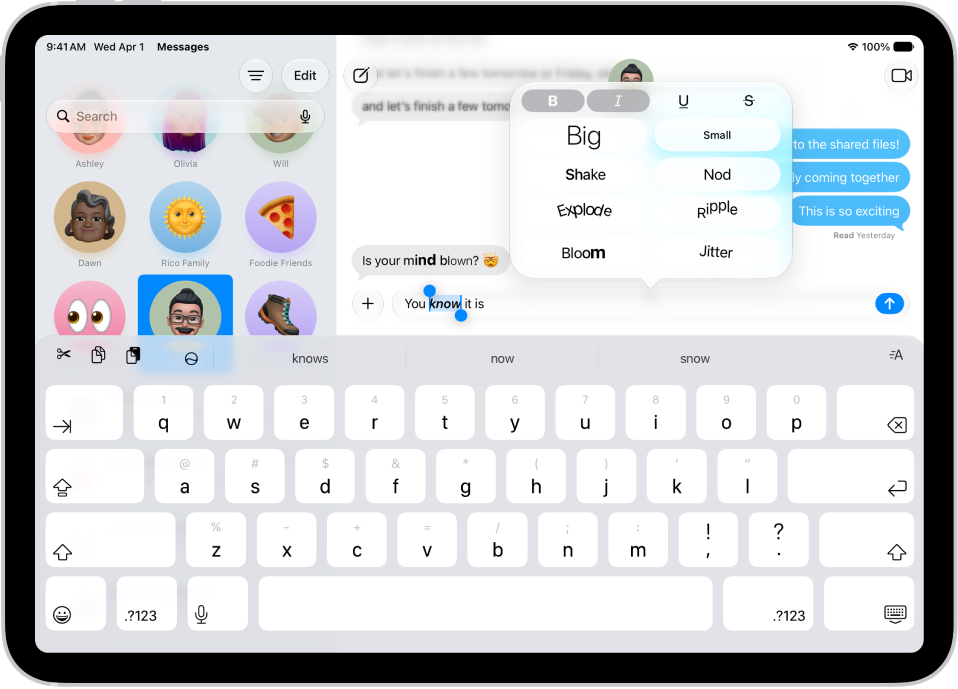
When you send texts with iMessage, you can use bold, italics, and underlining, or animate any letter, word, or sentence (even emoji) with playful effects like shake or explode.
- Go to the Messages app on your iPad.
- In a conversation, enter a message and then select the text you want to format or animate.
- Tap the Text Format button above the keyboard and then select your preferred formatting (bold, italic, underline, or strikethrough) or text effect (big, small, shake, nod, explode, ripple, bloom, or jitter).
- Tap the Send button.
You can format or apply effects to a single word, emoji, sentence, or your entire message. Tap the Text Format button before entering the text you want to format or apply effects to.
Add effects to the message bubble or the full screen
Special effects you can add, which play when your recipient gets your message, include the following:
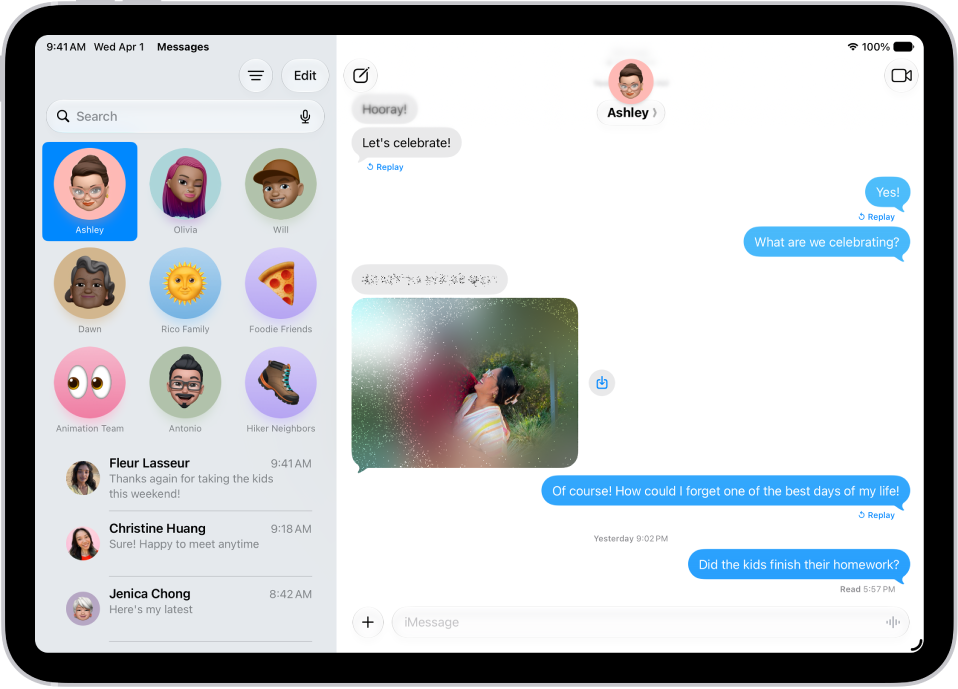
- Bubble effects that change how the message appears—Slam or Loud make it pop out, Gentle makes it arrive softly, and Invisible Ink blurs the bubble until your recipient swipes to reveal it
- Full-screen animations like fireworks, balloons, confetti, lively lasers, a moving spotlight, or the echo effect, which fills the conversation with copies of your message bubble
- Open the Messages app on your iPad.
- In a conversation, enter a message or insert an image or link.
- Touch and hold the Send button and then do one of the following:
- Tap a gray dot to preview a bubble effect.
- Tap Screen, then swipe left to preview different screen effects.
- Tap the Send button to send the message with the effect or the Close button to cancel the effect and return to your message.
Messages automatically uses the following screen effects for specific text strings:
- Balloons for “Happy birthday”
- Confetti for “Congratulations”
- Fireworks for “Happy New Year”
If a full-screen effect doesn’t appear, or you want to turn off effects on messages you receive, see our guide, Stop or reduce onscreen motion.
Add an animated GIF
- Open the Messages app on your iPad.
- In a conversation, tap the Add button and then tap #images. (You may have to swipe up.)
- To search for a specific GIF, tap “Find images,” enter a keyword (like “birthday”). Then tap a suggestion or tap the Search key on the keyboard.
- Tap a GIF to add it to your message. Then tap the Send button.
To save a GIF that you receive in a message to the Photos app so you can use it again later, touch and hold the GIF, then tap Save.
To freeze GIF animations as still images, check out our article, Customize onscreen motion.
Note: GIFs from #images animate in the Messages app on Apple devices, but nowhere else.
See also
- Send stickers in Messages on iPad
- Draw and create images in Messages on iPad
- Use iMessage apps in Messages on iPad