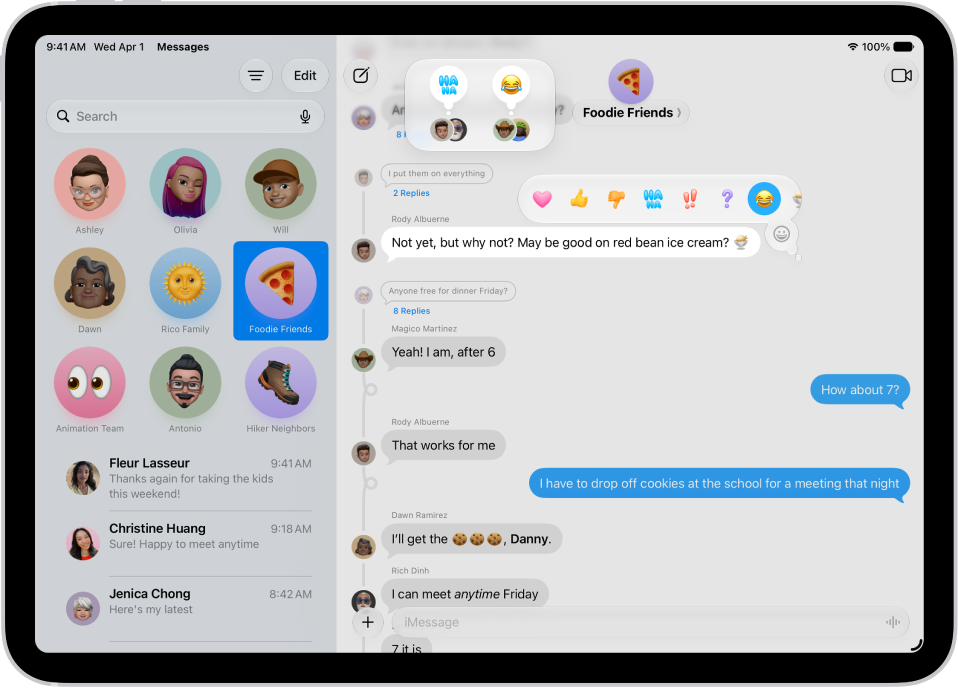
Tapbacks give you a quick and easy way to respond to a message, such as a heart, a thumbs-up or thumbs-down, laughter, exclamation points, a question mark, and any sticker, Memoji, or emoji.
A Tapback is attached to a specific message, and everyone in the conversation can see it. If a message has more than one, they appear in a stack, and you can see who added each one. You can edit or remove only the Tapbacks you added, too.
React with a Tapback
- Go to the Messages app on your iPad.
- Open a conversation.
- Double-tap (or touch and hold) a message.
- Swipe left to see suggested emoji and stickers, or tap the Emoji button. Then tap to choose any of the following kinds of Tapbacks:
- Other emoji: Tap the Emoji button (jump to other emoji categories with icons to the right of the Emoji button).
- Stickers: Tap the Live Stickers button.
Each Tapback sticks to a specific message in a conversation, where everyone who’s part of the conversation can see it.
Find out who sent a Tapback
If a message has more than one Tapback, they appear in a stack, and you can find out who added each one.
- Open the Messages app on your iPad.
- Open a conversation with Tapbacks.
-
Tap a stack of Tapbacks.
Senders and their Tapbacks appear near the top of the screen.
Edit or remove your Tapback
You can only edit or remove the Tapbacks you added, not Tapbacks other people added.
- Open the Messages app on your iPad.
- Open a conversation.
- Tap your Tapback and then do one of the following:
- Use a different Tapback: Tap a different emoji, Memoji, or sticker.
- Remove the Tapback: Tap the same Tapback you used (so it’s not highlighted).
Each message can have only one Tapback. To send additional stickers, read our guide, Place stickers on a conversation.
See also
- Format text and animate messages on iPad
- Send stickers in Messages on iPad
- Add emoji, Memoji, and stickers with the iPad keyboard