You can send text messages, images, and much more. You can reply within a conversation or to specific comments in a thread, and even use Siri to listen and respond to your messages.
To start a new conversation, you send a message to one or more people, and you can choose recipients from your contacts with the Add Contact button. You can also reply inline to a specific message, and find out why some messages appear green.
Siri: Ask Siri something like, “Read my last message from Antonio.” Learn how to use Siri.
You’ll need to set up Messages to fully use all the features in the Messages app.
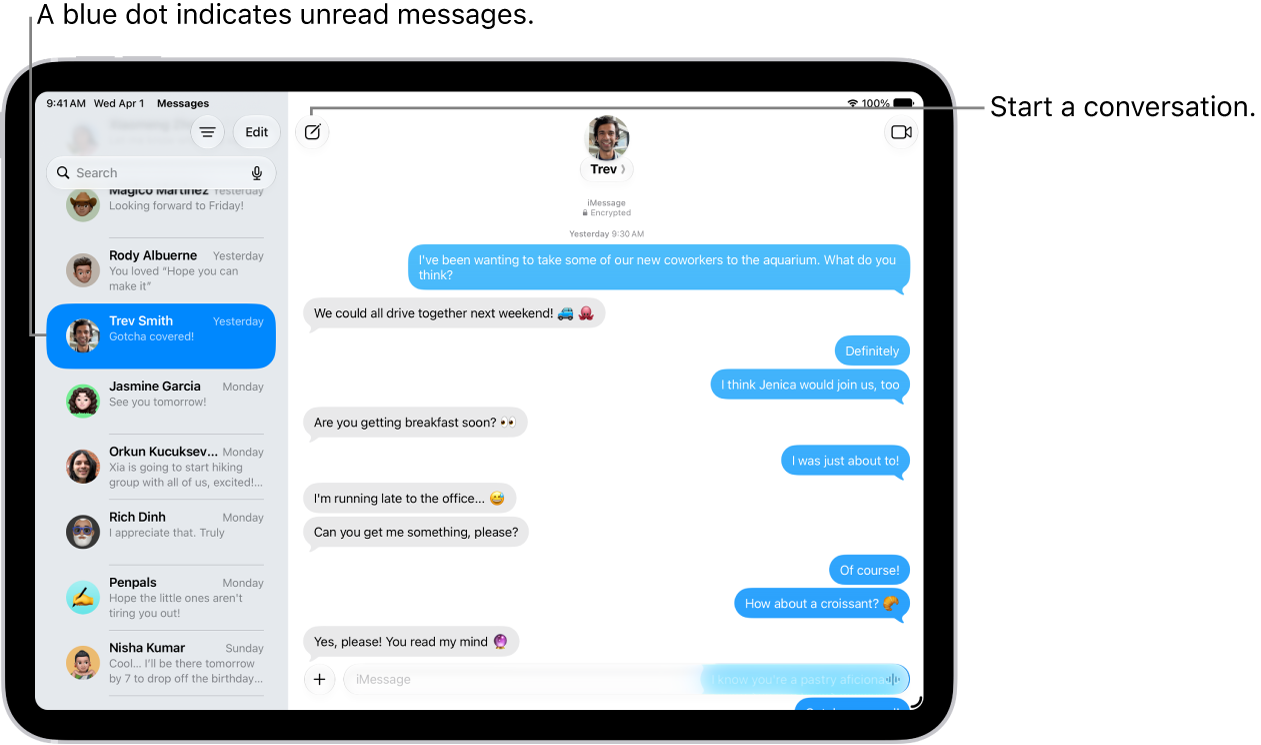
Start a conversation
A new conversation starts when you send a text message to one or more people.
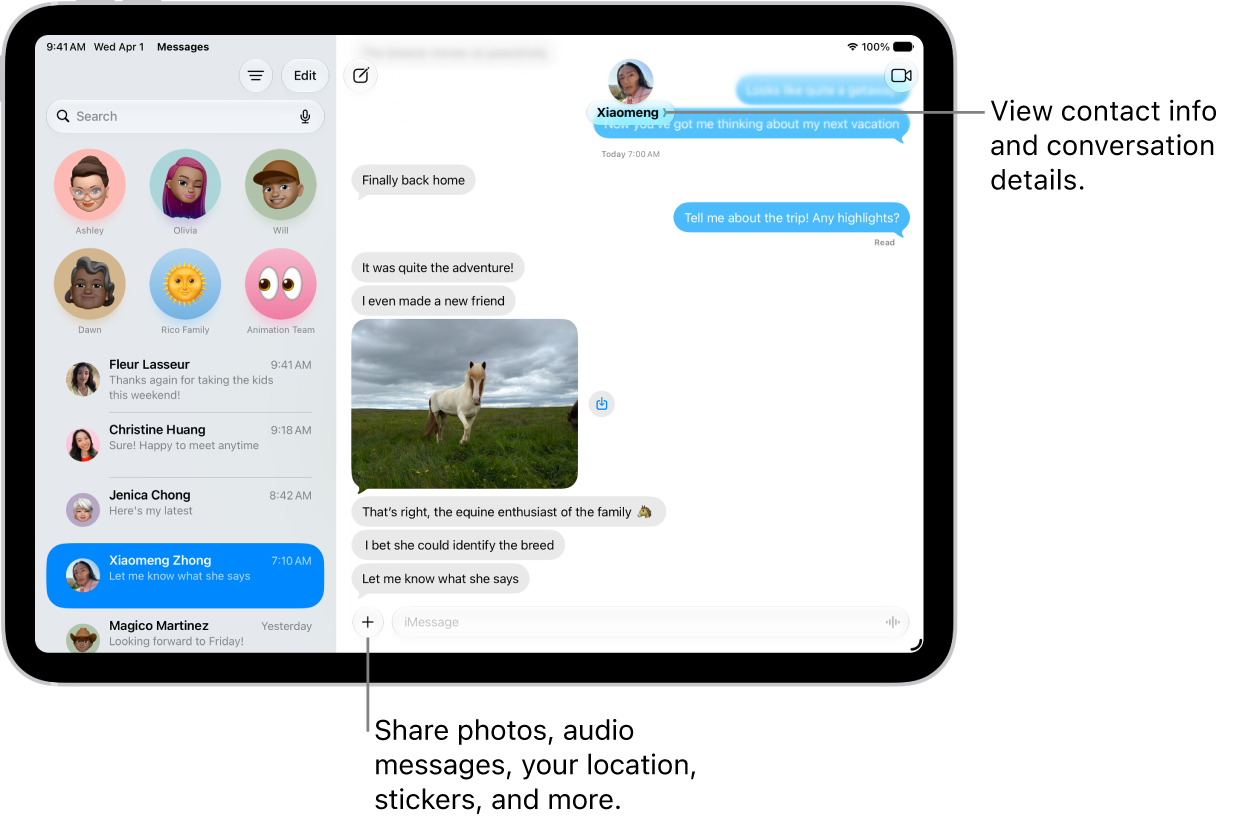
- Open the Messages app on your iPad.
- Tap the Compose button at the top of the screen.
-
Tap the To field. Enter the phone number, contact name, or Apple Account of each recipient.
To choose recipients from your contacts, tap the Add Contact button.
-
Do any of the following:
- Tap the text field above the keyboard, then type your message.
- Tap the Emoji key or the Next Keyboard key to add emoji.
- Tap the Dictate key to dictate text in the language of your keyboard.
- Tap the Add button to send photos, videos, stickers, polls, audio messages, your location, and more with iMessage apps.
-
Tap the Send button to send.
If a message can’t be sent, an alert appears. Tap the Send Failure button to try sending the message again.
To return to the conversation list from a conversation, tap the Back button.
Reply to a message
The conversation list groups messages by conversation, and a dot shows that you haven’t yet read one or more messages in a conversation.
- Open the Messages app on your iPad.
- In the conversation list, tap the conversation that you want to participate in.
- Tap the text field, create your message. Then tap the Send button to send your message.
Quick tip: To see when a message was sent to you, drag its bubble to the left, and timestamps appear for all messages in the conversation.
You can quickly craft a response with Apple Intelligence. Just tap a suggested reply above the keyboard.
Note: Apple Intelligence on iPadOS 27 or later is available on an Apple Intelligence-enabled iPad mini (A17 Pro) and iPad models with M1 or later. Apple Intelligence is not available in all languages or regions. Usage limits may apply.*
Without opening Messages, you can reply to messages on your Lock Screen. Read our guide, Turn on Lock Screen features.
Reply inline to a specific message
Responding to a specific message inline quotes the message you’re responding to. That keeps a busy conversation organized, since it’s clear which response relates to which message.
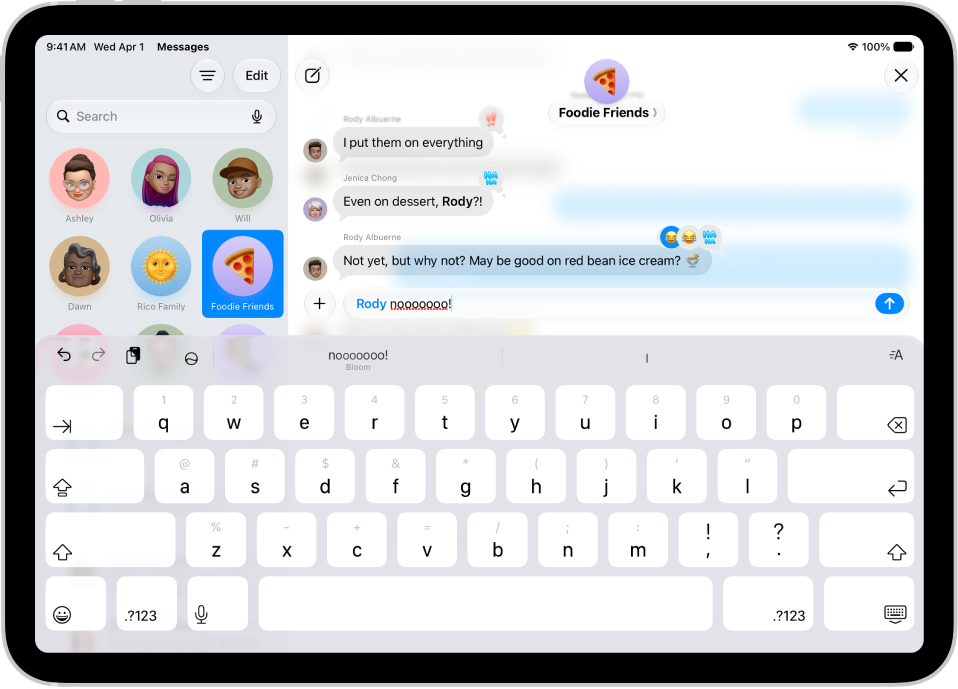
- Open the Messages app on your iPad.
- In the conversation list, tap the conversation that you want to participate in.
-
Do one of the following:
- Swipe right on the message bubble that you want to reply to.
- Touch and hold the message bubble that you want to reply to, then tap Reply.
-
Enter your message and then tap the Send button.
Note: Everyone in a group conversation can see your inline reply. To reply privately, tap the group icon at the top of the conversation, touch and hold the icon of the person you want to message privately, then tap Message.
- To return to the main conversation, tap the blurred background.
Touch and hold a message to react with a Tapback, such as a thumbs-up or a heart.
Quick tip: You can copy just part of a message. Touch and hold the message and tap Select, then select the text you want to copy and tap Copy.
Why are some bubbles blue and others green?
A blue Send arrow means the message can be sent using iMessage, and it appears in a blue bubble.
When a recipient isn’t using an Apple device, for example, you can’t use iMessage, but SMS, MMS, or RCS will work instead. They show up in green bubbles.
Note: Content may not appear as expected if you send messages to recipients using non-Apple devices.
*Apple Intelligence is available with Siri and device language set to Chinese (Simplified), Chinese (Traditional), Danish, Dutch, English, French, German, Italian, Japanese, Korean, Norwegian, Portuguese, Spanish, Swedish, Turkish, or Vietnamese. Some features may not be available in all regions or languages. Some devices may not be available in all regions. Siri AI is available in beta in iOS 27, iPadOS 27, macOS 27, watchOS 27, and visionOS 27 and requires an Apple Intelligence–enabled device set to a supported language. Available in English to start. Siri AI will not be initially available in the EU on iOS, iPadOS, and watchOS. Certain Apple Intelligence features that rely on server-side models are subject to daily usage limits, including but not limited to Siri AI, Intelligent Photo Editing Tools, Image Playground, and AFM 3 Cloud models in Shortcuts. Daily limits may vary by feature, request complexity, system demand, system policies, and other factors. Expanded access to such features will be available for a fee in the future. Use of these features is subject to the Apple Intelligence Terms and Conditions.
See also
- Unsend and edit messages on iPad
- Have a group conversation in Messages on iPad
- Collaborate on projects with Messages on iPad