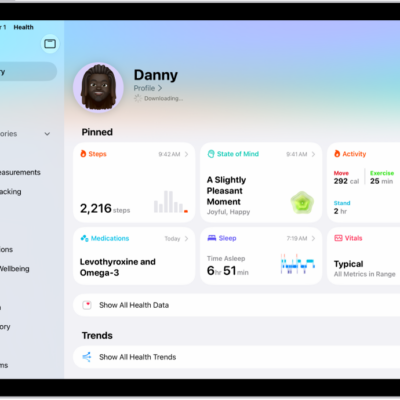
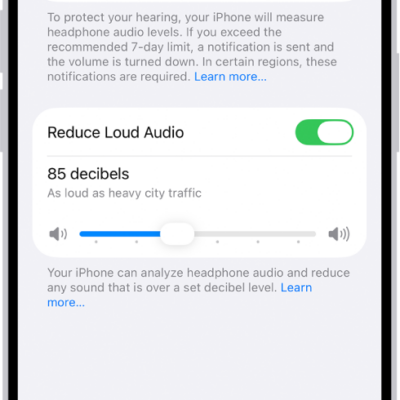
While using headphones with iPad, you can check whether the audio level is OK by viewing the Hearing control in Control Center. In the Health app, you can review the history of your headphone listening habits.
If you listen to loud headphone audio for long enough to affect your hearing, iPad automatically sends you a notification that you should turn down the volume. The next time you connect your headphones after that, your volume is automatically set to a lower level, though you can turn it up again. The Headphone Level meter shows your live audio level in decibels, and you can also reduce loud headphone sounds.
Quick tip: In the Health app, tap the Search button, tap Hearing, and then tap Headphone Notifications to review the details of a headphone notification.
Check your headphone levels while you listen
You can view your live headphone levels in Control Center.
- Open Control Center.
- Tap the Add button at the top left of Control Center and then tap Add a Control.
- Scroll down to Hearing Accessibility, then tap Hearing.
-
Tap the Hearing Devices button.
The audio level (in decibels) of your headphones is displayed on the Headphone Level meter.
Note: Live Listen (below the Headphone Level meter) turns on or off with a tap. For more, see our article, Use iPad as a remote microphone with Live Listen. Headphone level monitoring and Live Listen typically aren’t used together, since the Headphone Level monitor is intended for listening to audio playback, while Live Listen picks up external sounds with the iPad microphone.
Check your headphone levels over time
- Start the Health app on your iPad.
- Tap the Browse button and then tap Hearing.
- Tap Headphone Audio Levels and then do any of the following:
- See exposure levels over a period of time: Tap the tabs at the top of the screen. (All levels are measured in decibels.)
- Learn about the sound level classifications: Tap the Show Information button.
- Change the time span displayed in the graph: Swipe the graph left or right.
- Display highlights: Scroll down to Highlights and then tap Show All.
To learn more about your headphone audio levels, tap Show More Data.
Reduce loud headphone sounds
- Start the Settings app on your iPad.
- Tap Sounds, scroll down, and tap Reduce Loud Audio below Headphones.
-
Turn on Reduce Loud Audio, then drag the slider.
iPad analyzes your headphone audio and reduces any sound above the level you set.
Note: If you set up Screen Time for family members, you can prevent them from changing the Reduce Loud Sounds level. Go to Settings > Screen Time > Content & Privacy Restrictions > Reduce Loud Sounds, then select Don’t Allow.
Get headphone audio notifications
You can find headphone notifications on the Summary screen of the Health app.
Note: Depending on your country or region, Headphone Notifications may be turned on by default, and in some countries or regions, you may not be able to turn it off. If allowed in your country or region, you can do the following:
- Start the Settings app on your iPad.
- Tap Sound, then scroll down to Headphones.
- Turn Headphone Notifications on or off.
You can also set a maximum decibel level in the Settings app to keep your headphone audio at a comfortable level.
For the most accurate headphone audio measurements, use Apple or Beats headphones. With other headphones, the audio can be estimated based on your iPad’s volume.
See also