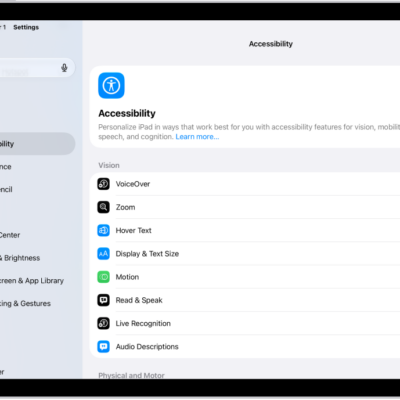
With built-in accessibility features for mobility, you can navigate and interact with iPad using just your eyes, spoken commands, assistive devices, an external keyboard, and more. You can also set options so it’s easier to use gestures and press iPad buttons.
These features let you navigate your iPad hands-free, let iPad type for you, connect other inputs, and control other devices. You can even customize gestures and adjust the sensitivity of your input.
To explore accessibility features for mobility, go to Settings > Accessibility, then scroll down to the Physical and Motor section.
| Action | Related features and settings |
|---|---|
| Navigate your iPad hands-free | Eye Tracking Head Tracking Voice Control Siri Shortcuts Call audio routing Use simple sounds to perform gestures |
| Let iPad type for you | Dictation Predictive text Scribble |
| Connect other inputs | Switch Control Keyboards Bluetooth accessories Head tracking Eye-tracking device iPad Magic Keyboard and Smart Keyboard |
| Control other devices | Platform Switching Apple TV 4K Remote |
| Customize gestures | AssistiveTouch AirPods Pointer scrolling speed Home or top button Face ID and attention |
| Adjust the sensitivity of your input | Slow Keys and Sticky Keys Siri Pause Time Touch accommodations |
Quick tip: You can control your go-to accessibility features and settings from Control Center or with the click of a button. Read our article, Quickly open features with Accessibility Shortcut.
See also