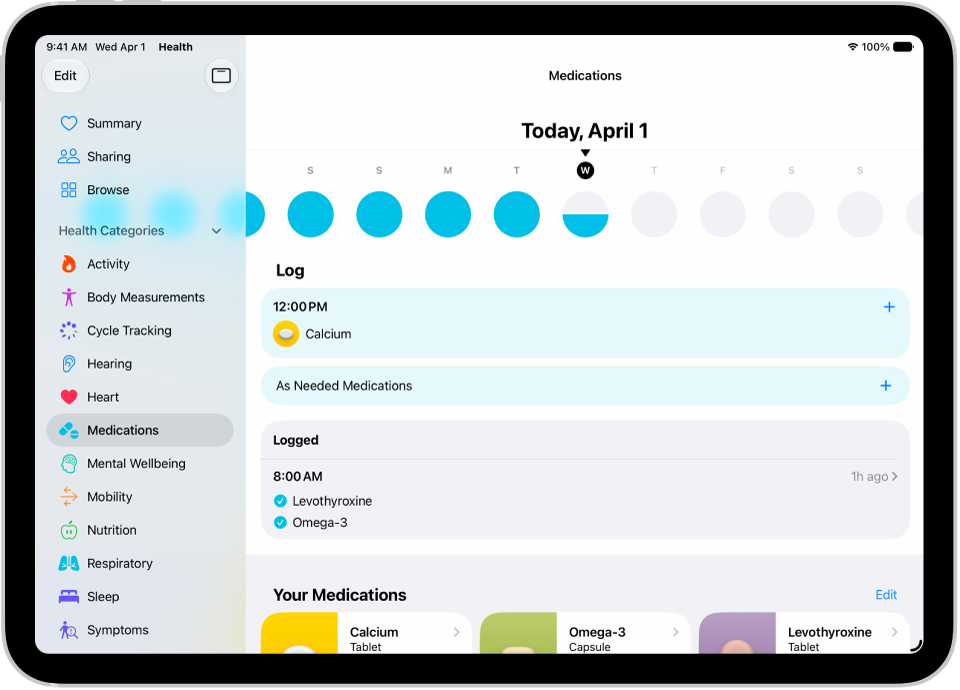
You can track and manage the medications, vitamins, and supplements you take. You can add and schedule a new medication, and choose the medication type, strength, shape, and colors.
If you set a medication schedule, the Health app reminds you to log the medication, and you can get follow-up reminders if it hasn’t been logged 30 minutes after the scheduled time. Critical Alerts show up on the Lock Screen with a sound, even when a Focus is on or iPad is muted.
Note: Some features are not available in all countries or regions. The Medications feature is not a substitute for professional medical judgment. Additional information is available on the labels of your medications. Consult your healthcare provider prior to making any decisions related to your health.
Add and schedule a new medication
- Go to the Health app on your iPad.
- Tap the Browse button and then tap Medications.
- Tap Add a Medication (to start your list) or Add Medication (to add to your list).
-
To identify the medication, tap the text field and enter the name. Then tap the medication.
In the U.S. only, suggestions appear as you begin typing. You can select a suggestion, or finish typing the name, then tap Add.
-
Do the following:
- Choose the medication type: Tap an option and tap Next.
- Choose the medication strength: Tap an option and tap Next.
-
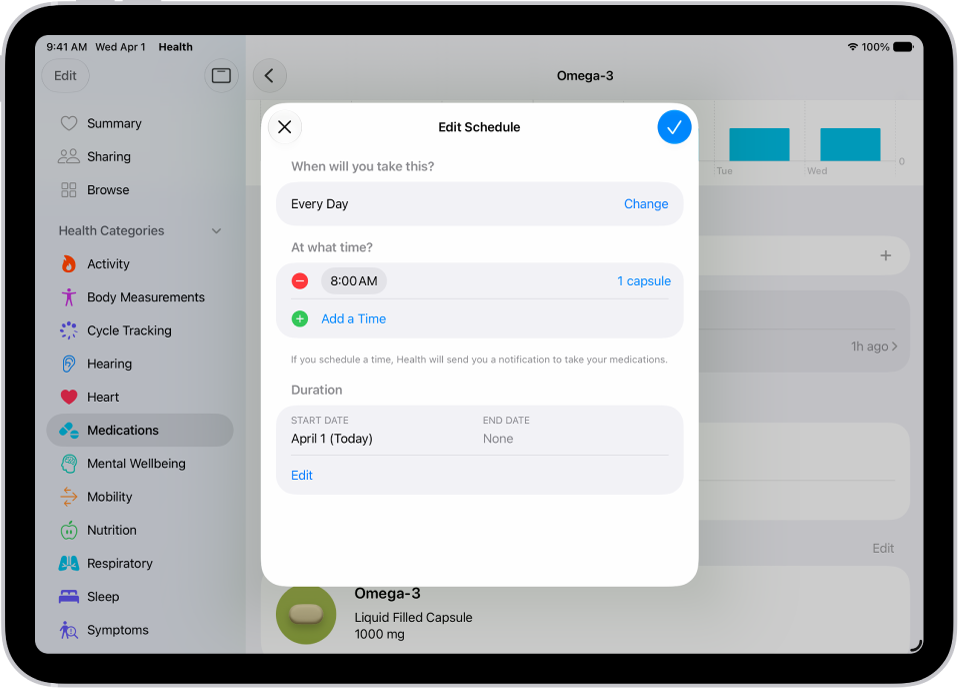
Set a schedule: Follow the onscreen instructions to set the frequency and duration of your scheduled medication. Then tap Next.
Tap Change under “When will you take this?” to choose a different schedule type, like On a Cyclical Schedule, or Every Few Days.
- Choose the shape (optional): Tap an option and tap Next.
- Choose the colors (optional): Tap an option and tap Next.
- When you’re finished, tap Done.
Turn on Follow Up Reminders and Critical Alerts
If you’ve set a medication schedule, you receive notifications from the Health app that remind you to log the medication. And when a medication still hasn’t been logged 30 minutes after the scheduled time, follow-up reminders can come too.
- Open the Health app on your iPad.
- Tap the Browse button and then tap Medications.
-
Tap Options at the bottom of the screen and turn on Follow Up Reminders.
When you turn on Follow Up Reminders, you can also turn on Critical Alerts for each of your medications. Critical Alerts appear on the Lock Screen and play a sound (even if a Focus is on or iPad is muted).
-
Tap Critical Alerts and tap the button next to a medication. Tap Allow.
To turn off Critical Alerts, go to Settings > Apps > Health > Notifications, then tap the button next to Critical Alerts.
Change the schedule for a medication or update other information
- Open the Health app on your iPad.
- Tap the Browse button and then tap Medications.
- Scroll down to Your Medications. Then do any of the following:
- Change the schedule for a medication: Tap a medication, scroll down to Schedule, tap Edit, and tap a field to change it.
- Change the icon, nickname, or notes for a medication: Tap a medication, scroll down to Details, tap Edit to change the icon or tap either of the text fields, and make your changes.
- Reorder your list: Tap Edit above the list of your medications, touch and hold the Reorder button for a medication and drag it to a new position. Then tap the Done button.
- Archive a medication: Tap a medication, scroll down, and tap Archive Medication.
- Make an archived medication reappear in your list of medications: Tap Edit above the list of your medications and then tap the Add button next to the medication name, then tap the Done button. Any schedule you previously set is not preserved.
- Delete a medication: Tap a medication, scroll down, and then tap Delete Medication.
- Change how you receive notifications about taking medications: See View and respond to notifications and Change notification settings.
Log when you take a medication
Scheduled or unscheduled, any medication can be logged at any time. Your iPad reminds you when it’s time to log your medications by default, based on the schedule you’ve created in the Health app.
Note: Your Health app data syncs across devices when they’re signed in to the same Apple Account, online, and running the latest OS version.
- Open the Health app on your iPad.
- Tap the Browse button and then tap Medications.
- Select a day at the top of the screen.
- Do one of the following:
- Log whether you took a scheduled medication: Tap the name of a medication in the list below Log. Below the medication, tap Taken or Skipped.
- Log an unscheduled medication: Tap As Needed Medications in the list below Log. Below the medication, tap Taken.
- When you’re finished, tap Done.
Quick tip: When a notification arrives to log a scheduled medication, press and hold it and choose an option.
To review your history of taking the medication, tap the Search button, tap Medications, then tap the medication (in the list of your medications).
Share your medication list
- Open the Health app on your iPad.
-
Do one of the following:
-
Share your list (or just specific medications) with a loved one: See Share your data in Health.
Tip: If you add a new medication after you start sharing, add it to your shared list.
- Share your list as a PDF: Tap the Browse button, tap Medications, scroll down, tap Export PDF, tap the Share button, and choose an option.
-
Share your list (or just specific medications) with a loved one: See Share your data in Health.
See also